We have been working with dozens of clients over the years as their managed service partner (MSP), managing Infor applications. In 2020, we decided to make a list of some practices that have made our relationship with our clients more successful. You can employ these same practices with your MSP to achieve the same level of success.
Single point of ownership – Each member of our staff works with several customers on a daily basis. We often communicate with several managers, IT contacts, and dozens of users within dozens of clients. While this communication is highly efficient and facilitates progress well, it is imperative that communication regarding important decisions are handled by one key person on each side. The most successful model we have found is if one of our managers reports directly with a manager at the client’s end and all decisions regarding projects, progress, personnel, and money are made between those two designated people. Otherwise things my get approved by someone who doesn’t have the proper authority to approve the work, which is never a good thing.
Change control inclusion – Including the MSP in your change control discussions is extremely valuable. Your MSP is in charge of several applications and is often the only party within the organization that is aware of the impact of changes to certain applications. It is also important that your MSP understand your change control processes so as to not accidentally circumvent them.
Proper planning – Clients who meet with us on a quarterly basis to do forward budget planning and general forecasting have shown a higher level of satisfaction and derived more efficiency from our services. This usually takes the form of a one hour meeting each quarter to look back on the past quarter and look forward to the next three quarters with major milestones and projects in mind.
Clear the path – We work with many hospitals, banks, government organizations, insurance companies, schools and retail chains. Our clients have all agreed to a remote method through which we can manage their systems. However, these systems vary quite a bit and some cause more waste than others. Work with your MSP to determine if there is a method which suits their workflow better and that you can also accommodate.
Full transparency – Trust in a relationship is built over many years and can be destroyed within a short moment. That is why full transparency is vital to a relationship with your MSP. This spans all facets of your relationship. From proposals, to time sheets and invoices, we go out of our way to disclose every available bit of information to customer so they can have full visibility into our progress, work efficiency, and their overall financial commitment.
https://www.nogalis.com/wp-content/uploads/2020/05/5-Best-practices-in-working-with-Managed-Service-Providers.jpg470470Angeli Mentahttps://www.nogalis.com/wp-content/uploads/2013/04/logo-with-slogan-good.pngAngeli Menta2020-05-28 08:17:372020-06-01 18:46:595 Best practices in working with Managed Service Providers
Our article “Configuring Lawson for LDAP Signing” takes you step-by-step through configuring your environment for the new LDAPS requirements being enforced by Microsoft later this year. That article discusses how to configure IFS for LDAPS, but after we got a few questions about the procedure, we decided to clarify it further.
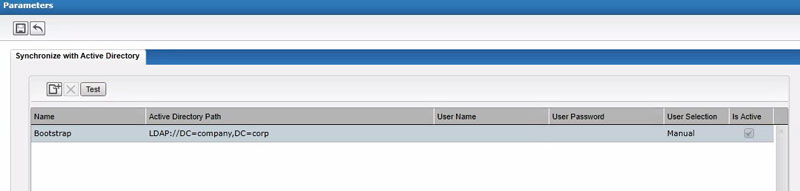
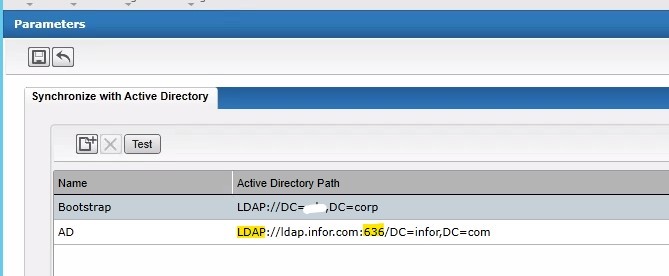
When IFS is installed, a “Bootstrap” parameter is created to link to the root of your active directory. This parameter is only utilized to bring users from AD into Lawson. It should look something like this:
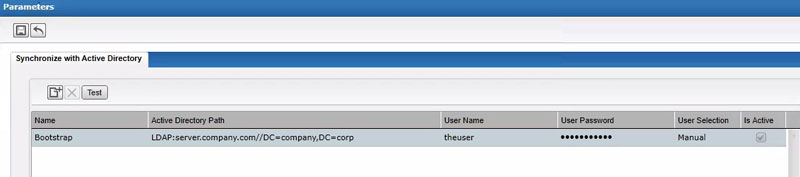
To configure IFS for LDAPS, you will need to update your Bootstrap to use the host name of one of your domain controllers, and you will also need to provide the credentials of a user that has authorization to search the AD tree. This bootstrap connection is not actually used for authentication, so it shouldn’t be a problem that you have multiple DCs. It is only used to bring users into IFS from Active Directory. As long as the user connecting to that DC has the ability to search the tree for users, you should be fine.
Your URL is going to look something like LDAP://server.company.com:636/DC=company,DC=com. Essentially, you just need to add the server name and port to the bootstrap value. Remember that the protocol is “LDAP” not “LDAPS”. To change the IFS parameters, just click into the boxes, and start typing. Click the “Save” button at the top when you are done.
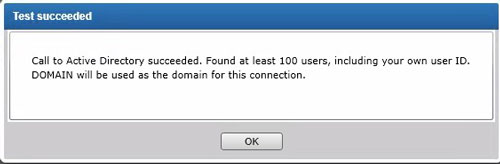
To make sure your settings are working properly, click the “Test” button, and you should receive this message:
https://www.nogalis.com/wp-content/uploads/2020/05/Setting-Up-IFS-Bootstrap-For-LDAPS.jpg470470Angeli Mentahttps://www.nogalis.com/wp-content/uploads/2013/04/logo-with-slogan-good.pngAngeli Menta2020-05-22 08:09:032020-05-21 18:44:53Setting Up IFS Bootstrap For LDAPS
The normal LDAP Signing ports are 636 and 3269. Port 636 is the default signing port, and 3269 is called the Global Catalog Port. Here is why you should only use port 3269 (if possible) when updating your LDAP Bind for LDAPS.
The default port (636) is used for searching the local domain controller, and it can search and return all attributes for the requested item. The Global Catalog Port also searches the local domain controller, but only returns attributes marked for replication to the Global Catalog. If you don’t need all attributes to be searched and returned (and for Lawson binding, you don’t), then using Global Catalog can be much faster.
If you choose to use the default port, be aware that there might be some performance issues, and maybe even timeouts, when users are logging in. This can impact you, even if you are authenticating AD FS, because some pieces of the application still authenticate using LDAP Bind. For instance, IPA nodes that have to authenticate against the Lawson server (such as file access, Lawson Query, etc.)
If users are experiencing latency or timeouts when logging in, you may see a “connection reset” error in your LAWDIR/system/security_authen.log file, similar to the error below:
Another symptom of a slow default port search is IPA processes throwing a login error when trying to make a connection to Lawson. You might see an error similar to this one in your Work Unit logs. This exception was thrown on an RM Query Node:
The best course of action if you are experiencing these issues is to update your LDAP Bind to use port 3269 instead of 636. Check out our article on Configuring Lawson for LDAP Signing for step-by-step instructions on how to update the LDAP Bind.
https://www.nogalis.com/wp-content/uploads/2020/05/Why-You-Shouldn’t-Use-Port-636-to-Bind-to-LDAP-Signing.jpg470470Angeli Mentahttps://www.nogalis.com/wp-content/uploads/2013/04/logo-with-slogan-good.pngAngeli Menta2020-05-18 07:24:172020-05-17 18:52:14Why You Shouldn’t Use Port 636 to Bind to LDAP Signing
We’ve been getting a lot of questions about the certificates needed for LDAPS. This article will provide some general information about working with certificates, and the specific requirements for LDAPS.
To create a certificate, you need to retrieve it from a certificate authority (CA). An example of a CA is a site such GoDaddy, but there are many, and your networking team probably already has a CA that they use.
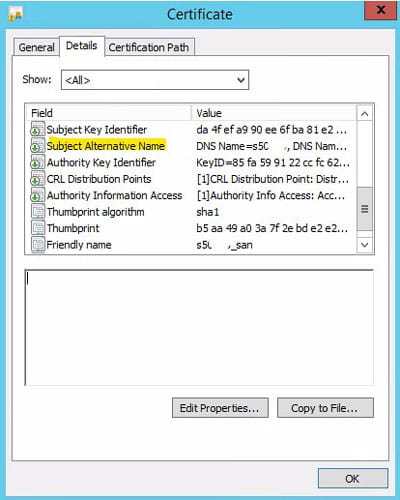
The certificate needs to have a Subject Alternative Name, and it needs to be exported as PKCS12 with a private key. When you or your networking team retrieves the certificate, they will apply a password to the private key. They will need to provide you with the “.pfx” certificate file with the private key exported, and you will need that private key password. You will need the file and the password so that you can import the certificate to the AD LDS service account.
The requirements for your LDAPS certificates are actually pretty standard. It is important to note that the certificate must be created with a Subject Alternative Name. That is becoming more standard, but we’ve seen plenty of certificates that don’t have a SAN, so just make sure yours does.
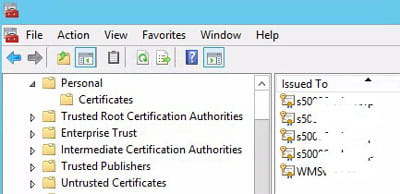
You can view the properties of your certificate in the Microsoft Management Console. You can do this on the server, or from another computer as long as you have network access to the server where the computer resides.
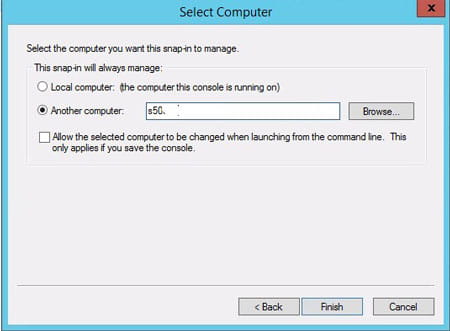
To view certificates in MMC, click start and search for “mmc”. Select “mmc.exe”. This will open the Microsoft Management Console. From there, click File > Add or Remove Snap-In. Choose “Certificates”. Select “Computer Account”. If you are on the server where you want to view the certificate, select “Local Computer”. Otherwise, select “Another computer” and enter the server name:
Click Finish and then Ok. The certificates for that server will populate in MMC. Typically, you will be looking in the personal store. Simply double-click on the certificate that you want to review, go to details, and look at the properties for the certificate. You can see all the properties, including the Subject Alternative Name.
Login into Lawson Landmark via Richclient or the cloud-based Process Server Administrator.
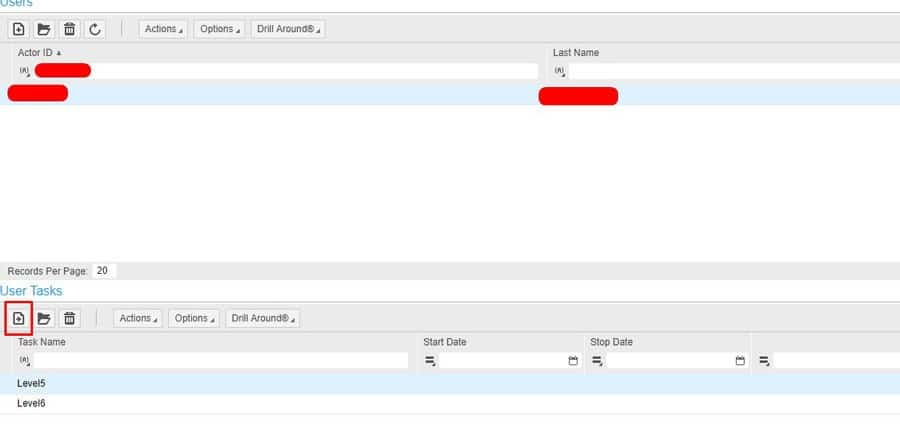
In PSA, go to Configuration >> User Configuration >> Users
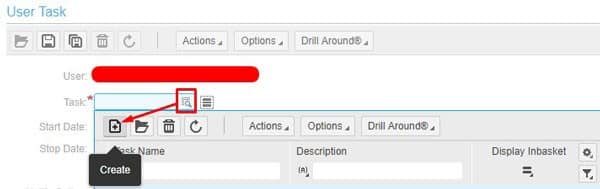
Select the user we will be adding the filter to then under User Tasks, select create a new filter. (this will be a backup or temporary filter for the user)
Now create the new task (a new tab may open in your browser):
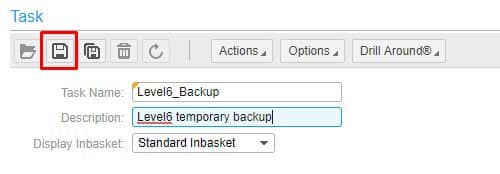
Type in task name and description, save:
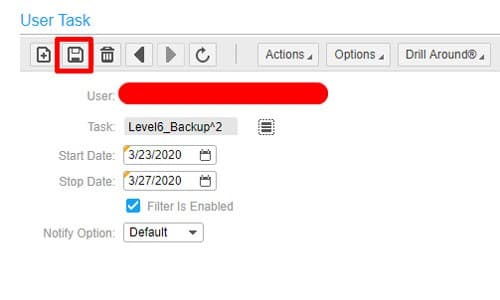
Back under user task, select the newly created filter, select the dates you want and save. For our example today is 3/20/2020, we will be setting the date in the future to activate for 3/23/2020 to 3/27/2020:
Now select your new temporary filter and add your filter keys in which you want to approve for:
That’s all there is to it, this filter will enable on 3/23/2020 and disabled again on 3/27/2020 and is useful for users that take time off and need someone to cover them.
https://www.nogalis.com/wp-content/uploads/2020/04/How-to-setup-a-temporary-requisition-approver-user-to-start-and-end-at-a-certain-date.jpg470470Angeli Mentahttps://www.nogalis.com/wp-content/uploads/2013/04/logo-with-slogan-good.pngAngeli Menta2020-05-01 08:25:232020-04-28 20:54:11How to setup a temporary requisition approver user to start and end at a certain date
Infor KB 2096388 recently came out this year (2020) updating Employee Manager Self Service. In doing so it brought with it an added table that users will not have access to. (Also, for that same KB, a recent notice came out on 3/26/2020 so revisit that article for latest info).
After you’ve applied the EMSS Patch for your version of Lawson. Table PRREGPARM will now be secured from ESS users when accessing their W-4 Tax Withholdings.
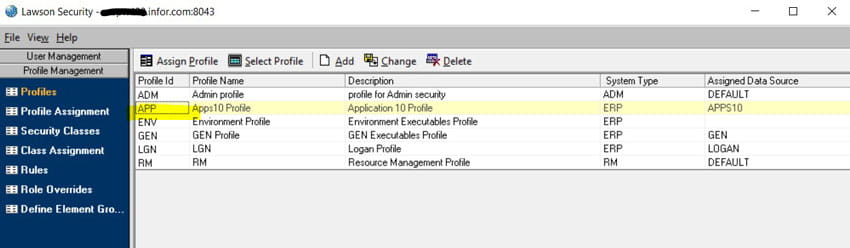
To fix this, go into your Lawson security Profile:
Locate your Employee File Table access class, most commonly named EmployeeSSFile.
Add a new rule to this class:
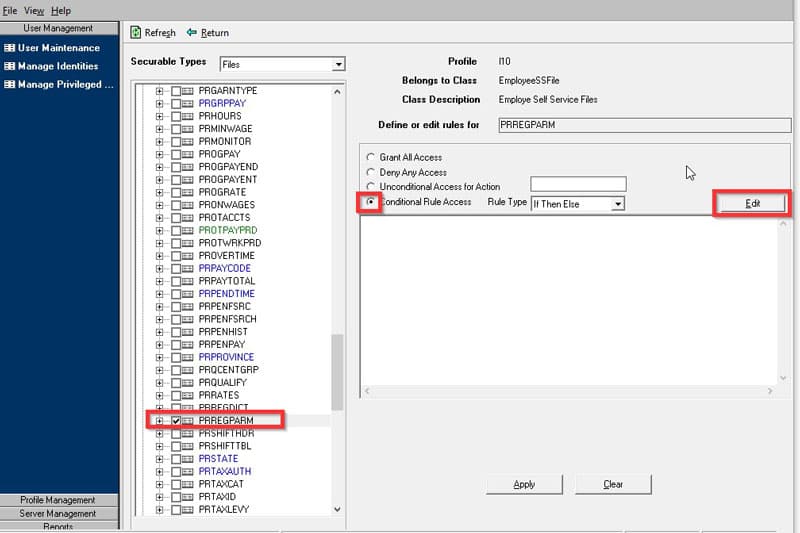
Choose “Files” under the “Securable Types” drop down. Expand the + sign next to the PR system code. Scroll down and locate PRREGPARM. Now select the check box next to the program, select conditional rule access and click edit as shown below
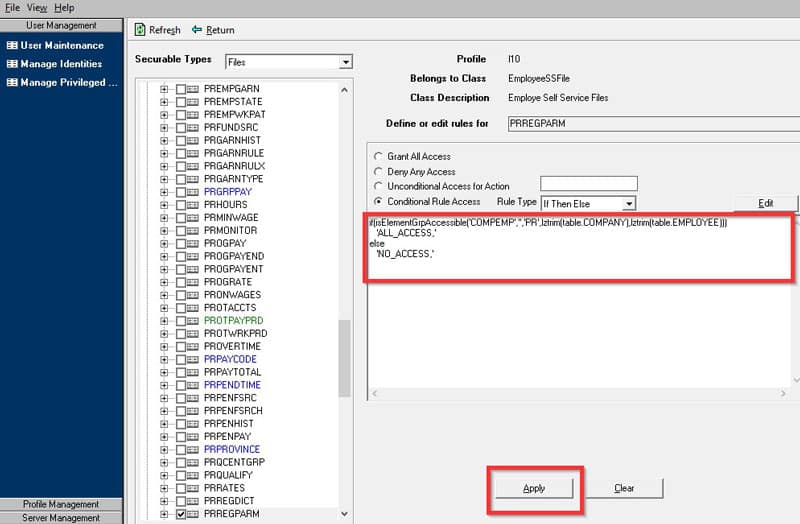
In the Expression builder editor, write the rule closely to the screenshot below (You may not have an Element Group named COMPEMP or may be using a different element group all together). This secures access to the employees own personal information and no one else. Click the Apply button to save the rule.
https://www.nogalis.com/wp-content/uploads/2020/04/Getting-ahead-of-the-EMSS-Patch-W4-Patch-Security-Violation.jpg470470Angeli Mentahttps://www.nogalis.com/wp-content/uploads/2013/04/logo-with-slogan-good.pngAngeli Menta2020-04-28 09:22:542020-04-28 09:22:54Getting ahead of the EMSS Patch W4 Patch Security Violation
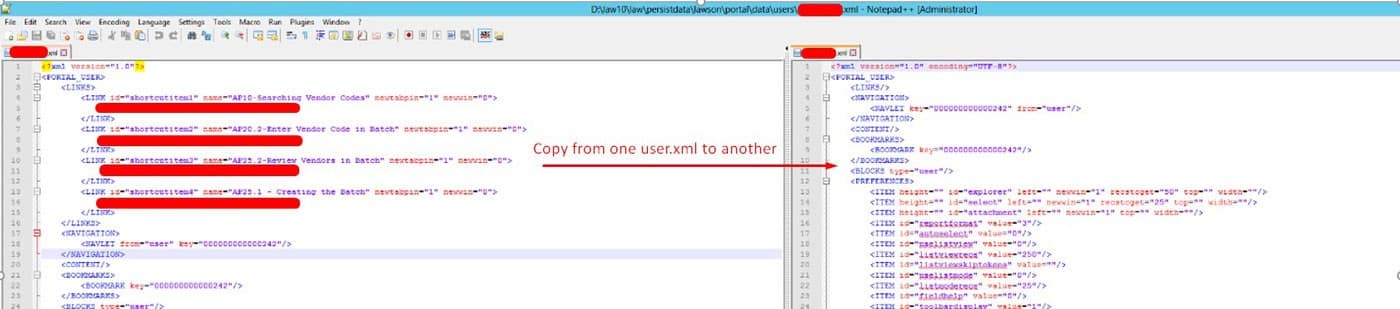
In Lawson portal, you may have a user with several dozen favorited Lawson forms and a new user coming in will inevitably have a hard time maneuvering the software. To simplify this process, you can simply copy one users’ favorites to another if you have direct access to the Lawson LSF server folder directory.
First login to your LSF server.
Go to %LAWDIR%\persistdata\lawson\portal\data\users
Locate and open the username of the person you want to copy the favorite URLs from. The format will be in xml Example: username.xml
Now Locate the username.xml you want to copy to.
Simply copy and paste from one username.xml to the other username.xml as shown below:
Save the XML file, login to Lawson Portal as an Admin user and clear IOS cache. Notify the user to clear their browser cache as well and to relog into Lawson Portal. They should now see all the copied Favorites!
https://www.nogalis.com/wp-content/uploads/2020/04/How-to-Mass-Copy-Lawson-Portal-Favorites-from-one-user-to-another.jpg470470Angeli Mentahttps://www.nogalis.com/wp-content/uploads/2013/04/logo-with-slogan-good.pngAngeli Menta2020-04-23 08:29:442020-04-23 09:37:57How to Mass Copy Lawson Portal Favorites from one user to another
You may have a report in LBI that you want to create historical instances of as well as refresh data from time to time. Let’s go over how to do this.
Login into LBI as an admin user and go to Reporting Services Administration
Go to Maintain Reports and open the report via the [Details] link next to the report name.
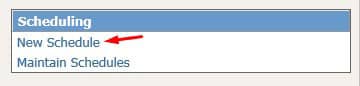
In the report under Scheduling, select New Schedule
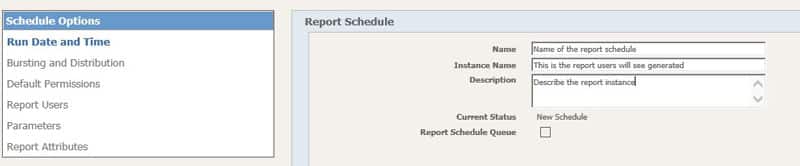
Under Run Date and Time fill in the:
Name (schedule name)
Instance Name (name of generated report), you must manually re-schedule if you want to include specific unique information in the name like date.
Description
Under Time and Frequency:
Set the Scheduled Run Time (time of day)
Time and Frequency
Schedule for days in a Week – This will run for every day in the week you select regardless of date.
Schedule for days in a Month – This will run the day you select in a month. Please note that there are specific check boxes for First and Last day in the month. If a month does not have a day like the 30th or 31st, it will skip that month.
Effective Date Period
Effective start date: This date must be set after current date and time.
Expiration date: The report will no longer run this schedule after this date and time.
The remaining Schedule Options should typically mirror the report options. Any customizations will not change the base report.
https://www.nogalis.com/wp-content/uploads/2020/04/How-to-create-an-Lawson-Business-Intelligence-LBI-Report-Schedule.jpg470470Angeli Mentahttps://www.nogalis.com/wp-content/uploads/2013/04/logo-with-slogan-good.pngAngeli Menta2020-04-20 07:39:012020-05-17 18:28:50How to create a Lawson Business Intelligence (LBI) Report Schedule
LDAP Signing (LDAPS) provides a way of securing traffic between your applications and AD LDS or Active Directory. In the second half of 2020, Microsoft plans to release a patch that will enforce LDAPS traffic by default. You can get more information about the Microsoft KB here.
What does this mean for my applications?
Well, even if you are using AD FS for authentication, your applications will be impacted. Some pieces of Lawson, such as BPM, are still going to be bound to LDAP, as is the Rich Client login for Landmark. Also, Lawson still communicates with AD LDS, so that would be impacted as well. Note that if you are using IBM’s Tivoli Directory Server (IBMTDS) for your Authentication Data Store, you will not need to make any changes to the Authentication Data Store. However, you will need to make the LDAP Bind changes for any of your applications that use LDAP Bind.
What will happen if I don’t prepare?
If you don’t configure your Lawson and Landmark environments to accept LDAPS traffic, then you will experience some application failures in these areas:
LASE will fail to start
Logins that use LDAP bind will no longer be able to communicate
Lawson Security Administrator
BPM
Microsoft Add-ins
Landmark Rich Client
IFS will no longer be able to sync users from Active Directory
When is this happening?
Microsoft has said they will release the patch that enforces LDAPS in the latter half of the year. They already released a patch in March that includes additional auditing and logging, and allows for enforcement via Group Policy. This update will not have a direct impact on your applications, and it is safe to take the update any time.
When should we make the configuration changes?
You can make the changes now, or any time before you take the LDAPS enforcement patch. There is not a negative impact on your applications if you make the changes now, and in fact, it is recommended that you do them as soon as you can.
Are any other applications affected?
No, the only applications affected are those that use LDAP Bind, or communicate with AD LDS. Applications like LBI or MSCM, which use DSP for authentication, will not be affected in any way.
What do we need to do?
Glad you asked! Here is a step-by-step guide for configuring your Lawson and Landmark environments for LDAPS. (NOTE: It is important that you follow these steps in order!! All of the certificate work MUST be done before the Lawson/Landmark configurations are done. Also, this document will indicate whether the work needs to be done in LSF only, Landmark only, or both.)
Prerequisites
Here is what you will need before you get started.
SSL certificate for the AD LDS server with the private key (.pfx) included
Note: Certificate must contain a SAN (Subject Alternate Name)
Can be an existing wildcard cert, or the cert already installed on your LSF server (if it meets the requirements)
You will also need to know your private key password for the cert
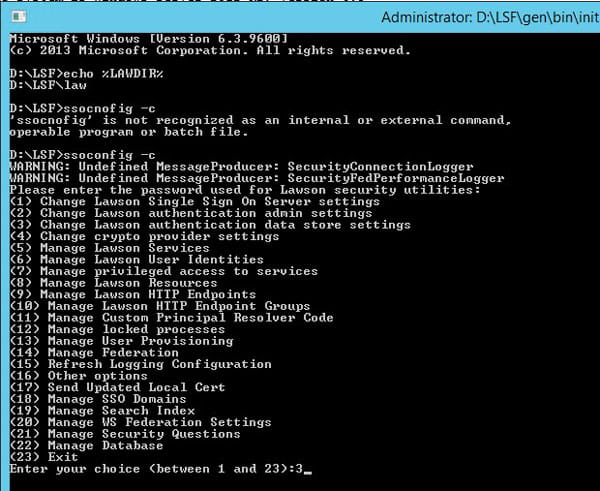
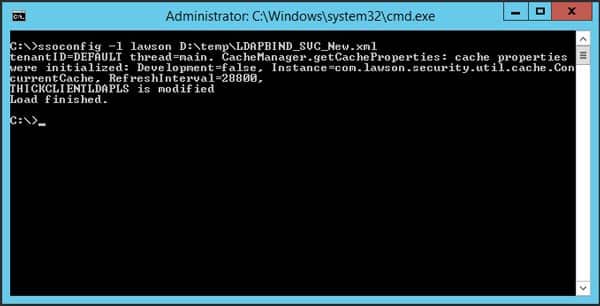
ssoconfig password
LDAP Bind password
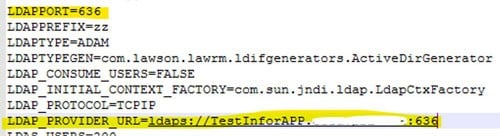
This is the password for the user in the LDAPBINDDN setting in your LAWDIR\system\install.cfg file
Verify the port you are using for LDAPS (typically 636 or 3269)
636 is the standard SSL, 3269 is the Global Catalog Port
Global Catalog is preferred when the LDAP servers support it
Take snapshots of all your servers. Just do it!
LDAP Certificate – AD LDS
This procedure only has to be performed on the server that hosts AD LDS (most likely your LSF server).
1 – Add the LDAP Certificate to the AD LDS Service
Identify the AD LDS service instance in your Microsoft Services list
Also make note of the account that is running the service for later use
Launch MMC (Microsoft Management Console)
Choose File > Add/Remove Snap-In
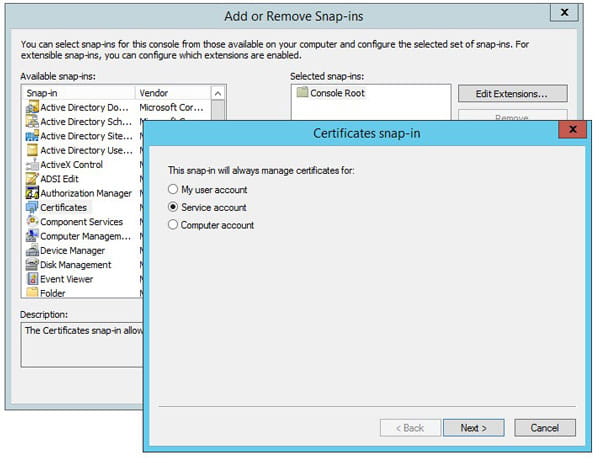
Add the certificates Snap-In
Choose “Service” account and click “Next”
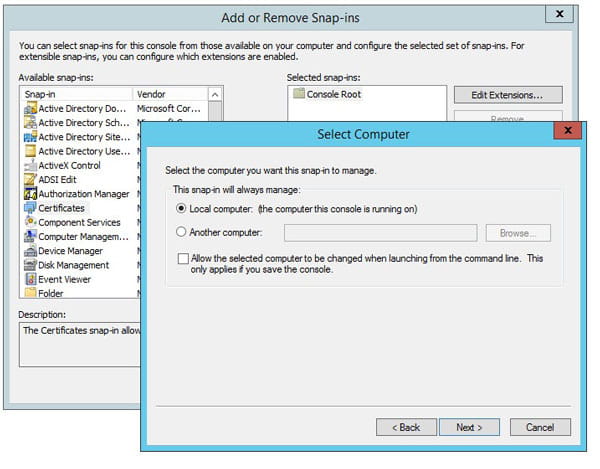
Choose “Local Computer” and click “Next”
If you are not on the computer hosting AD LDS, then chose “Another computer” and provide the server name
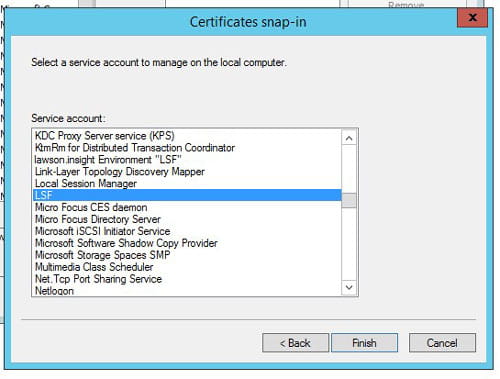
Choose the Service Account you identified above and click “Finish”
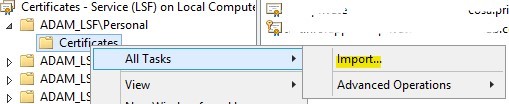
Right-click on the service that was added and select “All Tasks > Import”
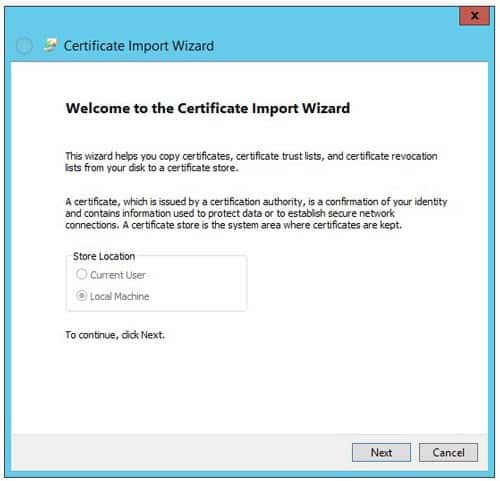
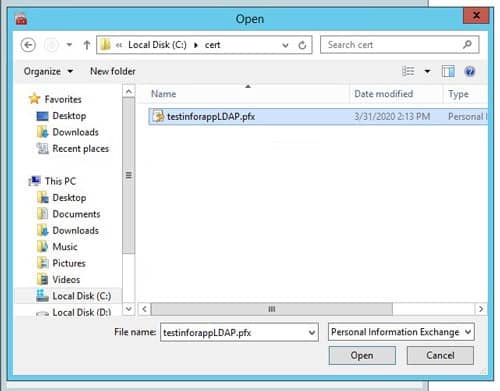
Click next and browse to the .pfx certificate file. Click “Next”
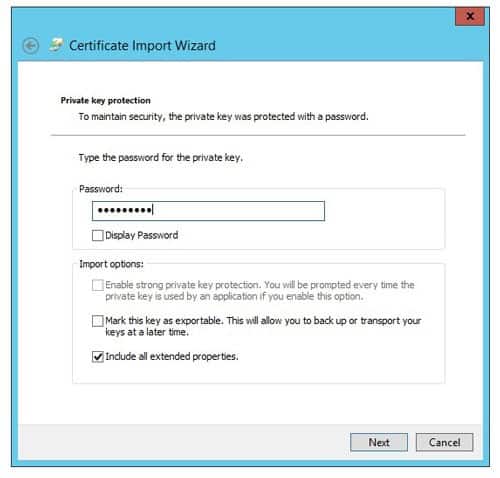
Enter the private key password
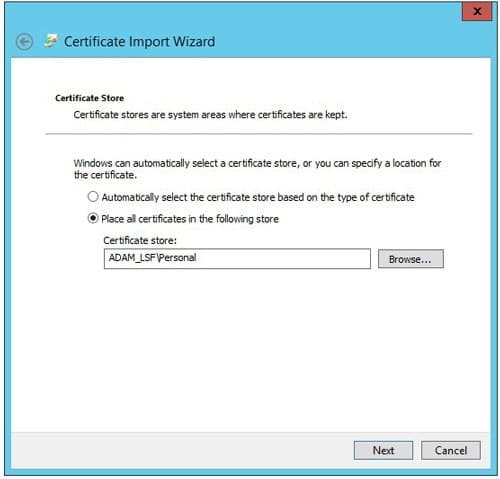
Place the certificate in the Personal store for the AD LDS service
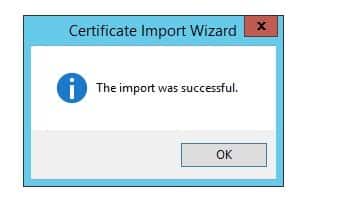
Click Next then Finish
2 – Export Certificate (.cer) file
Export the certificate as a Base-64 encoded X.509 (.cer) for the OS and WebSphere Java updates.
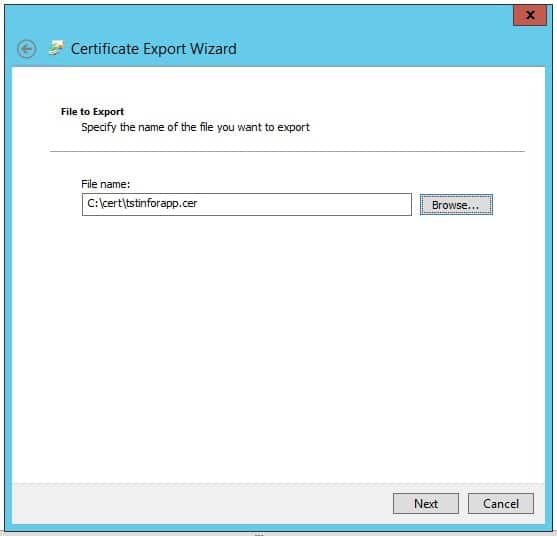
In MMC, right click the certificate > All Tasks > Export and click Next
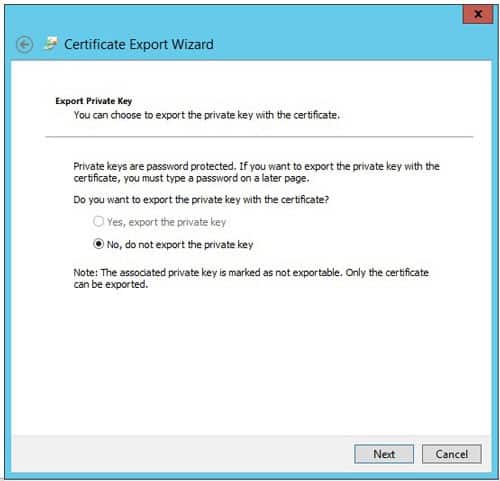
Do not export the private key
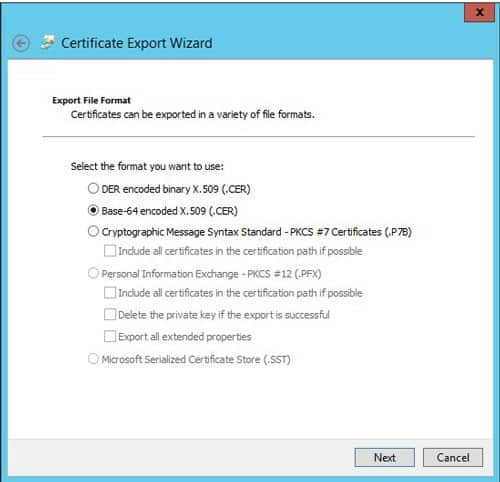
Choose Base-64 encoded X.509 (.cer) and click Next
Choose a location to save the file for later use
Click finish
3 – Grant Permissions on Certificate Container
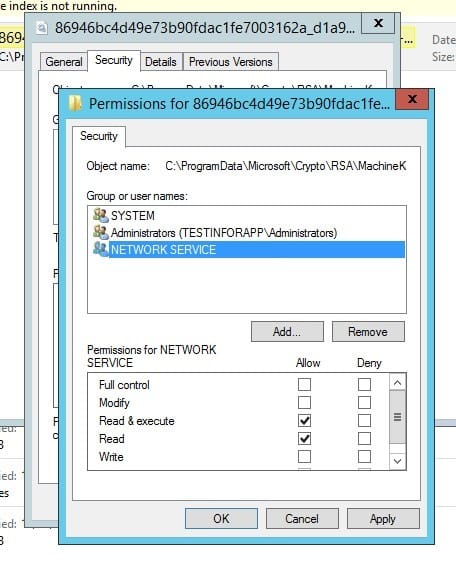
This is where you will need the service account that is running the AD LDS service (you made a note of that earlier). That user needs to be granted Read and Read & Execute permissions on the Unique Container file, as well as the Machine Keys directory.
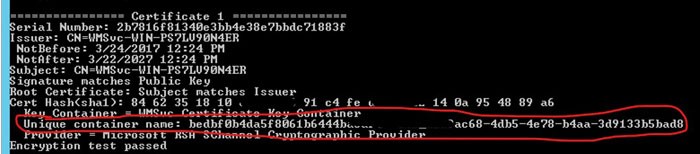
From an administrator command window, run command certutil -store MY
Find the LDAPS cert(s) by comparing the cert hash to the thumbprints on the certificate properties in MMC
Make note of the Unique Container Name
Navigate to the “Keys” or the “MachineKeys” folder
This can be found in multiple places depending on your server configuration
Some possible locations: C:\ProgramData\Microsoft\Crypto\RSA\MachineKeys or C:\Documents and Settings\All Users\Application Data\Microsoft\Crypto\RSA\MachineKeys or C:\Documents and Settings\All Users\Application Data\Microsoft\Crypto\Keys
You could also do a file search for the unique container name
Grant Read and Read & Execute permissions on the Keys/MachineKeys directory AND the Unique Container file
NOTE: if you have a nested certificate, you may have more than one unique container file. Grant permissions on all of the containers related to your LDAP Cert.
Stop the LSF environment service
Restart the AD LDS service
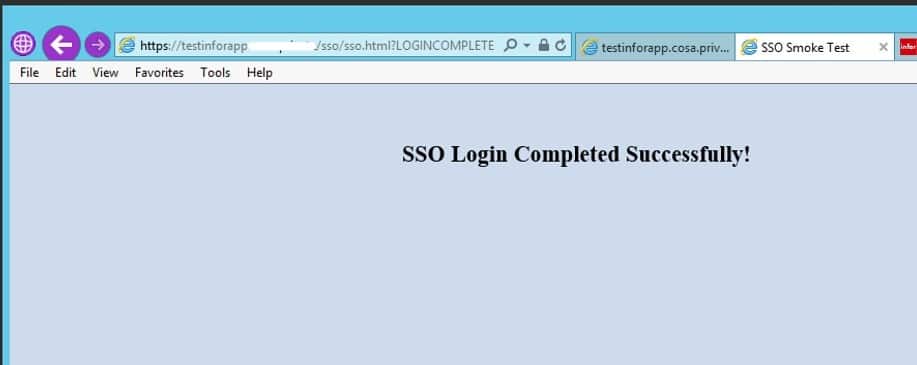
4 – Smoke Test
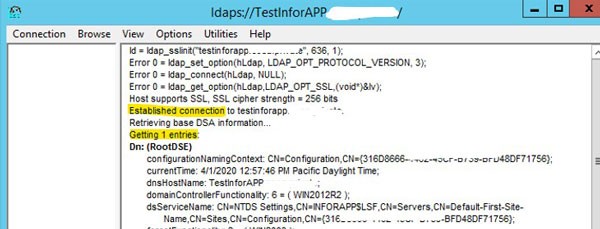
Open the ldp.exe tool
Type the server FQDN, SSL port, and check the SSL box
Click “OK”
Make sure a connection is established, and the tool finds an entry
Do not proceed until you have a successful smoke test
Hint: If the ldp.exe tool has any trouble connecting, there will typically be some helpful error messages in the Event Viewer
LDAP Certificate – WebSphere
This procedure needs to be performed for both the Lawson and Landmark instances of WebSphere.
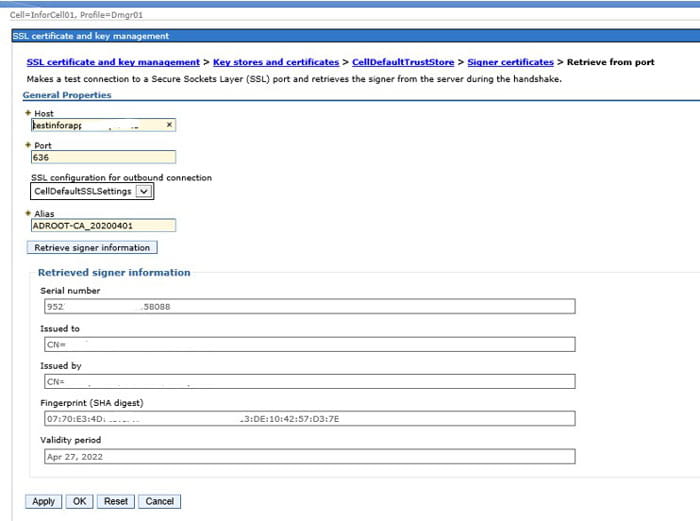
In this procedure, you are going to update the Default Trust Store on both the Cell and the Node in WebSphere. These instructions demonstrate how to get the LDAPS certificate into WebSphere using the “Retrieve from port” button. It’s the simplest way, but you do also have the option of manually adding the certificate file (.pfx) in each store.
Access the WAS Admin Console and navigate to: Security > SSL certificate and key management > Key stores and certificates
Click the CellDefaultTrustStore > Signer certificates
Click the Retrieve from port button.
Host: <the server where your LDAPs certificate was added to the AD LDS service>
Port: <the port that your network team is using for LDAPS>
Alias:<give it a meaningful name>
Click Retrieve signer information.
Once you click “Retrieve signer information”, the bottom of the form will be populated with information about your certificate.
Click OK & save changes.
Synchronize the nodes
Perform these same steps for the NodeDefaultTrustStore
Remember to do this in your WebSphere environment for both Landmark AND Lawson!
LDAP Certificate – Java
This procedure needs to be performed on both the Lawson AND Landmark servers.
Adding certificates to the Java store can be done using either the ikeyman GUI utility, or the keytool command line utility. The below instructions will demonstrate both methods. Whichever utility you use, the procedure is the same for both OS Java and WebSphere Java.
1 – Add Certificate to OS Java (ikeyman example)
This is the Java instance that is used by LSF or Landmark. Here is an example of updating cacerts using the ikeyman utility.
Set environment variables (<APPINSTALLDIR>\enter)
Run command “where java” to determine where LAW_JAVA_HOME is located
NOTE: You may have multiple instances of Java, and you need to make sure you apply the cert to all of them!
Back up file LAW_JAVA_HOME\jre\lib\security\cacerts
Run the ikeyman utility at WAS_HOME/bin
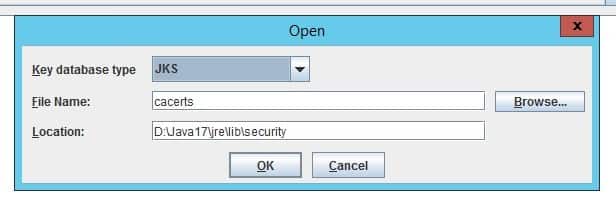
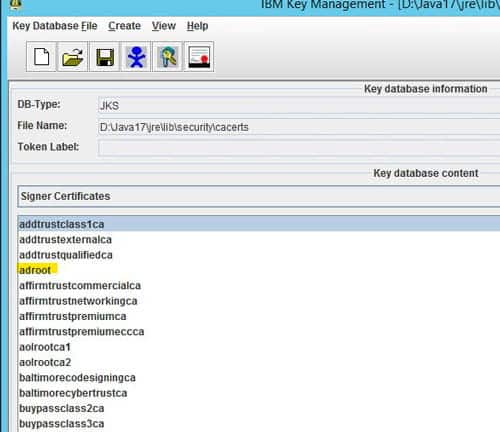
Open the LAW_JAVA_HOME/jre/lib/cacerts file and select the Key database type of JKS
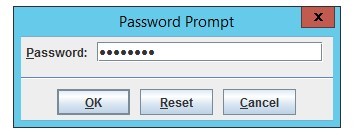
Type password “changeit”
This is the default password for the Java certs files
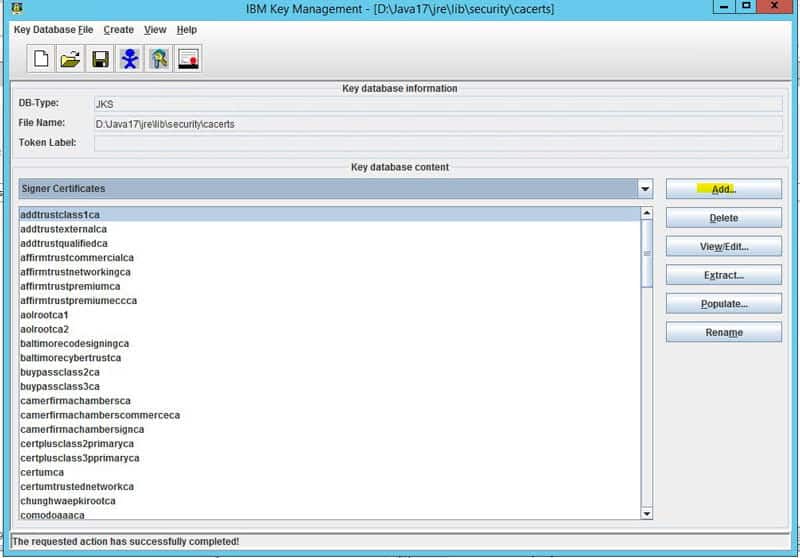
Select “Signer Certificates” in the dropdown
Click “add” and navigate to the ldap certificate exported earlier
Give it a meaningful name
2 – Add Certificate to WebSphere Java (keytool example)
This is the Java instance that is installed with WebSphere. Here is an example of updating cacerts using the keytool utility. NOTE: You will most likely have more than one Java folder in the WebSphere install directory. It is important to update all instances.
Find your WebSphere Java directories (may have multiple)
Located at WAS_HOME
“Base” java and version-specific java (i.e. WAS_HOME/Java and WAS_HOME/Java_1.7_64)
Make note of these directories
Back up the file(s) WAS_JAVA_HOME/jre/lib/security/cacerts
Add signer certs using keytool command line utility
Open an administrator command window
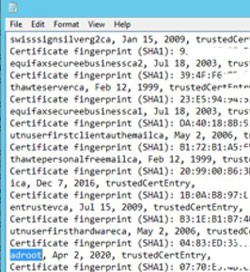
Get a list of the existing certs and validate using command
Log into Lawson and perform a couple of inquiries/batch jobs
Landmark Configuration Changes
This procedure is performed only on the Landmark Server
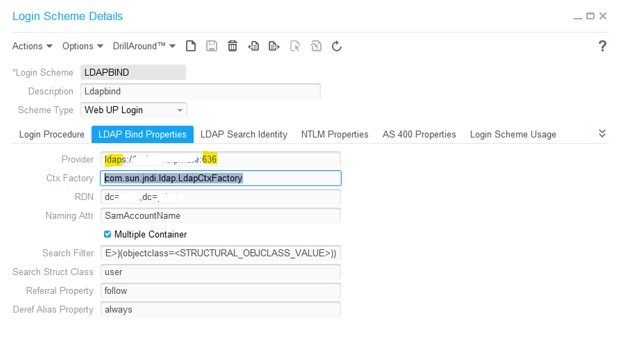
1 – Update LDAP Bind Settings
Launch Rich Client for the gen data area
Search for Login in the search box
Double click the Login Scheme business class
Search for the LoginScheme that is associated with the LDAP Bind Service (you may have more than one)
Double click on the LoginScheme to open the properties screen
Click the LDAP Bind Properties tab
Click on the LDAP Bind Properties tab
Update the port and protocol on the Provider entry
Save the update
Restart the Landmark Server
2 – Smoke Test
Make sure you can still log into Rich Client using your AD username & password
If you use IPA, it is also a good idea to run some IPA Smoke Tests to make sure that the authentication/communication between Landmark and Lawson is still functioning
This procedure is performed only on the IFS Web Utility, and is only required if you are using AD FS for authentication
Ensure that a certificate for the AD server is present in your IFS Server’s Trusted Root Certificate Store
Update the AD Configuration in IFS
IFS > Configure > Parameters
Select your Active Directory configuration (not Bootstrap)
Update the URL with your LDAPS port, but the protocol should still be LDAP
Make sure you can still synchronize users in IFS
Conclusion
And now you are ready to enforce LDAPS connections! Be sure to also watch the webinar that we gave on this topic April 16, 2020. You can find it in the education section on our website.
As you might have heard, Microsoft is hardening their security with LDAP channeling and LDAP signing in an update coming sometime in the 2nd half of 2020. Any applications that rely on LDAP connections to Active Directory Domain Services (AD DS) or Active Directory Lightweight Directory Services (AD LDS) need to be converted to LDAPS. LDAPS is a secure connection protocol used between applications like Lawson and the Network Directory or Domain Controller. In this webinar, we will provide you step-by-step instructions for preparing your Lawson and Landmark environments to work with LDAP Signing.