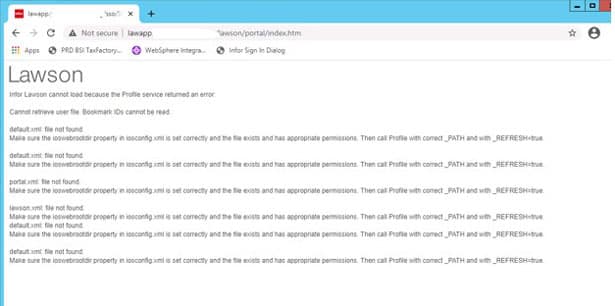
After logging into Lawson, if you see the below error “Cannot retrieve user file. Bookmark IDs cannot be read”, there is a good chance that the iosconfig.xml file has some invalid values. The error messages might point you directly to this file. It can be found at LAWDIR/system. Make sure that the ioswebrootdir attribute points to the correct location. This location should be LAWDIR/persistdata. Make sure there are no extra spaces or directory names in this value.
After updating the value, reboot the server or restart the WebSphere services.
https://www.nogalis.com/wp-content/uploads/2021/01/Cannot-Retrieve-User-File.jpg470470Angeli Mentahttps://www.nogalis.com/wp-content/uploads/2013/04/logo-with-slogan-good.pngAngeli Menta2021-02-02 07:22:412021-01-28 10:36:42Cannot Retrieve User File
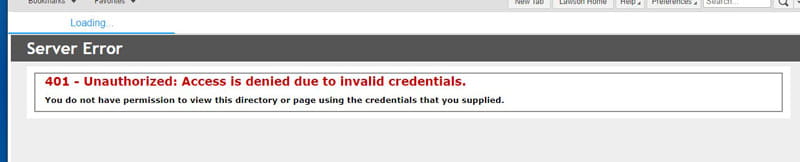
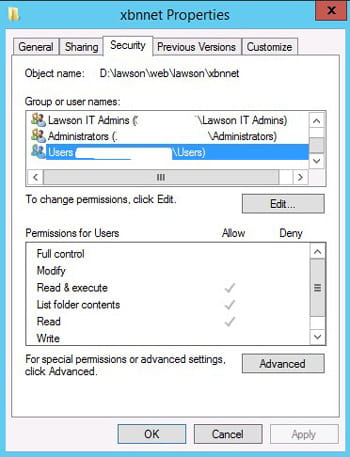
If you receive a 401 or 404 error when accessing ESS pages, you need to make sure that the server users have read/write access on the ESS directories. The directories that need this access are WEBDIR/lawson/xbnnet, WEBDIR/lawson/xhrnet, and WEBDIR/lawson/webappjs.
It is important to note that the permsmaint command does not set this security, and it must be set manually by a server administrator.
https://www.nogalis.com/wp-content/uploads/2021/01/401-Unauthorized-error-in-ESS.jpg470470Angeli Mentahttps://www.nogalis.com/wp-content/uploads/2013/04/logo-with-slogan-good.pngAngeli Menta2021-01-27 08:06:292021-01-19 20:14:58401 – Unauthorized error in ESS
Before doing any work on your WebSphere Application Server, it is a good idea to back up the profiles. To do this, navigate to <WAS_HOME>/bin. Run the command “manageprofiles.bat -listProfiles” to get a list of all the profiles that need to be backed up. Then run the command:
-manageprofiles.bat -backupProfile -profileName <profile name> -backupFile <full path to back up the file>
Make sure the full file path already exists.
Troubleshooting:
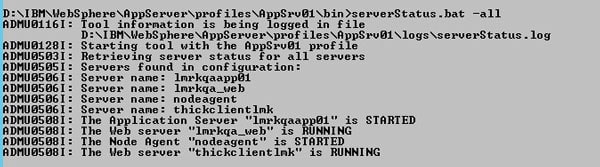
One common issue is if you already have a backup file in the backup directory with the same name. You also might get an error message if one or more of your servers is running. To see which servers are running, run the serverStatus.bat -all command. The deployment manager status can be reviewed from WAS_HOME/bin. Other servers can be viewed by navigating to the WAS_HOME/profiles/<profile you are checking>/bin. Sometimes you might also need to stop the web server(s) in IIS.
https://www.nogalis.com/wp-content/uploads/2021/01/Back-up-WAS-Profiles.jpg470470Angeli Mentahttps://www.nogalis.com/wp-content/uploads/2013/04/logo-with-slogan-good.pngAngeli Menta2021-01-22 07:48:532021-01-15 19:51:51Back up WAS Profiles
While configuring LDAPS, if you try logging into Lawson, and it behaves as if your user doesn’t exist, check the LAWDIR/system/security_authen.log. You may encounter an error similar to this:
Could Not Bind With privileged identity.
Thu Dec 3 14:27:49.397 PST 2020 – default–1104671165 – L(2) : Failed to get DN for user: lawson
Thu Dec 3 14:27:49.428 PST 2020 – default–1104671165 – L(4) : Set Content-Security-Policy : script-src ‘self’ ‘unsafe-inline’ ‘unsafe-eval’
Thu Dec 3 14:27:56.977 PST 2020 – default–1104671165: Error encountered while getting users DN. Please see logs for details[peckb73unhe1fga2c54hqghqlj]Could Not Bind With privileged identity. User [lawson]simple bind failed: 111.111.111.11:3269
Stack Trace :
javax.naming.CommunicationException: simple bind failed: 111.111.111.11:3269 [Root exception is javax.net.ssl.SSLHandshakeException: java.security.cert.CertificateException: No subject alternative names matching IP address 111.111.111.11 found]
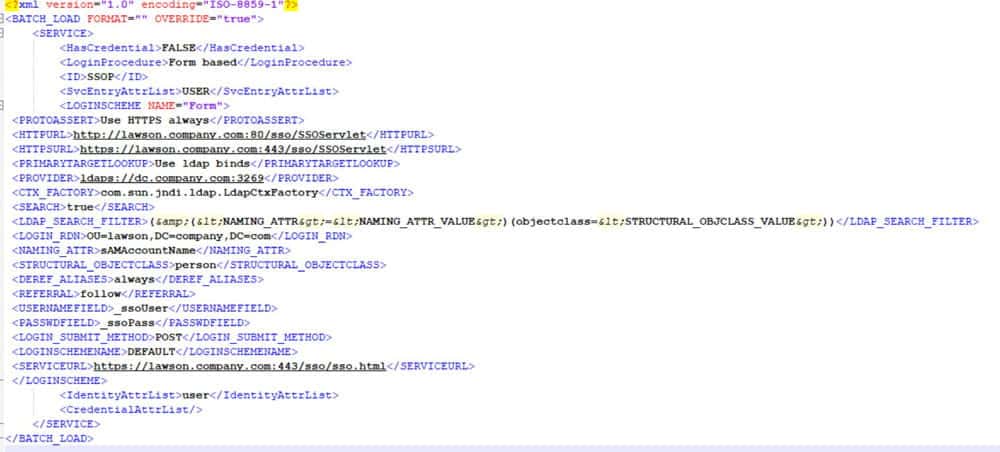
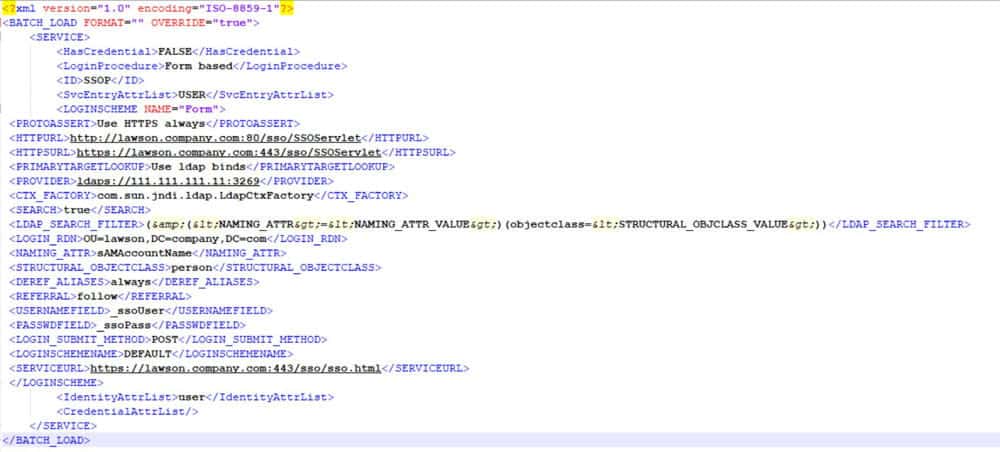
This means that the certificate on your Domain Controller to which Lawson is bound, has a Subject Alternative Name that does not match the DC IP address. You need to make sure the server name you are using for the bind matches the SAN on the Domain Controller’s certificate.
So, bind to this:
Instead of this:
https://www.nogalis.com/wp-content/uploads/2021/01/LDAPS-Binding-LDAP-to-IP-Address-or-FQDN.jpg470470Angeli Mentahttps://www.nogalis.com/wp-content/uploads/2013/04/logo-with-slogan-good.pngAngeli Menta2021-01-19 08:39:162021-01-19 15:32:08LDAPS: Binding LDAP to IP Address or FQDN
After making updates to your LDAPS-enabled Lawson environment, you may encounter errors when trying to start the Lawson service. Check the lase server logs for a message similar to this:
20-12-03 14:07:57:455 1 default.SEVERE api.LawsonSecurity.initialize(): Failed to initialize Ldap
20-12-03 14:07:57:467 1 default.SEVERE api.LawsonSecurity.getConfig(): com.lawson.lawsec.authen.LSFSecurityAuthenException:Failed to initialize LDAP. Detailed Message is javax.naming.CommunicationException: simple bind failed: 111.111.111.111:636 [Root exception is javax.net.ssl.SSLHandshakeException: sun.security.validator.ValidatorException: PKIX path building failed: sun.security.provider.certpath.SunCertPathBuilderException: unable to find valid certification path to requested target]
Stack Trace : javax.naming.CommunicationException: simple bind failed: 111.111.111.111:636 [Root exception is javax.net.ssl.SSLHandshakeException: sun.security.validator.ValidatorException: PKIX path building failed: sun.security.provider.certpath.SunCertPathBuilderException: unable to find valid certification path to requested target]
at com.sun.jndi.ldap.LdapClient.authenticate(LdapClient.java:219)
at com.sun.jndi.ldap.LdapCtx.connect(LdapCtx.java:2895)
This message means that you need to add/update the ADLDS certificate for your OS Java. Follow these steps to update the certs:
Set environment variables (<APPINSTALLDIR>\enter)
Run command “where java” to determine where LAW_JAVA_HOME is located
NOTE: You may have multiple instances of Java, and you need to make sure you apply the cert to all of them!
Back up file LAW_JAVA_HOME\jre\lib\security\cacerts
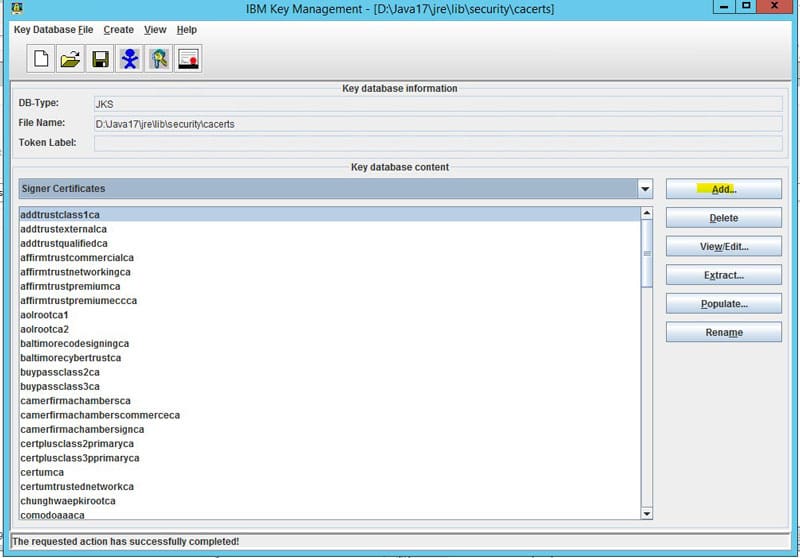
Run the ikeyman utility at WAS_HOME/bin
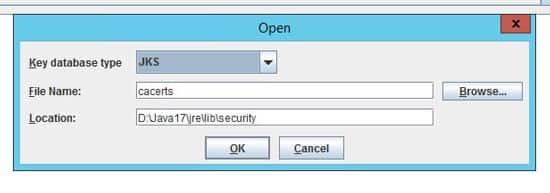
Open the LAW_JAVA_HOME/jre/lib/cacerts file and select the Key database type of JKS
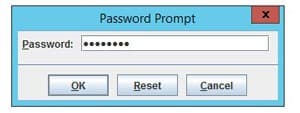
Type password “changeit”
This is the default password for the Java certs files
Select “Signer Certificates” in the dropdown
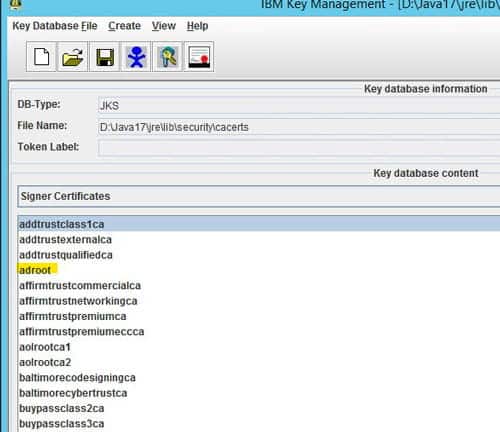
Click “add” and navigate to the ldap certificate exported earlier
Give it a meaningful name
https://www.nogalis.com/wp-content/uploads/2021/01/PKIX-Security-Error-After-Configuring-LDAPS.jpg470470Angeli Mentahttps://www.nogalis.com/wp-content/uploads/2013/04/logo-with-slogan-good.pngAngeli Menta2021-01-15 08:39:072021-01-06 15:44:38PKIX Security Error After Configuring LDAPS
Staten Island’s Richmond University Medical Center (RUMC) has selected Infor Cloverleaf™ to increase interoperability across its network of healthcare services and providers. The Infor Cloverleaf Integration Suite is an innovative foundation for clinical interoperability and supports many protocols for communication, which can transform messages between various industry-standard data formats. RUMC will deploy Infor Cloverleaf to contribute to improved care outcomes, and to lower healthcare costs for patients. By moving interoperability to the cloud, RUMC will be able to focus more time on care outcomes and business outcomes, less time managing servers and applications, begin leveraging FHIR and API-based data exchange, and benefit from being on the latest version of Cloverleaf with routine upgrades. Per the press release, Infor Cloverleaf will enable data interoperability and integration across clinical applications, both inside and outside of the organization, through support of proprietary and traditional data formats and protocols as well as newer web-based API standards such as FHIR.
https://www.nogalis.com/wp-content/uploads/2017/10/medical.jpg640960Angeli Mentahttps://www.nogalis.com/wp-content/uploads/2013/04/logo-with-slogan-good.pngAngeli Menta2021-01-13 07:59:472021-01-11 22:09:13Richmond University Medical Center Modernizes Interoperability with Infor Healthcare’s Cloverleaf
LDAPS requires multiple certificates, and all must be valid and current for authentication to work in Lawson. If you are trying to log into Lawson after implementing LDAPS and Lawson is behaving like the user doesn’t exist or the password is invalid, check the LAWDIR/system/security_authen.log. A certificate issue will be noted by verbiage such as:
Tue Nov 10 16:45:55.359 PST 2020 – default–844051996: Error encountered while getting users DN. Please see logs for details[858vk9nl1gd6d40vdn8r41qhl3]Could Not Bind With privileged identity. User [lawson]simple bind failed: dc.company.com:3269
Stack Trace :
javax.naming.CommunicationException: simple bind failed: dc.company.com:3269 [Root exception is javax.net.ssl.SSLHandshakeException: com.ibm.jsse2.util.h: PKIX path validation failed: java.security.cert.CertPathValidatorException: The certificate expired at Fri Nov 06 11:33:36 PST 2020; internal cause is:
java.security.cert.CertificateExpiredException: NotAfter: Fri Nov 06 11:33:36 PST 2020]
at com.sun.jndi.ldap.LdapClient.authenticate(LdapClient.java:231)
at com.sun.jndi.ldap.LdapCtx.connect(LdapCtx.java:2753)
at com.sun.jndi.ldap.LdapCtx.<init>(LdapCtx.java:329)
This message could indicate that your AD LDS certificate is expired, so you need to check that cert on the server, as well as in WebSphere. However, it could also mean that the certificate on the domain controller is expired, so you’ll need to check that as well.