

I’m often connecting to Lawson servers to grab reports, important files, etc. via Citrix through the browser and it’s frustrating when you can’t copy files via clipboard direct from the server, forcing me to use alternatives like wetransfer.com.
A workaround that seems to work for me is opening Citrix Workspace from your desktop tray icon
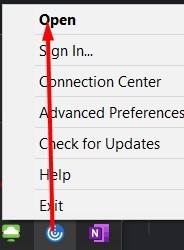
Then select Menu >> Accounts >> Add…

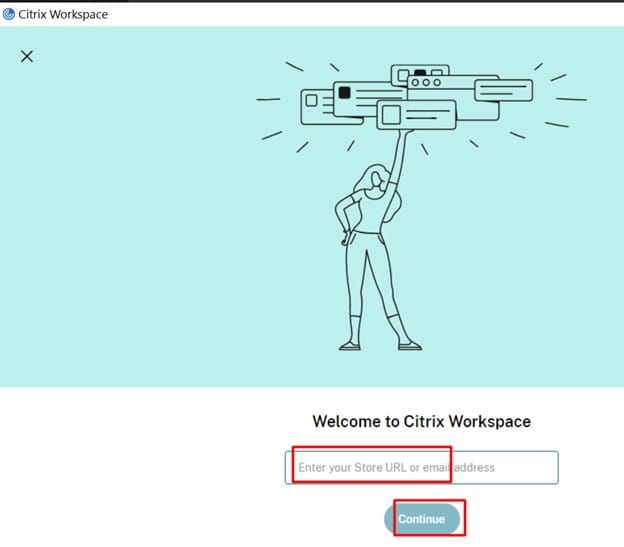
Add your store URL and continue
Once added, click Sign In
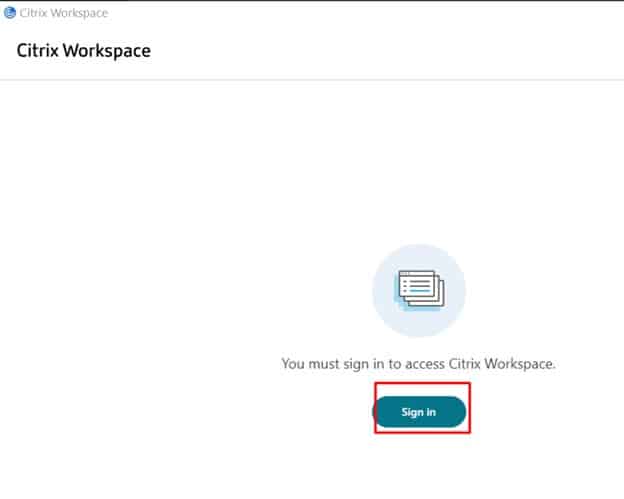
Enter your credentials and open the Remote Desktop app in your Citrix App Store.
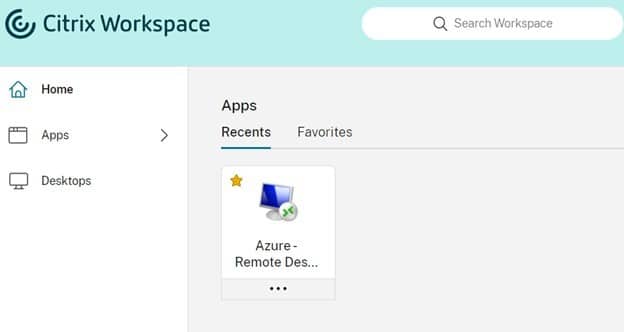
Once remote desktop is open, click Show Option >> Local Resources and make sure Clipboard is checked
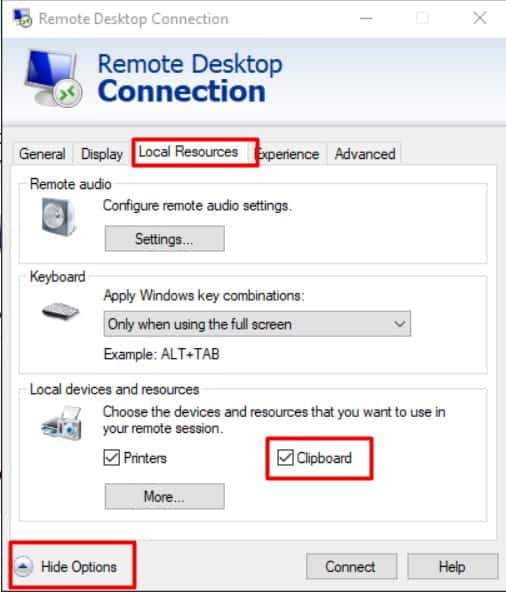
Clipboard should work properly now. If this ever doesn’t work, reboot your PC and try again.
secdump and secload AS400 error: “Command Not Found”
In order to have your command run successfully, you need to set up your Environment variables and library BEFORE you try to run any commands in Qshell.
Here are a couple of syntax examples for running the secdump and secload commands from Qshell to copy the security setup from test to production on AS400:
Dumping all security classes from a test Environment to a production Environment
CALL PGM(LAWENV) PARM(LAWTEST)
STRQSH
secdump lawapptest /home/secclasses.dmp
CALL PGM(LAWENV) PARM(LAWPROD)
STRQSH
secload -o /home/secclasses.dmp lawappprod
Dumping a single security class from a test Environment to a production Environment
CALL PGM(LAWENV) PARM(LAWTEST)
STRQSH
secdump lawapptest /home/hrclerks.dmp hrclerk
CALL PGM(LAWENV) PARM(LAWPROD)
STRQSH
secload -o /home/hrclerks.dmp lawappprod
Additional Information:
The two options outlined above are just two of the more common options used with secdump and secload; there are other options you can use. The complete syntax information for secdump and secload are provided below. See these syntax rules for information on other command options.


If your Landmark server is all of a sudden not communicating with your Lawson LSF server and you’re receiving the “Unable to connect to Grid Registry”, below are some steps you can take to resolve the issue.
Checks to validate grid connection issue in your bpm.properties file:
On the Landmark server:
1. Run this command on the Landmark command prompt.
Windows – packageLPSClientJars.bat
Unix – packageLPSClientJars.sh
This command grabs newly deployed jars and (re)creates the LPSClientJars.jar file in LASYSDIR\LPS directory
2. Copy the newly created LPSCLientJars.jar file to the LSF system (place it in GENDIR/bpm/jar)
On LSF Server
3. Stop the LSF Environment
4. From a command prompt, cd to GENDIR/bpm/jar
5. Extract the jar files out of the LPSClientJars.jar by running this command.
jar -xvf LPSClientJars.jar
6. Delete the LPSClientJars.jar file itself
UNIX – rm LPSClientJars.jar
Windows – del LPSClientJars.jar
The ONLY files that should exist in GENDIR/bpm/jar are
bpm-interfaces.jar
bpm-lpsforlsf.jar
gridbase.jar
grid-client.jar
lawutil_logging.jar
There should be no sub directories in GENDIR/bpm/jar
7. Restart your LSF Environment
NOTE: If your LSF environment runs on AIX, the LIBPATH in lawson.ev needs to include javahome/jre/lib/ppc64
This should resolve the issue and update the bpm.properties configuration.
If you’re not comfortable making these changes, we recommend organizations look into hiring a Lawson consultant team who offers managed services (typically at a fixed monthly rate). These Lawson teams have a wider range of expertise and knowledge and are ideal for larger organizations but also are great for smaller ones that don’t need a dedicated Lawson employee on-site 24/7.
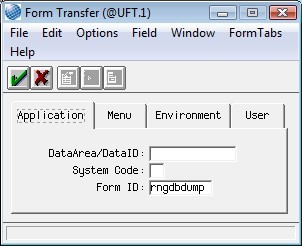
To do a rngdbdump and then ftp to your PC, in LID do a form transfer and enter rngdbdump in the form ID field
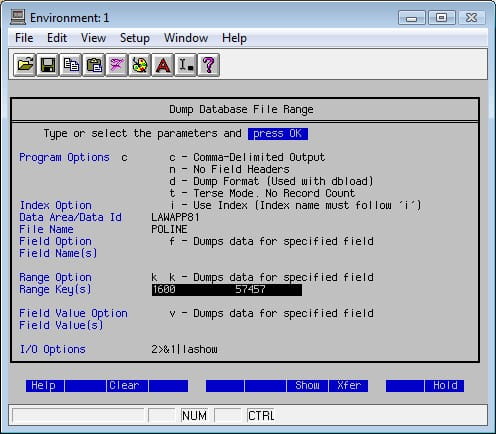
Enter the DataArea, FileName Range Option and Range Keys
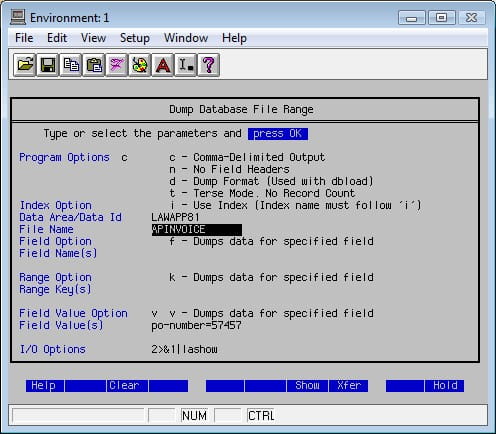
Hit return for output
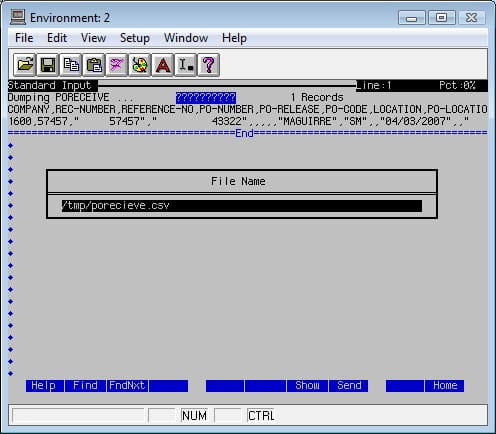
Shift F8 to save to a file
Log into Navigator and go to the filesystem you saved the file
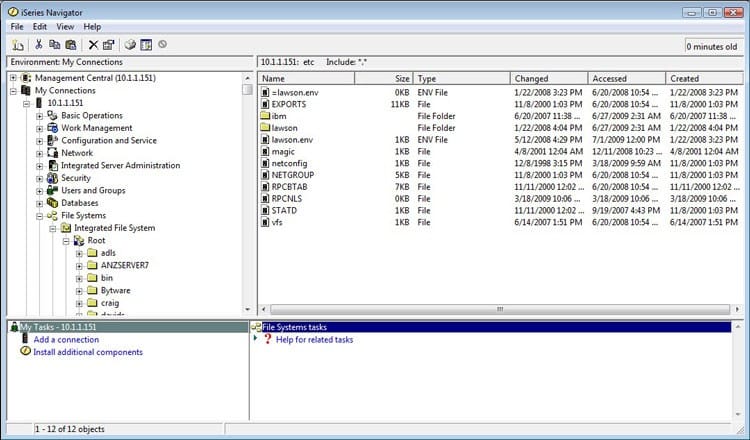
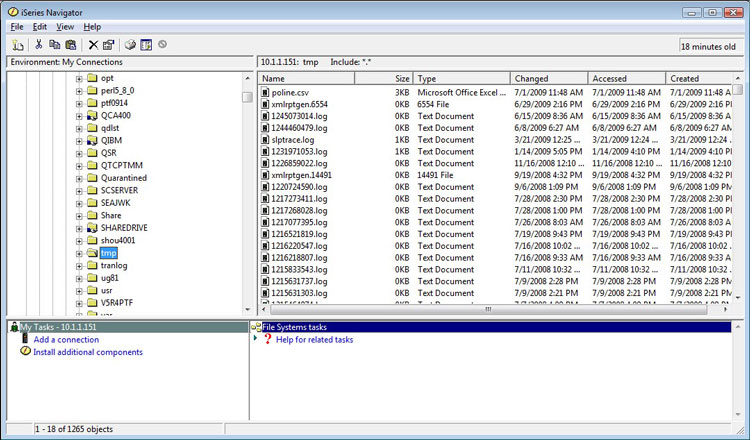
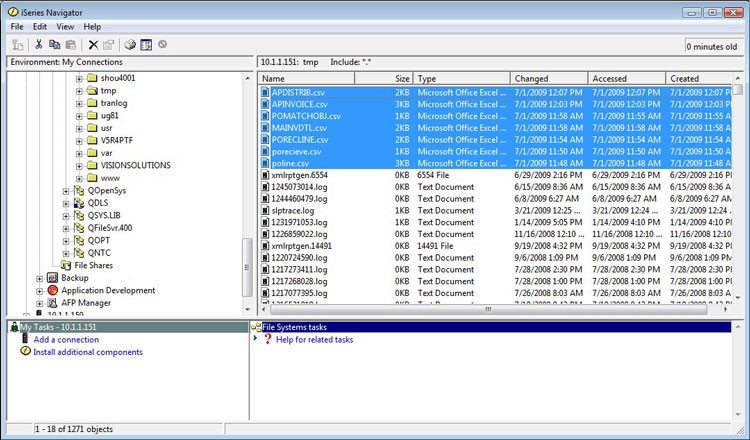
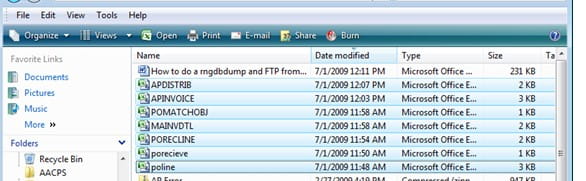
Drag and drop to your local directory

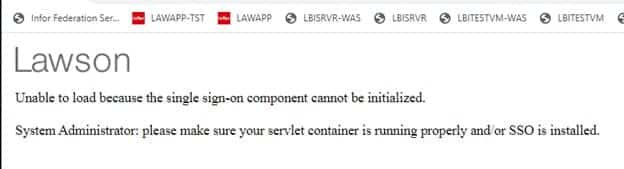
If your WebSphere certs fail to auto-renew, you might be presented with the Lawson error below, and the following log details in SystemOut.log.
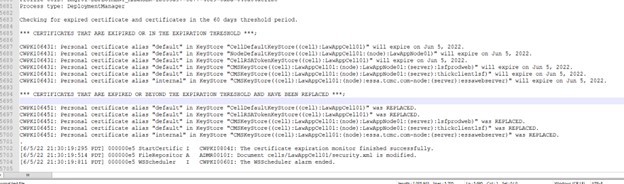
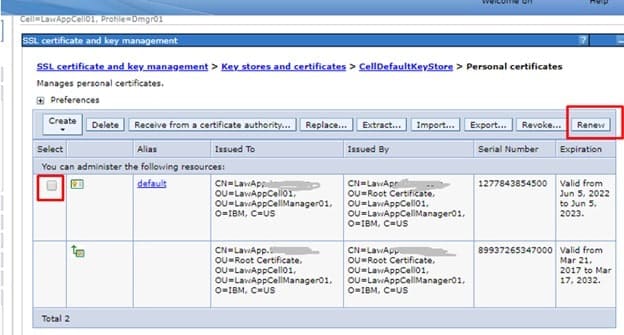
First, navigate to the Personal certificates for the CellDefaultKeyStore and NodeDefaultKeyStore. Select the certificate that is expired, then click the renew button. Save the changes to the server configuration.
Next, update the Web Server certificates. In console manager, go to Server Types > Web servers.
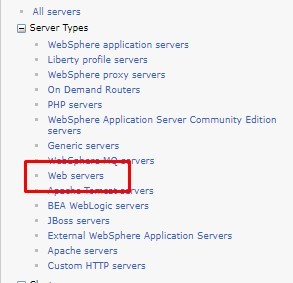
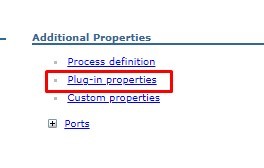
Click “Plug-in properties” on the right under Additional Properties. Select “Copy to Web server key store directory”
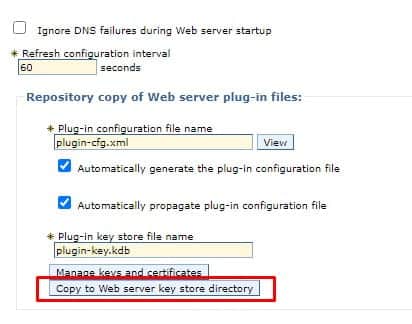
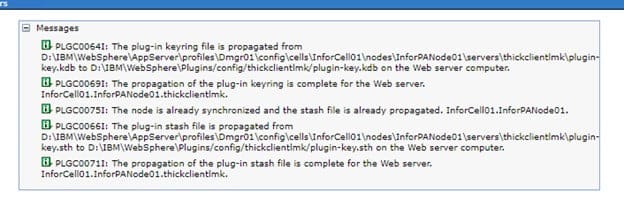
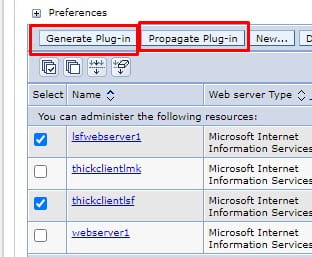
Generate and propagate the plugins for the web server.
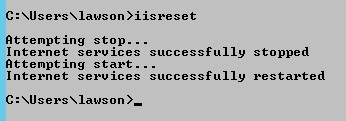
Run an iisreset command, or restart the WWW publishing service.
Bounce the application server and you should be good to go.
Problem: We are not able to view any of the reports in LBI on production.
The error is
ReportSDKEnterpriseLogonException: Unable to log on: Could not connect to server. I have verified IBM and CRAS are running.
Users are getting the following error when opening a LBI Report:
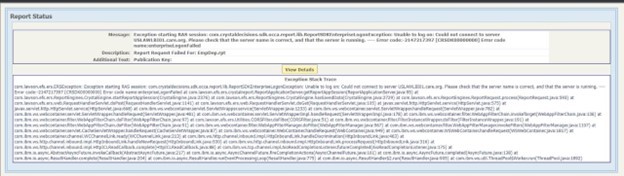
You should check the system.out log for errors:
000001dd SystemOut O ERROR – RequestHandlerServlet caught ERSException: Exception starting RAS session: com.crystaldecisions.sdk.occa.report.lib.ReportSDKEnterpriseLogonException: Unable to log on: Could not connect to server USLAWLBI01.care.org. Please check that the server name is correct, and that the server is running.
—- Error code:-2147217397 [CRSDK00000000] Error code name:enterpriseLogonFailed
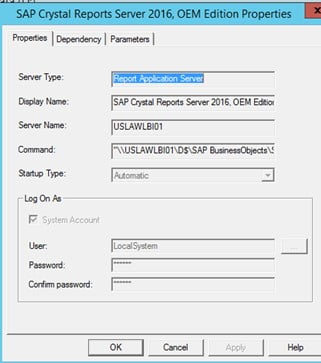
Based on the error from the log, go to CRAS Properties, in Central Configuration Manager and verify the RAS server name.
If you found out that it was set to localhost, it needs to be changed.
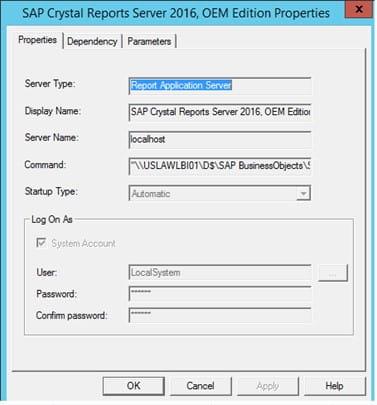
Stop RAS, change the server name from localhost to USLAWLBI01.
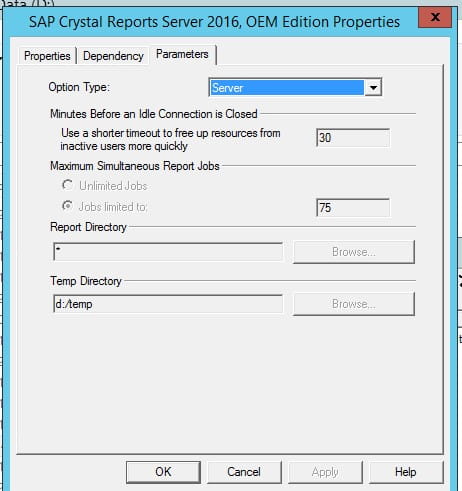
– Went to Parameters Tab > Server > changed Report directory to * and Add temp directory
Start CRAS
Verify that you can now run the reports