
We are going to look at adding an AM template to an AP invoice align level and see how it flows over to the AM module.

We are going to look at adding an AM template to an AP invoice align level and see how it flows over to the AM module.
Here is a simple was to Resolve the notification: “An error has occurred in the script on this page” for expression builder in Lawson Security Administrator (LSA).
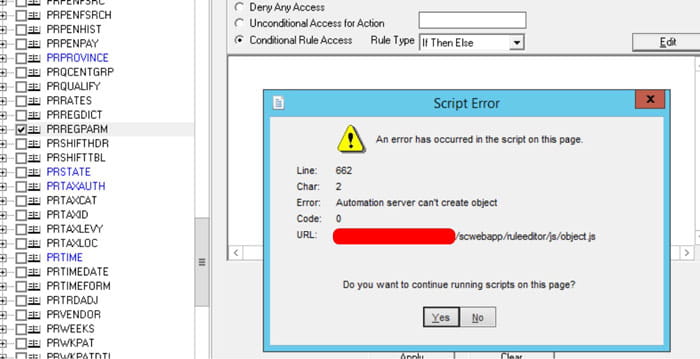
In LSA when trying to build a custom rule for a program you may get this error:
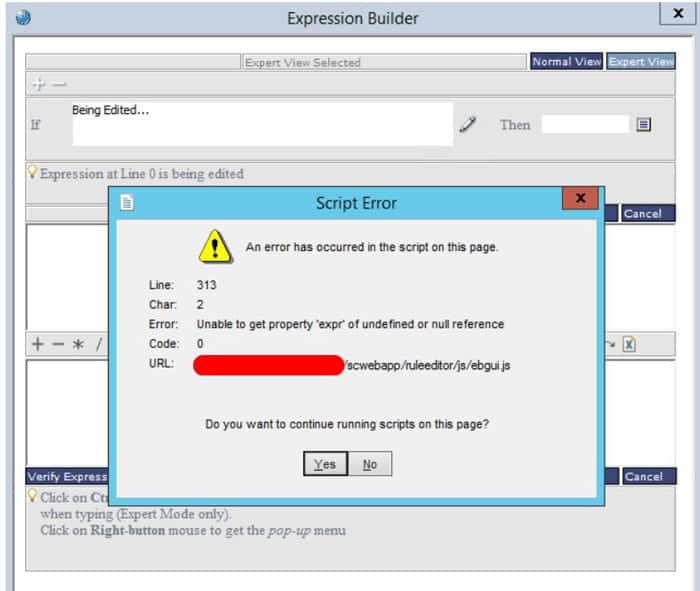
Trying to get passed it, it comes up again and doesn’t allow the user build rules for a file or token:
The resolution is pretty simple, go to your C:\Windows\SysWOW64 directory and run the following command:
regsvr32 msxml14.dll

You should get a pop-up confirming this. Login to LSA again and you should be good to go!

This video shares an easy way to set up customers in AR without having to go through and fill in every field or make a bunch of default codes.
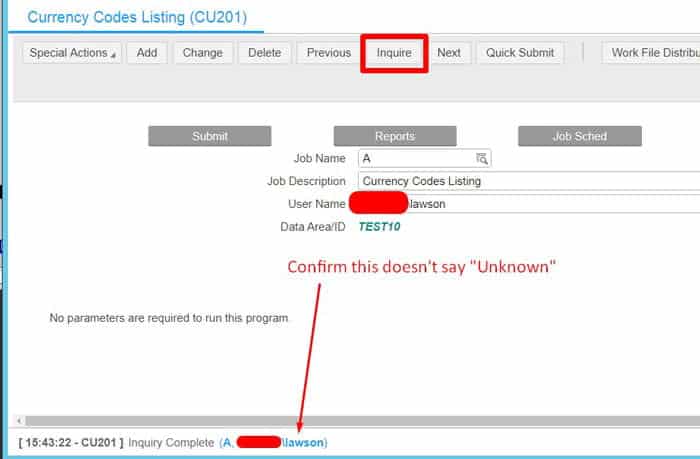
While this error itself may be obvious, you’ve already taken the steps to run the job under a different user with the same parameters and everything seems to be working. Sound familiar? Let’s dive deeper to see if this issue is related to yours.
Often you will have IPA processes that run Lawson batch jobs, or perform some task with the output from a batch job. There may come a time when you need to programmatically convert the output of those jobs to another format, such as PDF or CSV. The bldxffiles command is a Lawson system command that allows you to do just that. You can use a System Command node in IPA to run the command against batch job output and convert the file. (This even works in cloud, but one caveat to note is that mutli-tenant environments do now allow system command nodes in IPA).
The Command
Command syntax is:
bldxffiles –[ALCPRTX | U] [abcdpstv] <username> <jobname>
| Program Option | Description |
| -A | Generate the ADO files (_ado.xml, .csv and _ado_schema.xml). These are used by the OLE DB server |
| -L | Generate partial CSV files starting from a point in the report. Use in conjunction with the -o option, which indicates the line number to start at. Can also be used in conjunction with the -S option to create a partial CSV file for a single print file.
Example: bldxffiles -L sjohnson CU201JOB1 -o28 The generated CSV file will be CU201_partial.csv |
| -C | Create CSV file |
| -P | Create PDF file |
| -R | Create a print file with left-to-right orientation |
| -T | Include total groups in the CSV |
| -S | Build files only for the path and print file specified. |
| -k | Use the specified separator as the value separator in CSV files:
· a = Tab · b = Space · c = Comma · s = Semicolon |
| -o | Specify the line number to start for a partial CSV file (used in conjunction with option L) |
| UserName | If you are not using the -F option, this is the name of the user who created the print files to be converted.
If you are using the -F option, this is a placeholder only. You must specify some text for this, but it can be any character. |
| JobName | The name of the job whose print files are to be converted. |
| JobStep | The job step whose print files are to be converted. |
| FullFilePath | The path to the input file, if you are using the -S or -Foption. |
| FileName | The name of the input file, if you are using the -S or -F option. |
Using it in IPA
To use the bldxffiles command in IPA, you first need a system command node pointing to the “main” configuration set (or whatever configuration set points to your LSF server).
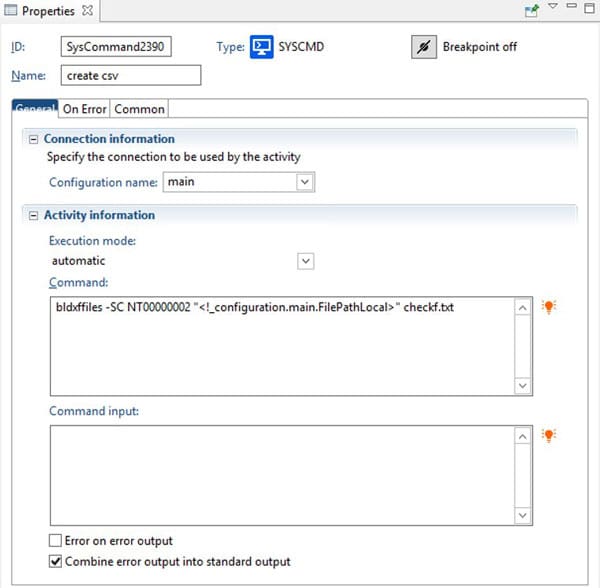
In the properties of the System Command Node, put your bldxffiles command. Typically you will want to use the “S” option so you can run the command against a filename, rather than being tied down to a specific user and job name (which could change readily). The syntax for converting a prt file to CSV would be similar to:
bldxffiles -SC <NTID> “<filepath>” <filename>
The NTID is for Windows only. On a Unix system, it would be a username.
NOTE: if you are not running the bldxffiles command in the user’s print directory (i.e. you are working on a print file that has been moved to another location), you will need to make sure that you have the print file’s corresponding detail file in the same directory where you are running the command. For instance, if you have a print file named AP520.prt, there is a correspoinding AP520.dtl file in that same print directory. That needs to follow the prt file or your command will return an error.
Example
Here is a command that will convert a check file to CSV format using the Lawson’s NTID. In this case, the file has been moved from the print directory to a new directory, so the .dtl file was also copied over. The .dtl file is also named checkf.dtl.

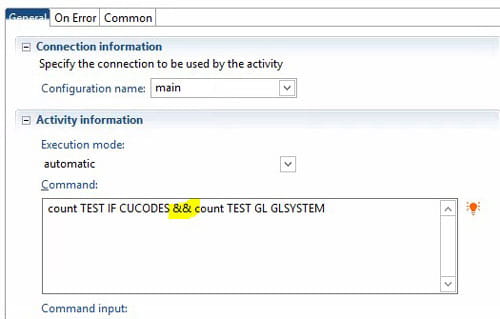
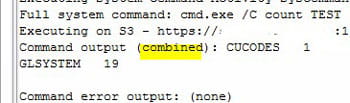
If you want to use one System Command Node to run more than one command, simply concatenate the commands with “&&”. The output of the System Command Node will be the combined results of all the commands. For example:

Microsoft is hardening their security with LDAP channeling and LDAP signing in an update coming soon. Any applications that rely on LDAP connections to Active Directory Domain Services (AD DS) or Active Directory Lightweight Directory Services (AD LDS) need to be converted to LDAPS. LDAPS is a secure connection protocol used between applications like Lawson and the Network Directory or Domain Controller. Below are the potential impacted Lawson applications mentioned by Infor in a recent KB Article.
Impacted Lawson applications:
Infor has recommended that on-premise clients configure the impacted applications and have provided KB Articles on how to perform these tasks.
Some important things to note:

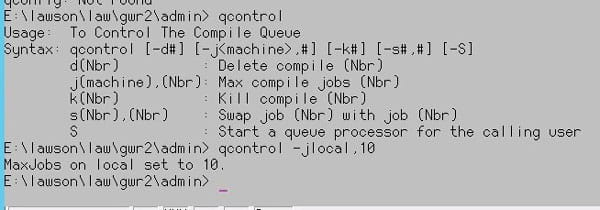
When doing a patch compile or a product line compile, it is best to increase the number of jobs that can be added to the queue so they will compile faster. The default is two jobs. To increase the number of jobs, use the command “qcontrol -j<machine name>,#”
For example:

Many ERP systems allow for a much longer location ID than Lawson does.
Many Punch Out vendors have limitations on the size of the location ID. Make sure to validate with any Punch Out vendors you may have before you come up with a new location naming convention. Otherwise you may have to revisit this item later.