Administering Lawson on Windows has traditionally required using the basic toolset within windows to get things done. With Windows 2012 it seems like some of the very basic tools users are used to are hidden away and require several extra clicks to get to. Here are some quick ways to make Windows 2012 easier to deal with:
Method 1
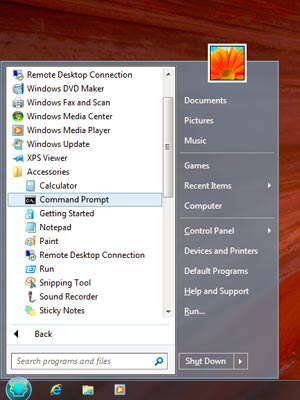
Install a 3rd party tool called Classic Shell found here: https://www.classicshell.
This is by far the easiest way to get Windows 2012 to act more like Windows 2008.
Method 2
Since installing 3rd party applications like Classic Shell is not going to appeal to every client. Here’s a quick way to get at least your programs menu back without the help of any 3rd party applications:
Steps (4 total)
- Display “Hidden items” on your C: Drive – Open File Explorer and browse to your C: Drive. On the View tab, check the “Hidden items” checkbox.
- Add a New Toolbar on your Taskbar. – Right-click on a blank area of your Taskbar and select Toolbars > New Toolbars.
- Browse to the Start Menu\Programs folder. – In the New Toolbar dialog box, browse to the “C:\Program Data\Microsoft\Windows\Start Menu\Programs” folder.
- Click the “Select Folder” button. – Click the “Select Folder” button to add the new Toolbar to your Taskbar.