
How to Apply a Hotfix for MSCM
WFM Hot Fix – Deploy .ear file
To prepare for applying the Hot Fix
- Backup the appropriate databases
- Backup important application files (ex. lsfprod/law/system) app server:
- ssokeystore
- ssotruststore
- authen.dat
- install.cfg
- lsservice.properties
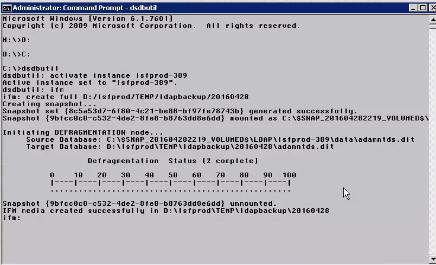
- Backup Ldap
- Get the instance name (ex. lsfprod-389)
- At the command prompt, browse to C:\
- Type: dsdbutil enter
- Type: active instance lsfprod-389 enter
- Type: ifm enter
- Type: create full D:/lsfprod/TEMP/ldapbackup/20160428
APPLICATION DEPLOYMENT
- Logon as an administrator WEBLOGIC server.
- Backup your current directory where the application is deployed (ex. workbrain_20160502)
- Since you backed up the current Weblogic deployment directory, create a directory with the original name (ex. workbrain)
- Open a command prompt and browse to the directory where the application is deployed
ex. cd $WB_HOME/deployments/production/workbrain - Copy the EAR File to deployment directory (ex. $WB_HOME/deployments/production/workbrain
- Expand the EAR file in the deployment directory, using the jar tool:
jar xvf workbrain.ear - Delete the EAR File
rm workbrain.ear - Create a directory named war
mkdir war - Move the workbrain.war file into the war directory:
mv workbrain.war war - Select the war directory and expand the war file:
cd war
jar xvf workbrain.war - Delete the war file:
rm workbrain.war - Edit the application.xml file found in the deployment_directory/workbrain/META-INF
- Change the line from:
<web-uri>workbrain.war</web-uri>
to:
<web-uri>war</web-uri> - For the process of deploying as non-root context, select the deployment_directory/workbrain/META-INF directory, edit the application.xml file, and modify for the application non-root context:
<module id=”WebModule_1066144042227″>
<web>
<web-uri>war</web-uri>
<context-root>/workbrain</context-root>
</web>
</module>
<module id=”WebModule_1066144042228″>
<web>
<web-uri>lib/axis.war</web-uri>
<context-root>/workbrain/axis</context-root>
</web>
</module>
NOTE: Make sure that you copy over any custom .jar files. Compare your previously deployed directories (the directory you backed up in step 5) to the new deployment for any custom .jar files.
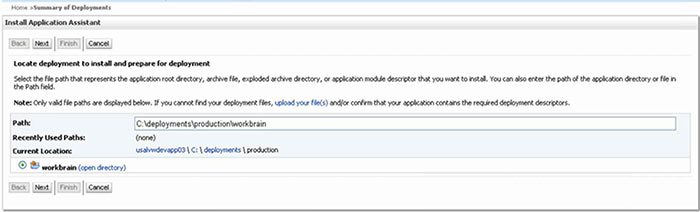
- In the Administration Console, select Deployments in the left panel, and click Install in the right panel.The Install Application Assistant – Locate deployment to install and prepare for deployment page is displayed.

- Select the folder where the application was exploded.
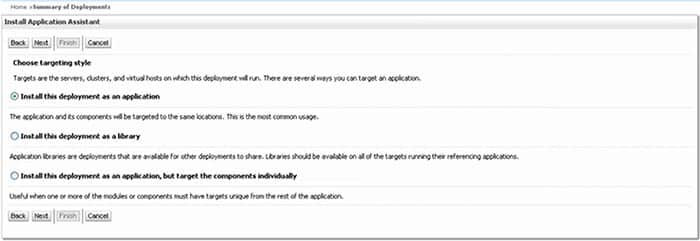
- Click Next The Install Application Assistant – Choose targeting style page is displayed.

- Leave the default Install this deployment as an application option selected.
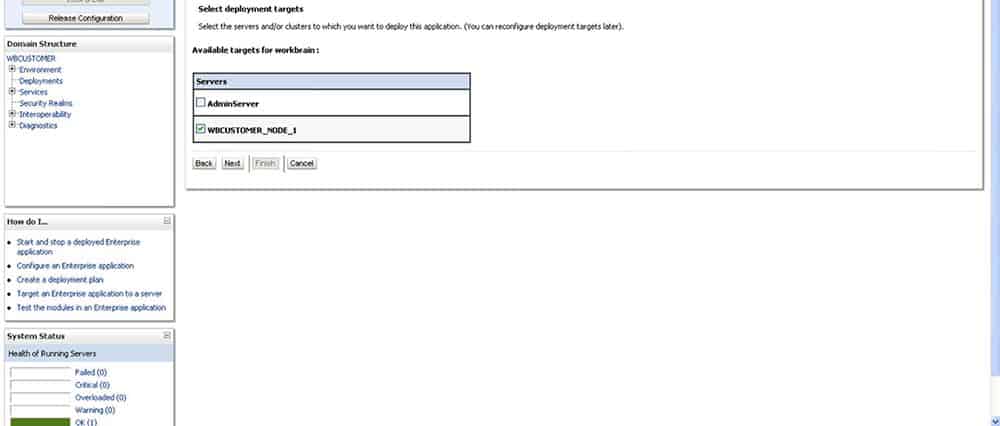
- Click Next. The Install Application Assistant – Select deployment targets page is displayed.

- Select the managed server.
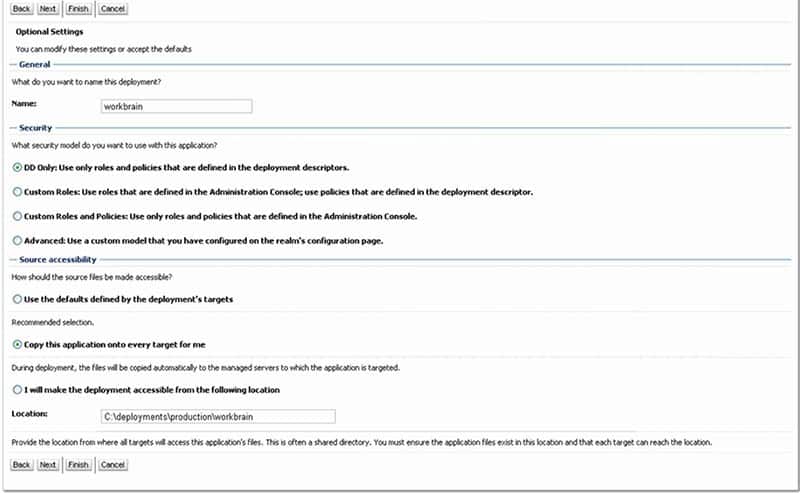
- Click Next. The Install Application Assistant – Optional Settings page is displayed.

- Select Copy this application onto every target for me.
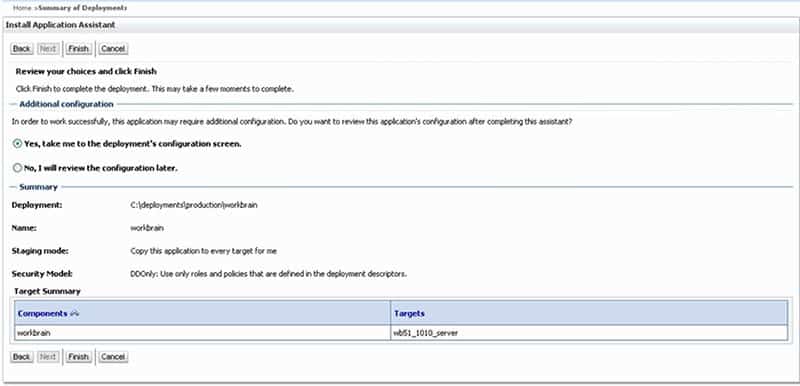
- Click Next. The Install Application Assistant – Review your choices and click Finish page is displayed.

- Leave the default Yes, take me to the deployment’s configuration screen option selected.
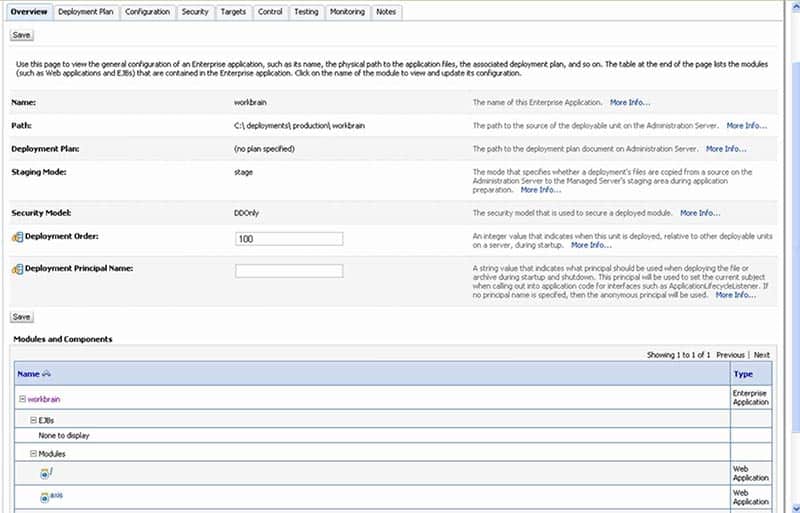
- Click Finish. The Install Application Assistant – Settings for My App page is displayed.

- Confirm that all settings are correct.
- Click Save.
- Click Activate Changes in the left panel.
- Click Deployment in the left panel.

- In the right panel, select the deployed application check box.
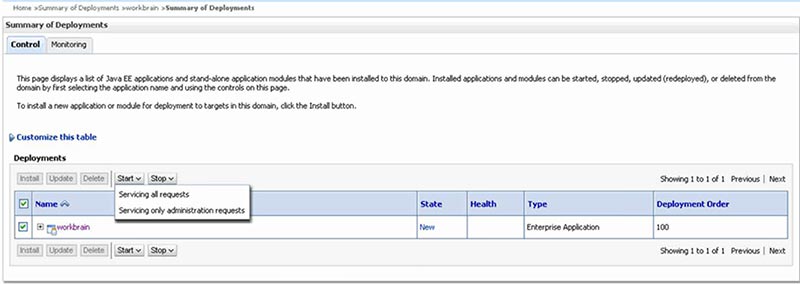
The Start Application Assistant page is displayed

- Click Yes.Note:Before you start your deployment, make sure that your managed server is running (<domain_name>/Environment/Servers/<managed_server>/control).
Retiring Lawson, PeopleSoft, or Oracle? APIX archives the entire application — every table, every year, attachments and security included — into your own AWS account in about 30 days, so you can decommission the legacy system and keep full access to the history.

