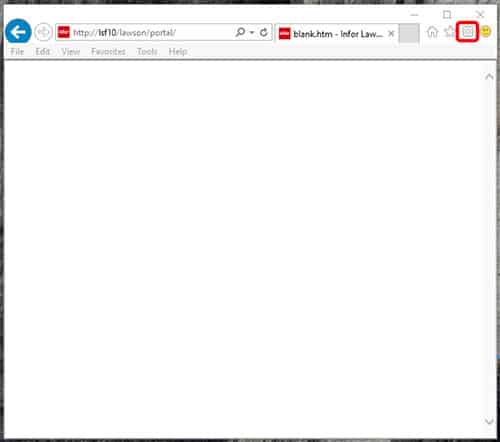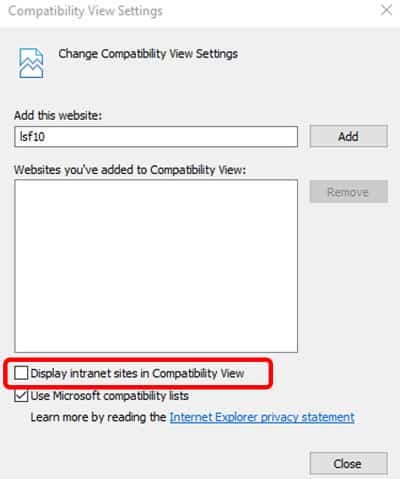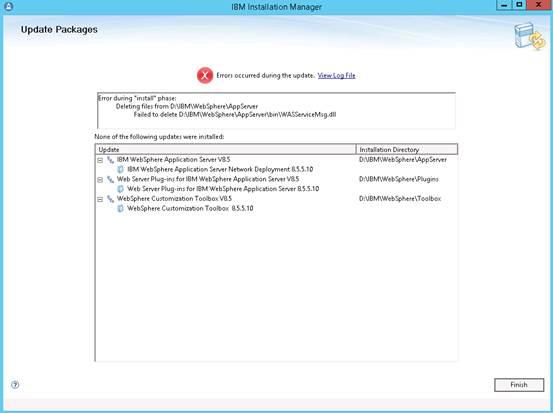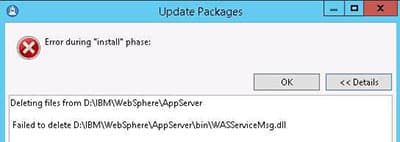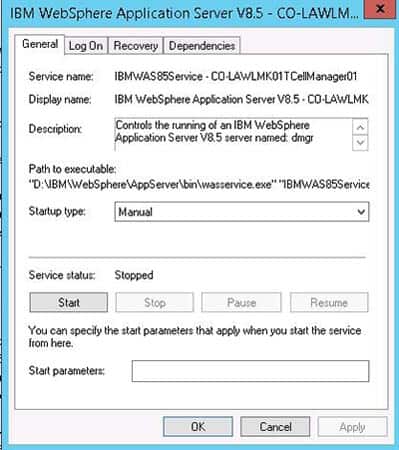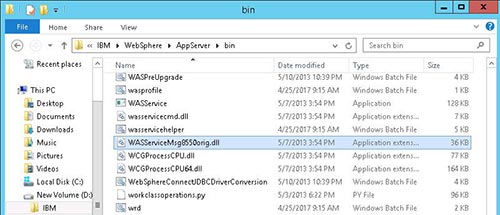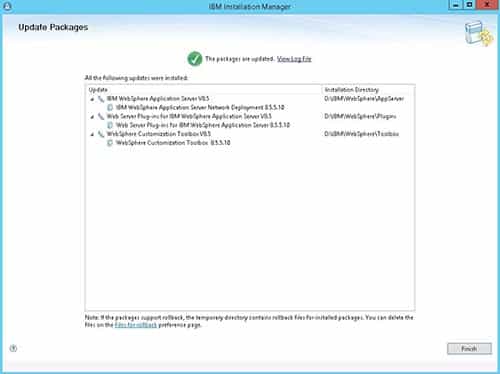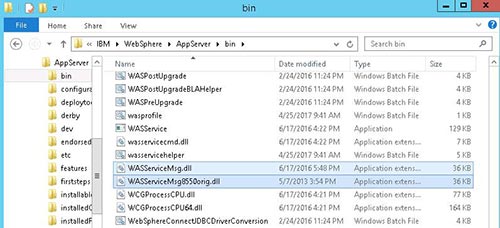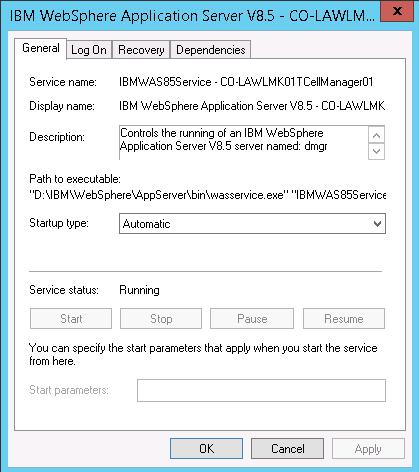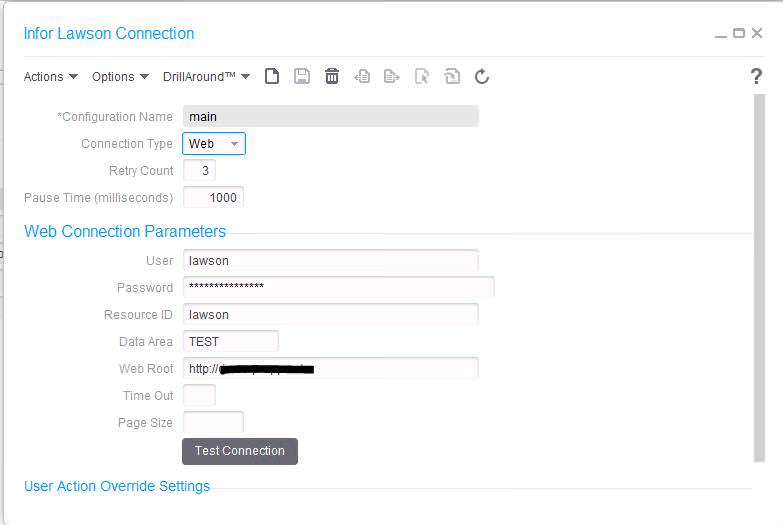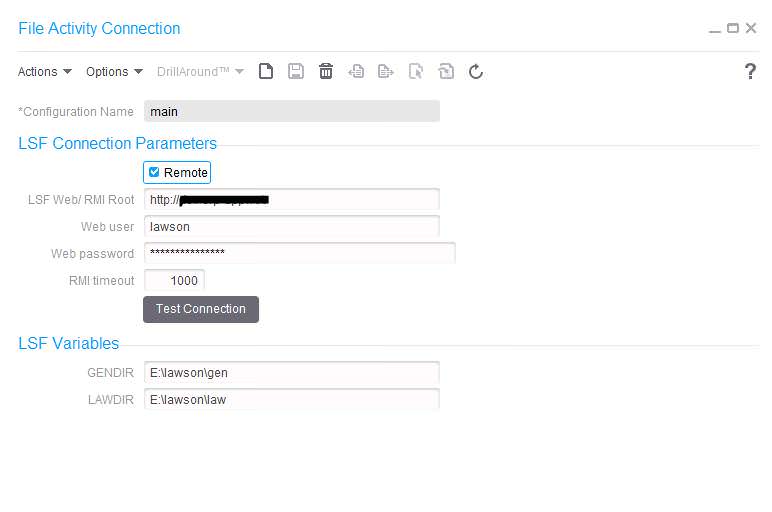
Sometimes Lawson errors can be very cryptic and difficult to troubleshoot. Sometimes you will have a very specific error in the ios.log or other system logs, and a search on InforXtreme produces ZERO results. It can be quite frustrating! Don’t forget that you have another place to check for errors. Always remember to check your Windows Event Viewer for another “perspective” on the error. Sometimes a Google search or even InforXtreme search on the error text in Event Viewer will actually produce results where the log search didn’t. Some examples I have found are an error in the importdb script, which provided more information for an Infor ticket I had open, and a MicroFocus license manager error that led me to a KB and a download that solved some performance issues for us. So, the bottom line is, don’t forget to check server logs in addition to Lawson and WebSphere logs!
The Assignment node in IP Designer is pretty straightforward and simple to use, but it can also be very useful and flexible. The first step to using the assignment node is to create and initialize your variables in the start node properties.
The assignment node can be used to set simple variables. It can also be used for more complex assignments. Here is a simple assignment, created by clicking :
You can also use javascript and regular expressions in your assignment node to manipulate strings. This example uses a simple “if” statement to assign a variable (created by clicking ):
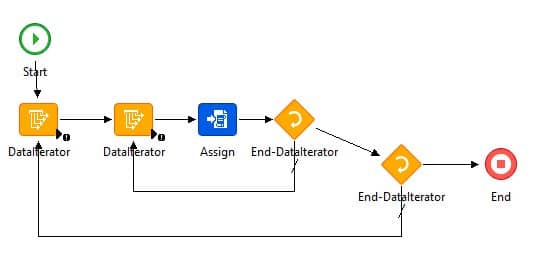
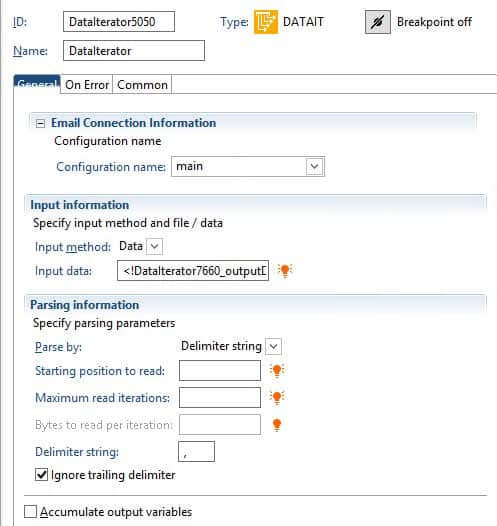
This example takes a line from a data iterator, splits it on the “,” , and removes unwanted characters using regular expressions. It assigns that string to the “impCompany” variable, which was created and initialized in the Start node.
There’s no denial that cloud technology saw impressive growth in 2016. Companies like Amazon and Microsoft embraced the technology and saw increased sales. And there’s no sign of a slowdown. Below are seven predictions for cloud technology in 2017 from cloud market experts.
- When faced with a hardware refresh, more companies will turn to the cloud rather than new equipment.
- Cloud vendors with incomplete solutions will continue to form surprising alliances.
- CISOs will increasingly see cloud migration as a risk mitigation strategy.
- New Software as a Service (SaaS) will emerge to help people manage cloud-based resiliency.
- Machine learning will begin to enable the prediction of application downtime and duration.
- Cloud apps providers will build more native logging and audit features.
- Companies will continue to implement multi-cloud models.
Are your predictions on the list? What other predictions do you have?
How to Change Dimensions
Drag and drop your Dimension (column header) to the Dimension in the grid, the dimension will be switched.
Right click on the data for more formatting options:
Limit/filter reporting data by double clicking on column header.
Double click dimensions in the table , the List Designer will open in the right side of the report for selecting specifics
List Designer will assist with Structure Selection, Filter, Sort, Attributes (and Advance options)
Infor Mobility for Field Service (MFS, a comprehensive mobility solution designed to streamline activities for technicians operating in the field. released version 15.6.2 to deliver a purpose-built mobile field service application to manage work orders for users of Infor M3, an enterprise resource planning (ERP) system. Infor MFS provide companies with real-time transaction data from their technicians, enabling faster invoicing which help improve cash flow. MFS off-line allow technicians to complete their work efficiently and synchronize transactions when going back on-line. “Infor MFS was designed to help ensure that service technicians can be assigned to an order in the shortest possible time to fix the issue quickly and efficiently,” said Brian Dunks, product director, M3 Product Management, Infor. Infor MFS provides the stability and performance that is necessary to carry out the most advanced field operations.
Once you have done all your Infor work to create your files for submitting to IRS, the steps below will help you get your file submitted successfully. The final files are generated when you run the BN299.
Download the schema package from the IRS website: Schema Package – IRS
Follow instructions on validating the files generated from Infor. See attached KB from Infor View Attachment
Example of file names:
1094C_Request_XXXXX_YYYYMMDDXXXXXXXXXXZ.xml
1094C_Request_XXXXX_YYYYMMDDXXXXXXXXXXZ-Manifest.xml
An XML Reader Application is needed to validate the files. Altova XMLSpy application is a good program to use for this. Follow the steps in the above KB article to validate the files.
Once you make the changes that are noted in the XML Validator you will need to update the Checksum value in the Manifest.xml
Checksum verifies the integrity of the file. Download the utility FCIV. FCIV (File ChecksumIntegrity Verifier) is utility from Microsoft that computes (MD5 and SHA1) and verify Integrity of the File.
From the command prompt:
- Browse to the location where your files and fciv.exe is located
- Type program name + file name (ex. fciv.exe 1094C_Request_BB9LL_20160629T100009000Z.xml)
- Press enter
- The unique value should be placed in the ChecksumAugmentationNum tag in the Manifest.xml
You also will need to make sure the AttachmentByteSizeNum is correct. This can change when you make changes to the file.
See attached KB from Infor for details. View Attachment
- Locate the Forms XML File.
- Right click on the file, select Properties
- Locate the Manifest XML File.
- Right click and open using Wordpad
- Find <p4:AttachmentByteSizeNum> entry
- Replace the existing byte size entry with the byte size found in the Forms XML File properties.
- In this example: Change Manifest Size: 4522 to match Forms XML File size: 4598
And we’re done!