When the ADFS Token-Signing certificate is updated on the ADFS server, it will have to be imported to Lawson and Infor OS. The networking team should let the Lawson team know when the certificate is being updated in ADFS.
The networking team will need to export the certificate and provide you with the “.cer” file before these tasks can be completed.
Update the Certificate in Lawson
- Log onto the Lawson Server
- Start a ssoconfig -c session
- Go to “Manage WS Federation Settings” > “Manage Certificates”
- Select “Delete IdP certificate”
- Select “Import IdP Certificate”
Reboot the server
Update the Certificate in Landmark
- Open a LMK command line window
- Type in secadm -m
- Type the password
- Manage WS Federation Settings > Manage WS Federation Certificate
- Select “Delete IdP Certificate”
- Enter the IdP service name for your ADFS configuration
- Property name is IdPSigningCertificate
- Exit
- Select “Import IdP Certificate”
Update the Certificate in Infor OS
Log into the Infor OS server as the LAWSON user
Double-click on the desktop icon for InforOSManager
Go to Identity providers on the left side
Double-click on the identity provider
Select “From URL” to import the new certificate and metadata
Provide the URL: https://<adfsserver>/federationmetadata/2007-06/federationmetadata.xml
Click “Load”
Make sure the certificates load (there may only be one, but there should be at least one)
Reboot the server
Problem Description
WorkUnits are not moving forward after a user takes an approve action in the inbasketRoot
Cause
The Lawson user was set to have “Run as” disabled. This prevents WorkUnits from successfully updating their PfiQueueTask records to move forward. This occurred as part of a sync that was executed a week before. The ISS SCWebAppAdmin had the Lawson user flagged as run as “No“, when the sync occurred the Landmark Lawson actor was updated. This did not impact the system until a week later when the Landmark system was restarted after applying windows patches.
Solution
Change the Lawson user to “run as enabled”
and push that new setting and do a rolling restart on LPA/LmrkAll node to restore functionality.
This problem can occur after updating Lawson and Landmark from an older version and or when organizations update previous users to a newer naming convention.
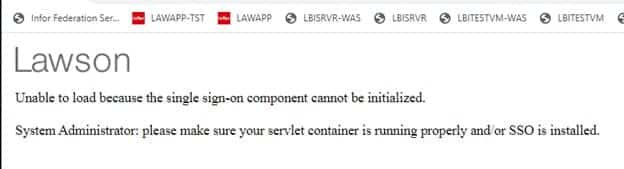
Problem: A user is trying to access their Inbasket to approve orders but receive the error below:
- Validate the user is setup correctly in Lawson Security
- Validate the user is setup correctly in Landmark via Rich Client or Process Server Admin
- The RMID in Lawson Security must match the Landmark Actor ID.
- If Step 3 does not resolve the error, look into the IOS.log and see how the users RMID is appearing there and make sure the Actor ID matches the casing there.
This can be a tricky issue to resolve, especially for organizations with a single Lawson professional to debug while they are swarmed in daily tickets and also tasked with maintaining recurring process flows.
Alternatively, organizations will hire a Lawson consultant team that have a wider range of expertise who offer managed services at a fixed monthly rate. This would be more ideal for larger organizations with many daily tickets or workflows to maintain or even smaller ones who don’t need a single dedicated Lawson professional but still need weekly maintenance/support.
Searching for user properties in LDAP may not be as straightforward to do or you may not have had formal instructions in past to do this task. Below is a step-by-step guide to easily search for user properties in the LDAP application.
D:\LSF > ldifde -f cli.ldif -r “samAccountName=Cli”
Connecting to “cust.private”
Logging in as current user using SSPI
Exporting directory to file cli.ldif
Searching for entries…
Writing out entries1 entries exported
The command has completed successfully
D:\LSF > ls cli*
cli.ldif
D:\LSF > lashow cli.ldif
dn: CN=Li\, Catol,OU=Users,OU=Accounting,OU=Finance,DC=cust,DC=private
changetype: add
objectClass: top
objectClass: person
objectClass: organizationalPerson
objectClass: user
cn: Li, Catol
sn: Li
title: Accountant I
description: Finance – Accounting
physicalDeliveryOfficeName: Halo
telephoneNumber: (713) 644-3333
givenName: Catol
distinguishedName:
CN=Li\, Catol,OU=Users,OU=Accounting,OU=Finance,DC=cust,DC=private
instanceType: 4
whenCreated: 20210218225523.0Z
whenChanged: 20220224165103.0Z
displayName: Li, Catol CatolCat
uSNCreated: 293302835
memberOf: CN=!AP_Invoice_Process,OU=Distribution Lists,DC=cust,DC=private
memberOf:
CN=FortiGateWebFilter_Finance,OU=Web Groups,OU=Information Technology,DC=cust,
DC=private
If you receive a “socket” error when saving data in Infor Security Administrator, it is probable that your Federated Server Certificate is corrupt or out of sync and needs to be recreated. Note that this is NOT the WS Federation Certificate.
To recreate the Federated Server Certificate, open a command line window on the LSF server and set the environment variables. Log into ssoconfig -c.
First, get the Federated Server Certificate name. “Manage Federation” > “Manage Federated Server Certificates” > “List Federated Server Certificates”. Make note of the name.
Select “Manage Federation” > “Manage Federated Server Certificates” > “Delete Federated Server Certificate”. Type in the name that you saved above.
After a successful confirmation, restart the servers and try again. A new Federated Server Certificate will be generated upon recycle.
After making changes to Landmark application configuration or security configuration, it is not always necessary to restart Landmark. You can force configuration changes via command line, or in Rich Client.
To force changes via command line, open a Landmark command with environment variables set. Run the command clearconfigs -s <data area> to clear the security caches. Other options are -a for authendat, or blank for all (clearconfigs gen).
To perform this task in Rich Client, Go to “Start > Configure > Manage Cache”. Then select “Actions > <the cache you wish to clear>”