
 https://www.nogalis.com/wp-content/uploads/2026/09/Data-Lake-Export-versus-Application-Archive-Why-a-Raw-Dump-of-Your-ERP-Fails-the-People-Who-Need-It.png
630
1200
Angeli Menta
https://www.nogalis.com/wp-content/uploads/2013/04/logo-with-slogan-good.png
Angeli Menta2026-09-10 16:50:522026-09-11 16:28:23Data Lake Export vs. Application Archive: Why a Raw Dump of Your ERP Fails the People Who Need It
https://www.nogalis.com/wp-content/uploads/2026/09/Data-Lake-Export-versus-Application-Archive-Why-a-Raw-Dump-of-Your-ERP-Fails-the-People-Who-Need-It.png
630
1200
Angeli Menta
https://www.nogalis.com/wp-content/uploads/2013/04/logo-with-slogan-good.png
Angeli Menta2026-09-10 16:50:522026-09-11 16:28:23Data Lake Export vs. Application Archive: Why a Raw Dump of Your ERP Fails the People Who Need It https://www.nogalis.com/wp-content/uploads/2026/09/What-Actually-Happens-to-Your-Data-When-You-Decommission-a-Legacy-ERP-.png
630
1200
Angeli Menta
https://www.nogalis.com/wp-content/uploads/2013/04/logo-with-slogan-good.png
Angeli Menta2026-09-10 16:49:122026-09-11 16:23:12What Actually Happens to Your Data When You Decommission a Legacy ERP
https://www.nogalis.com/wp-content/uploads/2026/09/What-Actually-Happens-to-Your-Data-When-You-Decommission-a-Legacy-ERP-.png
630
1200
Angeli Menta
https://www.nogalis.com/wp-content/uploads/2013/04/logo-with-slogan-good.png
Angeli Menta2026-09-10 16:49:122026-09-11 16:23:12What Actually Happens to Your Data When You Decommission a Legacy ERP https://www.nogalis.com/wp-content/uploads/2026/09/Your-Legacy-ERP-Hosting-Provider-Gave-You-an-Exit-Date-Heres-Your-Six-Month-Plan.png
630
1200
Angeli Menta
https://www.nogalis.com/wp-content/uploads/2013/04/logo-with-slogan-good.png
Angeli Menta2026-09-10 16:37:212026-09-11 16:14:43Your Legacy ERP Hosting Provider Gave You an Exit Date. Here’s Your Six-Month Plan.
https://www.nogalis.com/wp-content/uploads/2026/09/Your-Legacy-ERP-Hosting-Provider-Gave-You-an-Exit-Date-Heres-Your-Six-Month-Plan.png
630
1200
Angeli Menta
https://www.nogalis.com/wp-content/uploads/2013/04/logo-with-slogan-good.png
Angeli Menta2026-09-10 16:37:212026-09-11 16:14:43Your Legacy ERP Hosting Provider Gave You an Exit Date. Here’s Your Six-Month Plan. https://www.nogalis.com/wp-content/uploads/2026/09/The-Real-Cost-of-Keeping-a-Legacy-ERP-Alive-Just-for-Read-Only-Access-1-e1789168168644.jpg
708
1347
Angeli Menta
https://www.nogalis.com/wp-content/uploads/2013/04/logo-with-slogan-good.png
Angeli Menta2026-09-10 16:36:322026-09-11 16:09:36The Real Cost of Keeping a Legacy ERP Alive Just for Read-Only Access
https://www.nogalis.com/wp-content/uploads/2026/09/The-Real-Cost-of-Keeping-a-Legacy-ERP-Alive-Just-for-Read-Only-Access-1-e1789168168644.jpg
708
1347
Angeli Menta
https://www.nogalis.com/wp-content/uploads/2013/04/logo-with-slogan-good.png
Angeli Menta2026-09-10 16:36:322026-09-11 16:09:36The Real Cost of Keeping a Legacy ERP Alive Just for Read-Only Access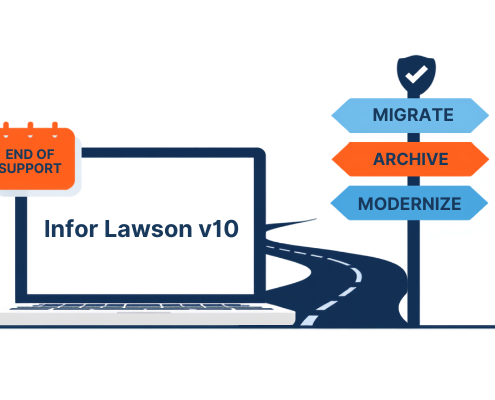 https://www.nogalis.com/wp-content/uploads/2026/09/Infor-Lawson-v-10-End-of-Support-What-It-Means-and-What-Your-Options-Are.png
400
711
Angeli Menta
https://www.nogalis.com/wp-content/uploads/2013/04/logo-with-slogan-good.png
Angeli Menta2026-09-10 16:33:272026-09-11 15:47:21Infor Lawson v10 End of Support: What It Means and What Your Options Are
https://www.nogalis.com/wp-content/uploads/2026/09/Infor-Lawson-v-10-End-of-Support-What-It-Means-and-What-Your-Options-Are.png
400
711
Angeli Menta
https://www.nogalis.com/wp-content/uploads/2013/04/logo-with-slogan-good.png
Angeli Menta2026-09-10 16:33:272026-09-11 15:47:21Infor Lawson v10 End of Support: What It Means and What Your Options Are https://www.nogalis.com/wp-content/uploads/2026/09/Requisition-Center-RQC-error-Error-23-Product-line-PROD-is-secure.jpg
470
470
Angeli Menta
https://www.nogalis.com/wp-content/uploads/2013/04/logo-with-slogan-good.png
Angeli Menta2026-09-08 07:54:212026-09-04 12:58:45Requisition Center (RQC) error, “Error 23 – Product line PROD is secure.”
https://www.nogalis.com/wp-content/uploads/2026/09/Requisition-Center-RQC-error-Error-23-Product-line-PROD-is-secure.jpg
470
470
Angeli Menta
https://www.nogalis.com/wp-content/uploads/2013/04/logo-with-slogan-good.png
Angeli Menta2026-09-08 07:54:212026-09-04 12:58:45Requisition Center (RQC) error, “Error 23 – Product line PROD is secure.” https://www.nogalis.com/wp-content/uploads/2026/08/Securing-ODBC-Access-to-Amazon-Athena-Without-Making-It-Painful-for-Users.jpg
470
470
Angeli Menta
https://www.nogalis.com/wp-content/uploads/2013/04/logo-with-slogan-good.png
Angeli Menta2026-09-01 08:01:042026-08-28 12:56:13Securing ODBC Access to Amazon Athena Without Making It Painful for Users
https://www.nogalis.com/wp-content/uploads/2026/08/Securing-ODBC-Access-to-Amazon-Athena-Without-Making-It-Painful-for-Users.jpg
470
470
Angeli Menta
https://www.nogalis.com/wp-content/uploads/2013/04/logo-with-slogan-good.png
Angeli Menta2026-09-01 08:01:042026-08-28 12:56:13Securing ODBC Access to Amazon Athena Without Making It Painful for Users https://www.nogalis.com/wp-content/uploads/2026/08/Error-for-Environment-identity.jpg
470
470
Angeli Menta
https://www.nogalis.com/wp-content/uploads/2013/04/logo-with-slogan-good.png
Angeli Menta2026-08-26 08:16:452026-08-27 11:40:02Error for Environment identity
https://www.nogalis.com/wp-content/uploads/2026/08/Error-for-Environment-identity.jpg
470
470
Angeli Menta
https://www.nogalis.com/wp-content/uploads/2013/04/logo-with-slogan-good.png
Angeli Menta2026-08-26 08:16:452026-08-27 11:40:02Error for Environment identity https://www.nogalis.com/wp-content/uploads/2026/08/Fixing-the-InvalidLocationConstraint-Error-When-Creating-S3-Buckets-with-Boto3.jpg
470
470
Angeli Menta
https://www.nogalis.com/wp-content/uploads/2013/04/logo-with-slogan-good.png
Angeli Menta2026-08-21 08:17:462026-08-19 11:58:09Fixing the InvalidLocationConstraint Error When Creating S3 Buckets with Boto3
https://www.nogalis.com/wp-content/uploads/2026/08/Fixing-the-InvalidLocationConstraint-Error-When-Creating-S3-Buckets-with-Boto3.jpg
470
470
Angeli Menta
https://www.nogalis.com/wp-content/uploads/2013/04/logo-with-slogan-good.png
Angeli Menta2026-08-21 08:17:462026-08-19 11:58:09Fixing the InvalidLocationConstraint Error When Creating S3 Buckets with Boto3 https://www.nogalis.com/wp-content/uploads/2026/08/How-to-setup-Lawson-email-notifications-when-a-file-channel-errors-out.jpg
470
470
Angeli Menta
https://www.nogalis.com/wp-content/uploads/2013/04/logo-with-slogan-good.png
Angeli Menta2026-08-18 08:29:572026-08-14 13:34:47How to setup Lawson email notifications when a file channel errors out
https://www.nogalis.com/wp-content/uploads/2026/08/How-to-setup-Lawson-email-notifications-when-a-file-channel-errors-out.jpg
470
470
Angeli Menta
https://www.nogalis.com/wp-content/uploads/2013/04/logo-with-slogan-good.png
Angeli Menta2026-08-18 08:29:572026-08-14 13:34:47How to setup Lawson email notifications when a file channel errors out