
 https://www.nogalis.com/wp-content/uploads/2026/10/lawson-featured-option-c-30-days.png
628
1200
Angeli Menta
https://www.nogalis.com/wp-content/uploads/2013/04/logo-with-slogan-good.png
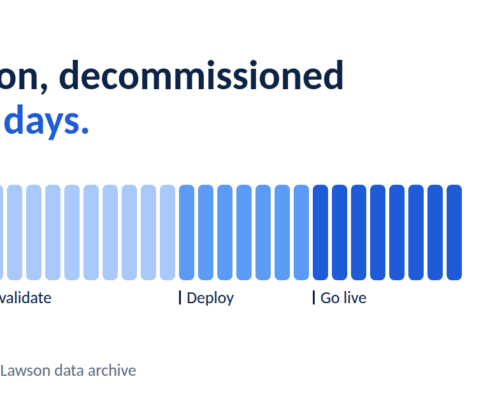
Angeli Menta2026-10-20 10:11:242026-10-19 12:53:46Lawson Decommissioning: How to Retire Infor Lawson Without Losing Your History
https://www.nogalis.com/wp-content/uploads/2026/10/lawson-featured-option-c-30-days.png
628
1200
Angeli Menta
https://www.nogalis.com/wp-content/uploads/2013/04/logo-with-slogan-good.png
Angeli Menta2026-10-20 10:11:242026-10-19 12:53:46Lawson Decommissioning: How to Retire Infor Lawson Without Losing Your History https://www.nogalis.com/wp-content/uploads/2026/10/Optimizing-Athena-Queries-on-Large-Transactional-Tables.jpg
470
470
Angeli Menta
https://www.nogalis.com/wp-content/uploads/2013/04/logo-with-slogan-good.png
Angeli Menta2026-10-06 08:09:182026-10-05 11:17:23Optimizing Athena Queries on Large Transactional Tables
https://www.nogalis.com/wp-content/uploads/2026/10/Optimizing-Athena-Queries-on-Large-Transactional-Tables.jpg
470
470
Angeli Menta
https://www.nogalis.com/wp-content/uploads/2013/04/logo-with-slogan-good.png
Angeli Menta2026-10-06 08:09:182026-10-05 11:17:23Optimizing Athena Queries on Large Transactional Tables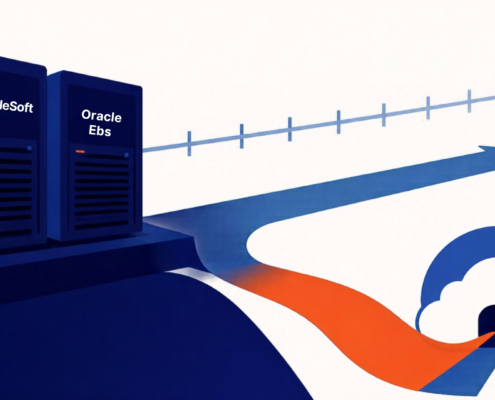 https://www.nogalis.com/wp-content/uploads/2026/09/PeopleSoft-and-Oracle-EBS-Are-Supported-Through-2037-Why-Are-Companies-Still-Retiring-Them.jpg
1080
1920
Angeli Menta
https://www.nogalis.com/wp-content/uploads/2013/04/logo-with-slogan-good.png
Angeli Menta2026-09-10 17:17:192026-09-29 14:38:03PeopleSoft and Oracle EBS Are Supported Through 2037. So Why Are Companies Still Retiring Them?
https://www.nogalis.com/wp-content/uploads/2026/09/PeopleSoft-and-Oracle-EBS-Are-Supported-Through-2037-Why-Are-Companies-Still-Retiring-Them.jpg
1080
1920
Angeli Menta
https://www.nogalis.com/wp-content/uploads/2013/04/logo-with-slogan-good.png
Angeli Menta2026-09-10 17:17:192026-09-29 14:38:03PeopleSoft and Oracle EBS Are Supported Through 2037. So Why Are Companies Still Retiring Them?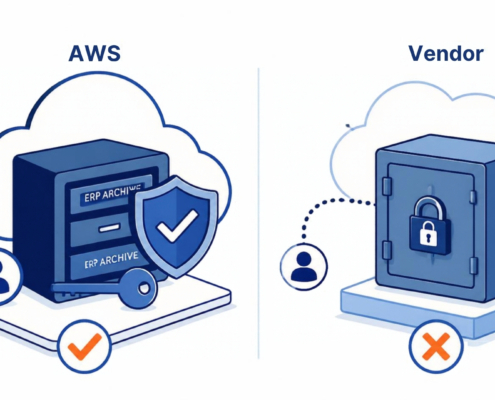 https://www.nogalis.com/wp-content/uploads/2026/09/Why-Your-ERP-Archive-Should-Live-in-Your-Own-AWS-Account-Not-the-Vendor.jpg
1080
1920
Angeli Menta
https://www.nogalis.com/wp-content/uploads/2013/04/logo-with-slogan-good.png
Angeli Menta2026-09-10 17:15:182026-09-29 14:30:02Why Your ERP Archive Should Live in Your Own AWS Account, Not the Vendor’s
https://www.nogalis.com/wp-content/uploads/2026/09/Why-Your-ERP-Archive-Should-Live-in-Your-Own-AWS-Account-Not-the-Vendor.jpg
1080
1920
Angeli Menta
https://www.nogalis.com/wp-content/uploads/2013/04/logo-with-slogan-good.png
Angeli Menta2026-09-10 17:15:182026-09-29 14:30:02Why Your ERP Archive Should Live in Your Own AWS Account, Not the Vendor’s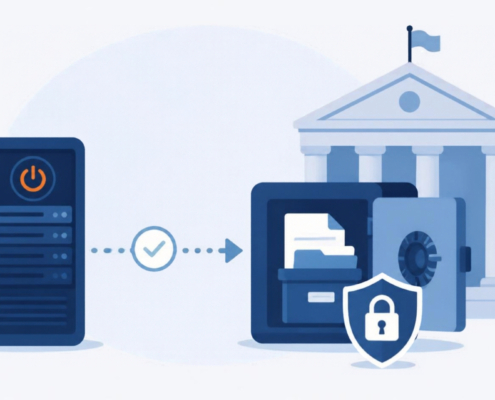 https://www.nogalis.com/wp-content/uploads/2026/09/Retiring-a-Legacy-ERP-in-the-Public-Sector.jpg
1080
1920
Angeli Menta
https://www.nogalis.com/wp-content/uploads/2013/04/logo-with-slogan-good.png
Angeli Menta2026-09-10 17:13:492026-09-29 14:23:50Retiring a Legacy ERP in the Public Sector: Records Law, Open-Records Requests, and Turning the Old System Off
https://www.nogalis.com/wp-content/uploads/2026/09/Retiring-a-Legacy-ERP-in-the-Public-Sector.jpg
1080
1920
Angeli Menta
https://www.nogalis.com/wp-content/uploads/2013/04/logo-with-slogan-good.png
Angeli Menta2026-09-10 17:13:492026-09-29 14:23:50Retiring a Legacy ERP in the Public Sector: Records Law, Open-Records Requests, and Turning the Old System Off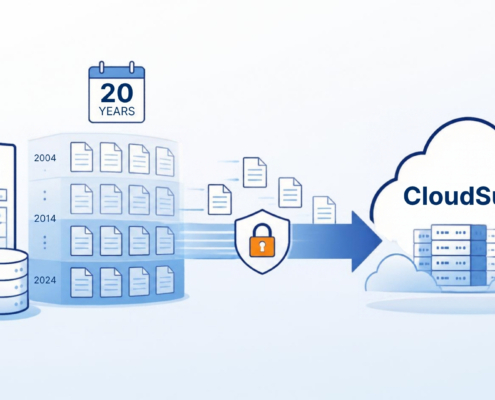 https://www.nogalis.com/wp-content/uploads/2026/09/Moving-from-Lawson-S3-to-CloudSuite-What-to-Do-With-20-Years-of-History.jpg
1080
1920
Angeli Menta
https://www.nogalis.com/wp-content/uploads/2013/04/logo-with-slogan-good.png
Angeli Menta2026-09-10 17:11:102026-09-29 14:12:09Moving from Lawson S3 to CloudSuite? Here’s What to Do With 20 Years of History
https://www.nogalis.com/wp-content/uploads/2026/09/Moving-from-Lawson-S3-to-CloudSuite-What-to-Do-With-20-Years-of-History.jpg
1080
1920
Angeli Menta
https://www.nogalis.com/wp-content/uploads/2013/04/logo-with-slogan-good.png
Angeli Menta2026-09-10 17:11:102026-09-29 14:12:09Moving from Lawson S3 to CloudSuite? Here’s What to Do With 20 Years of History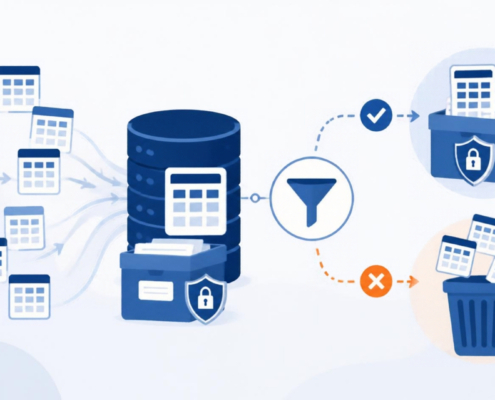 https://www.nogalis.com/wp-content/uploads/2026/09/Which-Lawson-Tables-Do-You-Actually-Need-to-Keep-When-You-Retire-System.jpg
1080
1920
Angeli Menta
https://www.nogalis.com/wp-content/uploads/2013/04/logo-with-slogan-good.png
Angeli Menta2026-09-10 17:08:222026-09-29 14:04:52Which Lawson Tables Do You Actually Need to Keep When You Retire the System?
https://www.nogalis.com/wp-content/uploads/2026/09/Which-Lawson-Tables-Do-You-Actually-Need-to-Keep-When-You-Retire-System.jpg
1080
1920
Angeli Menta
https://www.nogalis.com/wp-content/uploads/2013/04/logo-with-slogan-good.png
Angeli Menta2026-09-10 17:08:222026-09-29 14:04:52Which Lawson Tables Do You Actually Need to Keep When You Retire the System?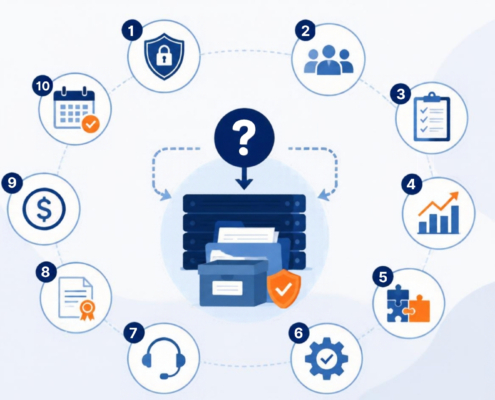 https://www.nogalis.com/wp-content/uploads/2026/09/Ten-Questions-to-Ask-Before-You-Choose-an-ERP-Archiving-Vendor.jpg
1080
1920
Angeli Menta
https://www.nogalis.com/wp-content/uploads/2013/04/logo-with-slogan-good.png
Angeli Menta2026-09-10 16:59:062026-09-29 13:59:1910 Questions to Ask Before You Choose an ERP Archiving Vendor
https://www.nogalis.com/wp-content/uploads/2026/09/Ten-Questions-to-Ask-Before-You-Choose-an-ERP-Archiving-Vendor.jpg
1080
1920
Angeli Menta
https://www.nogalis.com/wp-content/uploads/2013/04/logo-with-slogan-good.png
Angeli Menta2026-09-10 16:59:062026-09-29 13:59:1910 Questions to Ask Before You Choose an ERP Archiving Vendor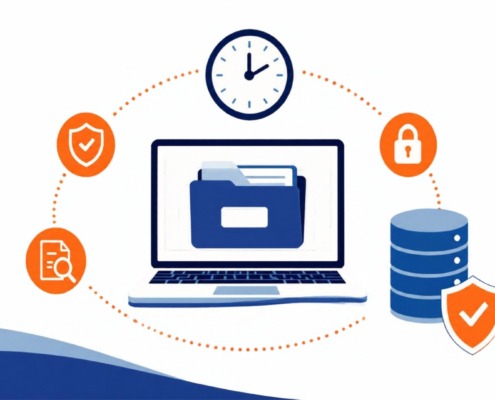 https://www.nogalis.com/wp-content/uploads/2026/09/How-Long-Do-You-Have-to-Keep-Legacy-ERP-Data-Retention-Requirements-by-Industry-2.jpg
1080
1920
Angeli Menta
https://www.nogalis.com/wp-content/uploads/2013/04/logo-with-slogan-good.png
Angeli Menta2026-09-10 16:55:072026-09-29 13:50:42How Long Do You Have to Keep Legacy ERP Data? Retention Requirements by Industry
https://www.nogalis.com/wp-content/uploads/2026/09/How-Long-Do-You-Have-to-Keep-Legacy-ERP-Data-Retention-Requirements-by-Industry-2.jpg
1080
1920
Angeli Menta
https://www.nogalis.com/wp-content/uploads/2013/04/logo-with-slogan-good.png
Angeli Menta2026-09-10 16:55:072026-09-29 13:50:42How Long Do You Have to Keep Legacy ERP Data? Retention Requirements by Industry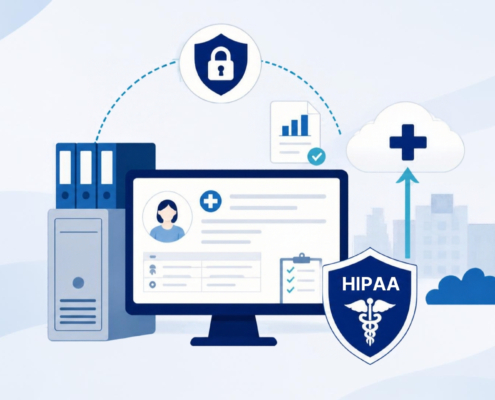 https://www.nogalis.com/wp-content/uploads/2026/09/Retiring-a-Legacy-ERP-in-Healthcare.jpg
1080
1920
Angeli Menta
https://www.nogalis.com/wp-content/uploads/2013/04/logo-with-slogan-good.png
Angeli Menta2026-09-10 16:54:062026-09-29 13:42:34Retiring a Legacy ERP in Healthcare: HIPAA, CMS, and the Data You Can’t Lose
https://www.nogalis.com/wp-content/uploads/2026/09/Retiring-a-Legacy-ERP-in-Healthcare.jpg
1080
1920
Angeli Menta
https://www.nogalis.com/wp-content/uploads/2013/04/logo-with-slogan-good.png
Angeli Menta2026-09-10 16:54:062026-09-29 13:42:34Retiring a Legacy ERP in Healthcare: HIPAA, CMS, and the Data You Can’t Lose