

If you just started working in IPA, some of the documentation is not straight forward and can often even be confusing at times.
The “No Incoming Connection” error is a simple fix for most nodes that do a query or write/read on a file.
Example of a No Incoming Connection error:
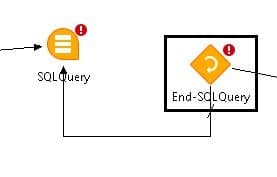

To resolve, select the connect tool and connect the Starting node with the end node to resolve the issue.
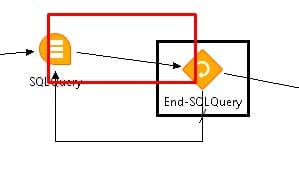
Done! These types of nodes should already come connected and if the developer needs to change them up that would be up to them. Good luck with the rest of the little quirks of IPA!
With Infor Cloudsuite’s SQL Manage User Service, there is no need to setup any DBA permissions or to use database management software. You can simply add a read-only database user via Cloudsuite in the below steps.

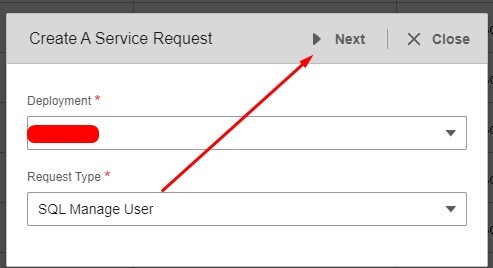
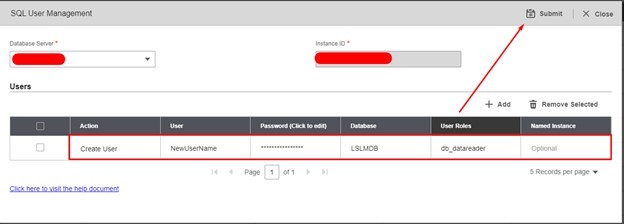
Done!
NOTE: Some organizations have minimum password requirements. We recommend using a password generator online and keeping it to letters and numbers so users can type in relatively easy.


Infor Cloudsuite allows you to add users into Lawson more easily then the traditional method of adding the user via Lawson Security Administrator or LID via the loaduser command.

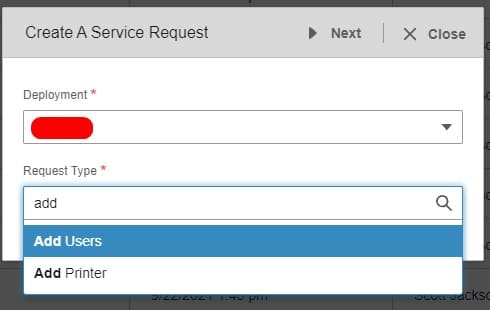
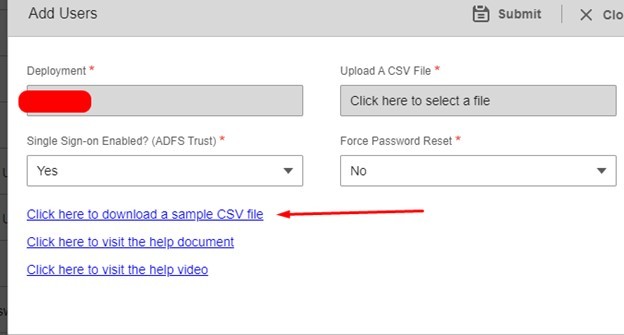
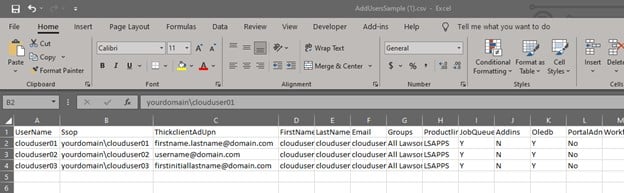
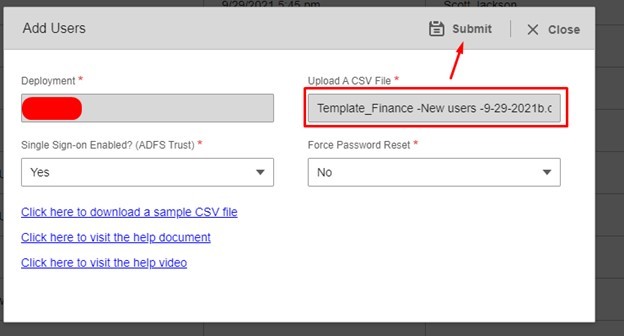

Done!

In many mergers and acquisitions (M & As), retention problems can lead to negative employee attitudes. High-level organizations can lose influential executives and board members, which can damage the deal’s success, and corporate culture and perception can also suffer. Starting with early negotiations and meetings with the team on the integration of the merged corporate culture, regular dialogue between the two merged management and the employees is crucial to ensure alignment towards a shared vision. Keep the services of qualified consultants who understand the merger objectives of the company and have the skills to achieve them. Build an M&A team and select a coach for the M&A leader so that the team leader can focus on how the new company will be integrated into the company leadership, be sensitive to cultural differences, lead the change process and retain and motivate key employees.
Aside from the obvious HR concerns in Merger and Acquisitions, there is the underlying business philosophy differences which might translated to technology differences. One consideration is how do the two organization manage their inventory. Is it something that can easily be combined in the same system? If not, is it better to keep two systems going even though you are in the same industry?
Even if the inventory is very similar, there could be regional differences that make it very difficult to source the same items in all of the various regions that the combined company might encompass. There could be differences in how the inventory is purchased as well. For example, a grocery chain that basically has the same products in all of their stores is one view of how to manage multiple locations and makes re-ordering easy. All stores carry the same products and therefore it is easy to repeat merging with other stores and converting them to the same products your other stores carry. A repeatable process.
If merging with another grocery chain that allows all of the products to be determined by the store or department manager, then it is a much more complex process to merge these two grocery chains. There is at the core a basic difference between their philosophies about how to manage inventory. This might be the hidden elephant in the room that no one considered during the M&A negotiations.
In conclusion, make sure that the way that business is conducted at both organizations – the operational philosophies – is compatible with the technology that you are planning on using for the combined organization. The HR side of things are easier to manage as everyone is aware of them going into negotiations. It’s the hidden business philosophies that often get left out and cause the biggest upset of successfully combining the organizations.

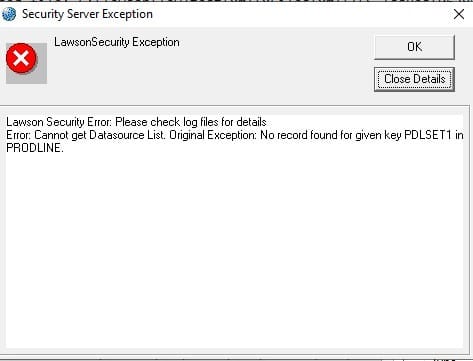
If you are getting an error message in Lawson Security Administrator that references “No record found for given key PDLSET1 in PRODLINE”, it is possible that your Lawson instance has lost connection from the database and is unable to recover. This can happen during an unexpected restart of the system, or a network outage. To resolve the issue, simple stop and restart the Lawson services, including the IBM WebSphere services. The startup order is:

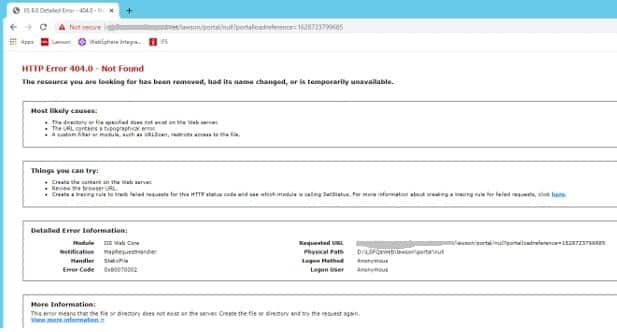
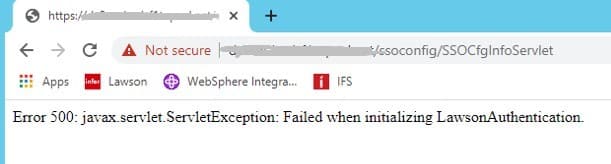
With the latest java update, some instances of Lawson are throwing exceptions. The portal is throwing a 404 error, and SSOCfgInfoServlet throws a 500 error.
In this scenario, the security_authen.log is throwing an exception “Failed to initialize authentication layer.” The lase_server_0_0.log has a much more detailed error message referring to “Client requested protocol TLSv1 is not enabled or supported in server context”.
To resolve the issue, edit the java.security file at JAVA_HOME/jre/lib/security. Update the jdk.tls.disabledAlgorithms line to include TLSv2.
This is a temporary solution; Infor is working on a permanent solution to resolve this issue.
security_authen.log
Thu Aug 12 10:02:49.303 CDT 2021 – default-421637524 – L(4) : tenantID=DEFAULT thread=main. CacheManager.setRefreshInterval(): RefreshInterval =null is invalid.
Thu Aug 12 10:02:49.309 CDT 2021 – default-421637524 – L(4) : tenantID=DEFAULT thread=main. CacheManager.setRefreshInterval(): RefreshInterval =28800 seconds
Thu Aug 12 10:02:49.309 CDT 2021 – default-421637524 – L(4) : tenantID=DEFAULT thread=main. CacheManager.getCacheProperties: cache properties were initialized: Development=false, Instance=com.lawson.security.util.cache.ConcurrentCache, RefreshInterval=28800,
Thu Aug 12 10:05:55.179 CDT 2021 – default–932566529 – L(2) : error starting up SecEvent servlet, original message: Failed to initialize authentication layer. Cause Connection error (server.company.com, null). Cause: {2}.
Stack Trace :
com.lawson.security.authen.SecurityAuthenException: Connection error (server.company.com, null). Cause: {2}.
at com.lawson.security.authen.LawsonAuthentication.initClientAuthenDatThroughSSL(LawsonAuthentication.java:449)
at com.lawson.security.authen.LawsonAuthentication.initClientAuthenDat(LawsonAuthentication.java:307)
at com.lawson.security.authen.LawsonAuthentication.remoteInit(LawsonAuthentication.java:2593)
at com.lawson.security.authen.LawsonAuthentication.initializeForTenant(LawsonAuthentication.java:244)
at com.lawson.security.authen.LawsonAuthentication.performInitializeForTenant(LawsonAuthentication.java:181)
at com.lawson.security.authen.LawsonAuthentication.initializeForTenant(LawsonAuthentication.java:127)
at com.lawson.security.authen.LawsonAuthentication.initialize(LawsonAuthentication.java:116)
at com.lawson.security.authen.SecEventServlet.init(SecEventServlet.java:86)
at com.ibm.ws.webcontainer.servlet.ServletWrapper.init(ServletWrapper.java:345)
at com.ibm.ws.webcontainer.servlet.ServletWrapperImpl.init(ServletWrapperImpl.java:168)
at com.ibm.ws.webcontainer.servlet.ServletWrapper.loadOnStartupCheck(ServletWrapper.java:1369)
at com.ibm.ws.webcontainer.webapp.WebApp.doLoadOnStartupActions(WebApp.java:649)
Lase_server_0_0.log
21-08-12 10:10:46:682 12 default.SEVERE authen.SSOServer.run(): SSOServer: Got unexpected exception when processing new secured connection com.lawson.security.server.LawsonNetException: Got exception while writing to connection /11.111.111.11,10001
Stack Trace : com.lawson.security.server.LawsonNetException: Got exception while writing to connection /11.111.111.11,10001
at com.lawson.security.server.AbstractDefaultEventSource.write(AbstractDefaultEventSource.java:299)
at com.lawson.security.server.Connection.<init>(Connection.java:170)
at com.lawson.lawsec.authen.SecuredConnection.<init>(SecuredConnection.java:39)
at com.lawson.lawsec.authen.SSOServer.run(SSOServer.java:180)
Caused by: javax.net.ssl.SSLHandshakeException: Client requested protocol TLSv1 is not enabled or supported in server context
at sun.security.ssl.Alert.createSSLException(Alert.java:131)
at sun.security.ssl.Alert.createSSLException(Alert.java:117)
at sun.security.ssl.TransportContext.fatal(TransportContext.java:357)
at sun.security.ssl.TransportContext.fatal(TransportContext.java:313)
at sun.security.ssl.TransportContext.fatal(TransportContext.java:304)
at sun.security.ssl.ClientHello$ClientHelloConsumer.negotiateProtocol(ClientHello.java:740)
at sun.security.ssl.ClientHello$ClientHelloConsumer.onClientHello(ClientHello.java:705)
at sun.security.ssl.ClientHello$ClientHelloConsumer.consume(ClientHello.java:683)
Update JAVA_HOME/jre/lib/security/java.security