With Infor Cloudsuite’s SQL Manage User Service, there is no need to setup any DBA permissions or to use database management software. You can simply add a read-only database user via Cloudsuite in the below steps.
Login to Infor Cloudsuite and go to the Service Request tab, then click Create a Service Request
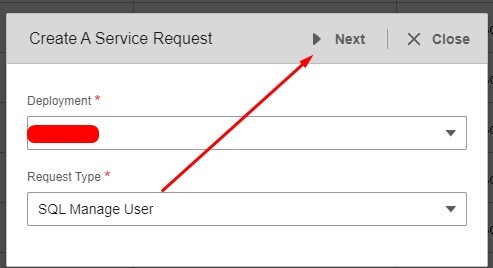
Select Deployment and Request Type: SQL Manage User >> Next
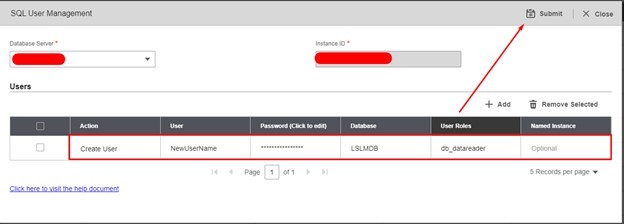
Select the Database Server, fill in the User, Password, Database name and for our example we are using the default database roles, for read-only, use db_datareader. See all default SQL database roles here and then click Submit!
NOTE: Some organizations have minimum password requirements. We recommend using a password generator online and keeping it to letters and numbers so users can type in relatively easy.
If you found this article helpful and need support managing your Infor Cloudsuite or Lawson Database processes, Nogalis provides expert managed services to simplify and optimize your system. From resolving issues like database user management to maintaining/optimizing existing processes, our team is equipped to deliver the assistance you need—without the cost and commitment of a full-time, in-house staff. Contact us to learn more about how we can help streamline your Lawson environment.
https://www.nogalis.com/wp-content/uploads/2022/01/How-to-add-a-read-only-SQL-database-user-via-Infor-Cloudsuite.jpg470470Angeli Mentahttps://www.nogalis.com/wp-content/uploads/2013/04/logo-with-slogan-good.pngAngeli Menta2025-03-07 08:33:452025-02-27 17:34:16How to add a read-only SQL database user via Infor Cloudsuite
In an IPA process that runs a batch job using a Web Run node, and you get the message “An unknown error occurred” in the Work Unit Log, the next step should be to check the IOS.log. If you see the message “javax.transaction.TransactionRolledbackException: Transaction is ended due to timeout”, you need to increase the timeout in WebSphere.
Sample Error: WU Log
Activity name:WebRun9710 id:1 started @ 06/28/2024 02:30:15.993 AM
WebRun WebRun9710: Executing WebRun activity node
WebRun WebRun9710: call type Lawson HTTP Call
WebRun WebRun9710: calling host https://server.company.com:1447 (Req timeout: 60 min; # Retries: 3; Pause: 1,000 ms) web program cgi-lawson/jobrun.exe?FUNC=run&USER=NA%5Crlawjob&JOB=AP136-02&WAIT=true&OUT=XML
<ERROR key=”UNKNOWN_ERROR” level=”1″><MSG><![CDATA[ An unknown error occurred. Please contact your system admin. ]]></MSG><DETAILS><![CDATA[ Check IOS logs for details. ]]></DETAILS></ERROR>
WebRun WebRun9710: Success string <STATUS>63</STATUS> not found
WebRun9710_errorCode = 1
WebRun9710_informationCode = 0
WebRun9710_returnMessage = WebRun WebRun9710: Success string <STATUS>63</STATUS> not found
WebRun9710_outputData =
Activity name:WebRun9710 id:1 failed @ 06/28/2024 02:44:51.452 AM
javax.ejb.EJBTransactionRolledbackException: Transaction rolled back; nested exception is: javax.transaction.TransactionRolledbackException: Transaction is ended due to timeout
at com.ibm.ejs.container.BusinessExceptionMappingStrategy.mapCSIException(BusinessExceptionMappingStrategy.java:167) ~[com.ibm.ws.runtime.jar:?]
at com.ibm.ejs.container.BusinessExceptionMappingStrategy.mapCSITransactionRolledBackException(BusinessExceptionMappingStrategy.java:618) ~[com.ibm.ws.runtime.jar:?]
at com.ibm.ejs.container.EJSDeployedSupport.mapCSITransactionRolledBackException(EJSDeployedSupport.java:711) ~[com.ibm.ws.runtime.jar:?]
at com.ibm.ejs.container.EJSContainer.postInvokeRolledbackException(EJSContainer.java:4900) ~[com.ibm.ws.runtime.jar:?]
at com.ibm.ejs.container.EJSContainer.postInvoke(EJSContainer.java:4586) ~[com.ibm.ws.runtime.jar:?]
at com.lawson.ios.services.CGI.EJSLocal0SLCGIServiceBean_7f987149.invoke(EJSLocal0SLCGIServiceBean_7f987149.java) ~[?:?]
at com.lawson.servlet.Cgilawson.doService(Cgilawson.java:105) [classes/:?]
Steps to Resolve
Access the LSF WebSphere Administration/Integrated Solutions Console.
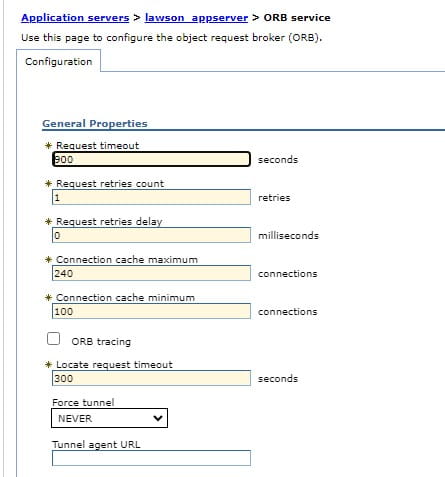
2. Navigate to Servers > Server Types > WebSphere Application Servers > {LSF Application Server} > Container Services > ORB service.
3. In the Request timeout field type 900 (equates to 15 minutes)
4. In the Locate request timeoutfield type 300 (which is the maximum value allowed for this field).
5. Click OK.
6. Save the changes to the master configuration.
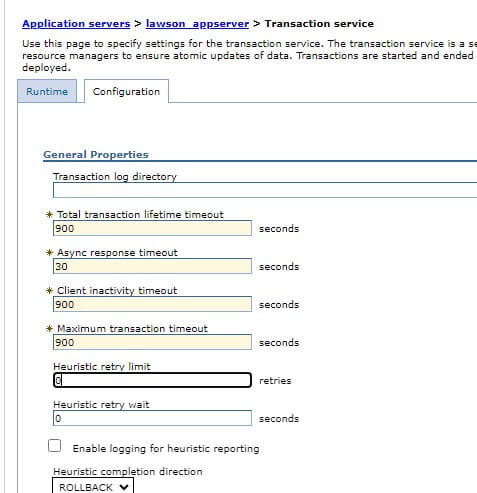
7. Navigate to Servers > Server Types > WebSphere Application Servers > {LSF Application Server} > Container Services > Transaction service.
8. In the Total transaction lifetime timeout field type 900
9. In the Client Inactivity timeoutfield, type 900
10. In the Maximum transaction timeout field, type 900
11. Click OK.
12. Save the changes to the master configuration.
13. Restart the LSF application server for the changes to take effect.
https://www.nogalis.com/wp-content/uploads/2025/02/Increasing-the-WebSphere-timeout-for-Web-Run-in-IPA.jpg470470Angeli Mentahttps://www.nogalis.com/wp-content/uploads/2013/04/logo-with-slogan-good.pngAngeli Menta2025-03-04 08:29:352025-02-27 17:32:14Increasing the WebSphere timeout for Web Run in IPA
Summary: Below is a helpful guide if you’re having issues running AC290 for more than 6 activities.
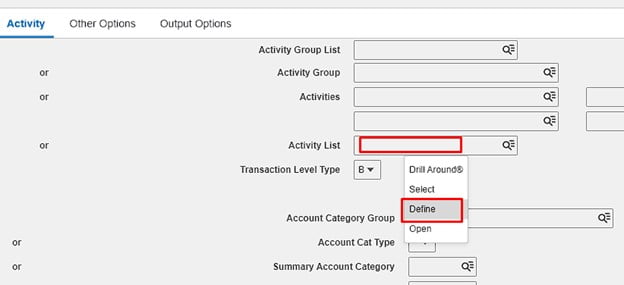
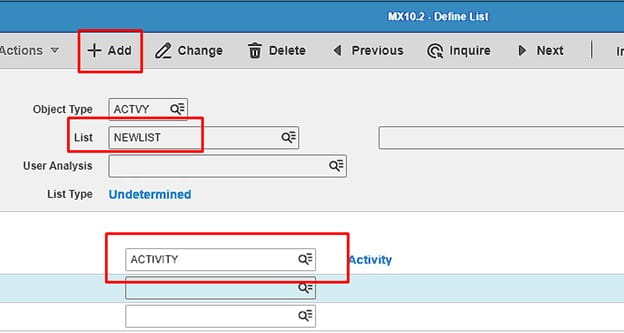
First create an activity list, so on AC290 right-click inside the Activity List field and select “Define”.
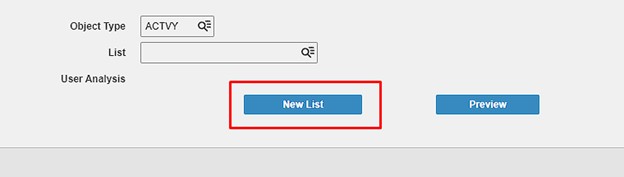
This will take you to MX10.1, click new list:
This takes you to MX10.2, Create your list name, add it, and go back to MX10.1
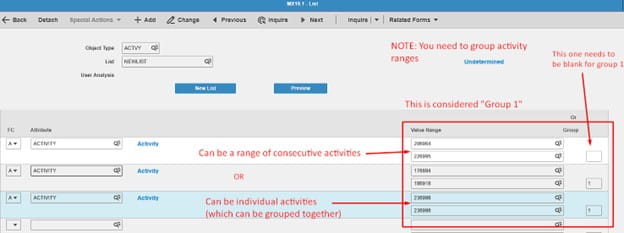
On MX10.1, inquire on your list and add in activities, this can be a range or individual. You’ll need to group them if they are ranges, all shown below.
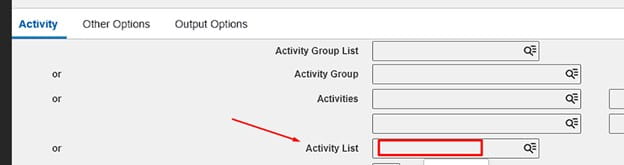
Now go back to AC290, enter the list you created under Acivity List:
Hope this was helpful!
https://www.nogalis.com/wp-content/uploads/2025/02/How-to-run-AC290-for-more-than-6-activities-in-Lawson.jpg470470Angeli Mentahttps://www.nogalis.com/wp-content/uploads/2013/04/logo-with-slogan-good.pngAngeli Menta2025-02-28 08:26:182025-02-27 17:30:41How to run AC290 for more than 6 activities in Lawson
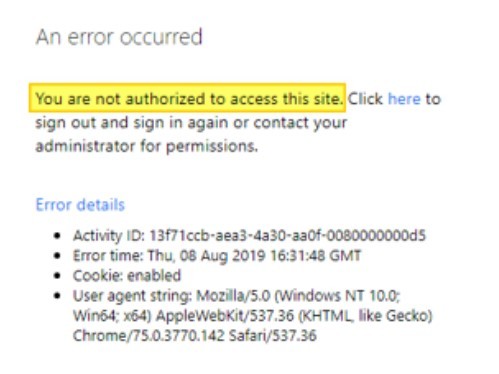
When logging in on Lawson Mingle (or portal direct), you may receive an error “You are not authorized to access this site” even though your user is all setup with the proper security in Lawson.
The highlighted error indicates that the user has been authenticated but is not authorized to access the application. This indicates that the issue is likely within Infor Federation Services for Infor Ming.le 11.1.x or Security Administration for Infor OS.
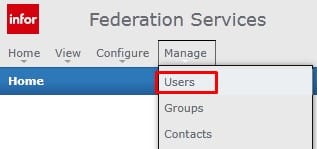
To resolve, a Lawson administrator with access to Infor Federated services will have to login to IFS.
Select Manage >> Users
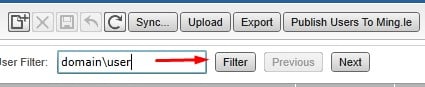
Type in the domain\user and click filter
If the user does not come up, click the Add user button
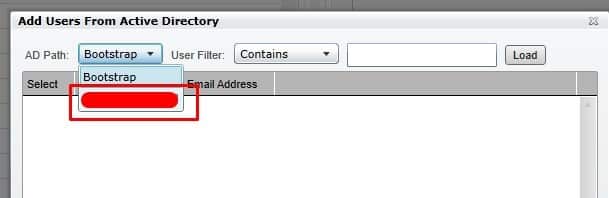
Select your organizations domain (not bootstrap)
Type the users domain\user in the User Filter box and click Load
Select the user, click Apply then Ok
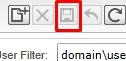
After the users been added, click save next to the add button:
The IFS system should be setup to sync automatically but an issue with auto-sync or possibly a connection to the IFS server may need to be addressed first.
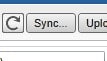
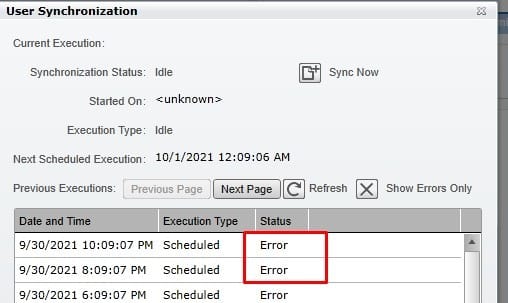
You can click the manual sync and check if there are errors with the auto-sync:
Work with your network or windows team to resolve any connection issues to further resolve auto-sync.
If you found this article helpful and are considering optimizing your Lawson Security and LBI systems, Nogalis offers expert consultant teams specializing in managed services at a fixed monthly rate. Catering to both large organizations requiring robust support and smaller entities seeking efficient management without full-time on-site staff, our services are tailored to fit diverse organizational needs. For further details, please reach out to us via our contact page.
https://www.nogalis.com/wp-content/uploads/2022/02/Lawson-Mingle-Portal-error-You-are-not-authorized-to-access-this-site.jpg470470Angeli Mentahttps://www.nogalis.com/wp-content/uploads/2013/04/logo-with-slogan-good.pngAngeli Menta2025-02-21 08:24:182025-02-14 15:25:52Lawson Mingle Portal error – You are not authorized to access this site
You can clear workunit logs and activities for workunits with Completed or Canceled status to minimize the amount of data related to workunits that is stored on your system without deleting the important information, such as execution date/time and user actions, for a workunit.
You can delete logs and activities for workunits from the active Workunits list or from Workunit History.
Archive workunits in history.
To hide completed workunits from workunit lists but not delete them and their associated data, you can move the workunits to history. Workunits retain all associated data for as long as they remain in history.
Permanently delete all workunit data.
It is possible to permanently delete workunit data. If you have old data that you know you will never again need, deleting the data, which can become quite large, might be a good idea.
Access the Process Server Administrator and select Administration > Work Units > Work Units
Click Actions > Schedule Logs And Activities Deletion.
The Delete Logs and Activities dialog box is displayed.
Select one or more of the types of records you to delete from these options:
Delete Work Unit Logs And Activity Logs: Delete all log data for workunits and activities.
Delete Activities And Activity Variables: Delete activity records.
Delete Work Unit Variables: Delete workunit variable information.
Select the records to process. The action processes only workunits with a status of Completed or Canceled. Specify a method for selection:
Work Unit Completion Date Range
To process workunits within a specific range, select a begin and end date.
Work Unit Completion Days Range Prior to Current Date
To process workunits within a range of completion days prior to current date, specify the number of days prior to the current date. For example, if the date is February 1 and you want to clear January data, specify 31 in Begin Days and 1 in End Days.
Work Unit Range
To process workunits by work unit number, select begin and end workunit numbers.
Click OK to run the action or click Schedule to schedule the action to run.
https://www.nogalis.com/wp-content/uploads/2025/02/IPA-Clearing-logs-and-activities-for-workunits.jpg470470Angeli Mentahttps://www.nogalis.com/wp-content/uploads/2013/04/logo-with-slogan-good.pngAngeli Menta2025-02-18 08:16:402025-02-14 15:19:47IPA Clearing logs and activities for workunits