When you perform a data refresh in your SQL database, such as reloading data into tables, you may need to take steps to ensure dependent objects and overall database performance are optimized. Follow these steps to Update your SQL Tables after a Lawson Data Refresh.
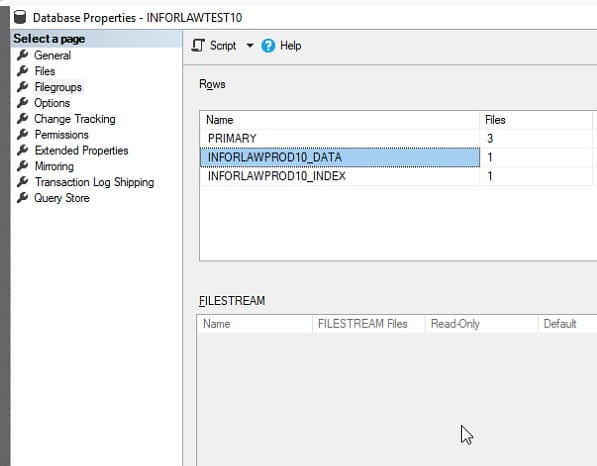
First, open up the properties for the DB that was just refreshed and you can see that the DB tables have the PROD name.
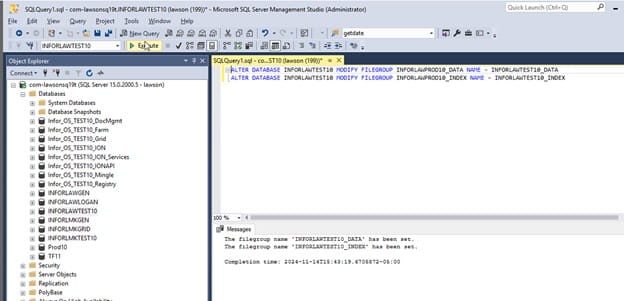
Next, run the following SQL query for the TEST DB:
ALTER DATABASE INFORLAWTEST10 MODIFY FILEGROUP INFORLAWPROD10_DATA NAME = INFORLAWTEST10_DATA
ALTER DATABASE INFORLAWTEST10 MODIFY FILEGROUP INFORLAWPROD10_INDEX NAME = INFORLAWTEST10_INDEX
You’ve now updates your SQL tables post-refresh.
https://www.nogalis.com/wp-content/uploads/2025/07/Update-SQL-Tables-after-Data-Refresh.jpg470470Angeli Mentahttps://www.nogalis.com/wp-content/uploads/2013/04/logo-with-slogan-good.pngAngeli Menta2025-08-01 08:36:582025-07-30 15:47:05Update SQL Tables after Data Refresh
Many of our clients would like to lock down their external websites to EMSS (Employee and Manager Self-Service) only, because it is a security risk to allow super users to access Human Resources (HR) & Financials from the web. The official word is that this cannot be done in Lawson. However, Nogalis has devised a method to remove the search box and all but the desired bookmarks from the external Lawson website (See a sample screenshots below). If you would like to have this done at your organization, Nogalis is happy to help. Please contact us today!
Internal Lawson Site
External Lawson Site
https://www.nogalis.com/wp-content/uploads/2025/07/Limiting-Access-to-External-EMSS.jpg470470Angeli Mentahttps://www.nogalis.com/wp-content/uploads/2013/04/logo-with-slogan-good.pngAngeli Menta2025-07-29 10:09:142025-07-28 17:43:33Limiting Access to External EMSS
Problem: An XM User Profile is getting overwritten.
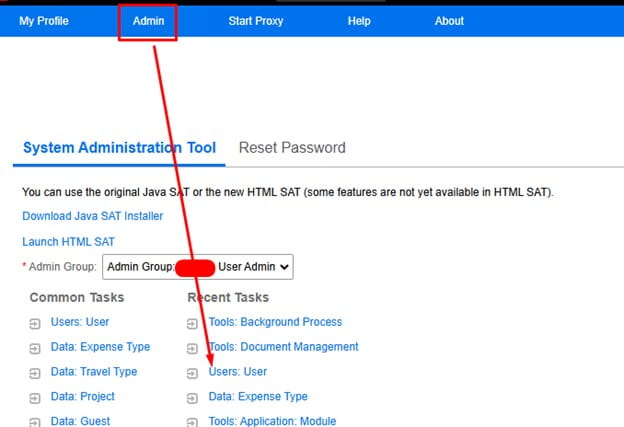
Login to XM and view the user profile in XM (Admin rights required):
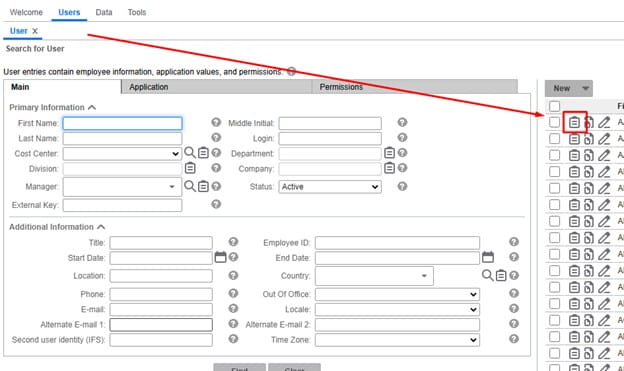
Locate and view your user:
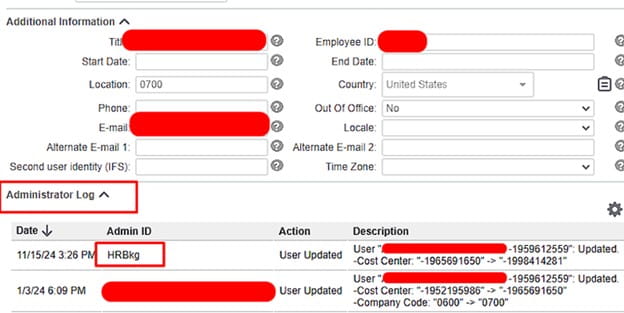
View the Administration Log and figure out who or what process might be changing this:
In this case we see the HRBkg process modifying this user. This can be bringing data in for your organizations HR application (Workday etc.).
You can consult Infor further to get more information on the process updating your XM Users (assuming it’s not a completely custom process). Nogalis also offers a team of managed service professionals to help support processes like Expense Management among other applications. We also support custom processes unlike Infor. Visit us at our contact page for more information: https://www.nogalis.com/support/
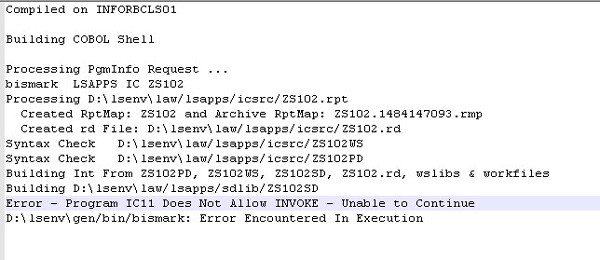
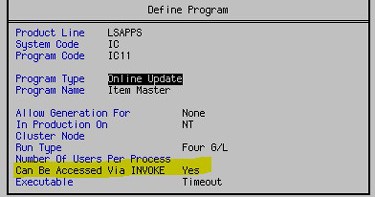
If you are compiling a form that generates an error “Program X Does Not Allow INVOKE”, that means that the invoked program needs to be set to allow invoke. To do that, from a LID session, go to the form in pgmdef (pgmdef <prodline> <system code>). Select Define (F6) > Program (A). Set the property “Can Be Accessed Via INVOKE” to Yes. Compile the invoked form and then compile the custom form that does the invoking.
Define (F6) > Program (A)
This is an update to an older version of this article, which can be found here.
If you found this article helpful, Nogalis provides managed services and expert technical resources to assist with Lawson patching and system maintenance. Let us help ensure your patches are applied efficiently and your system is running smoothly. Contact us to learn more about how we can support your Lawson environment.
https://www.nogalis.com/wp-content/uploads/2025/07/Resolving-the-Error-Program-Does-Not-Allow-INVOKE.jpg470470Angeli Mentahttps://www.nogalis.com/wp-content/uploads/2013/04/logo-with-slogan-good.pngAngeli Menta2025-07-18 08:28:202025-07-15 11:33:30Resolving the Error “Program Does Not Allow INVOKE”
In a Lawson Cloud environment, its difficult to get logs off the server since now you’re likely restricted to FTP access and the latest logs are currently being written to by the server itself, thus throwing a deny exception when trying to download the latest logs from FTP.
I previously made another article on this explaining a work around for this but that takes a few extra steps and time. This is a quicker command line method if you need to test something immediately.
First login to Lawson Interface Desktop
Go to the directory in which the logs exist
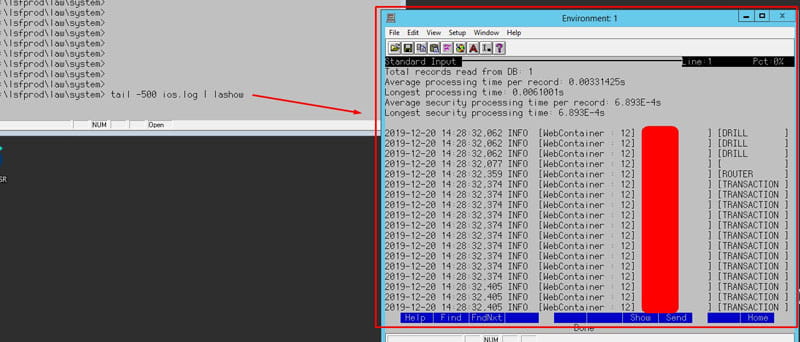
Type this command: tail -500 <name of log file being written to> | lashow
Example: tail -500 ios.log | lashow
As you see above, this uses the tail command combined with -500 parameter which returns the last 500 lines written to the log. You can change -500 to whatever amount of lines you want to return (the more the longer it takes to load)
The optional piped LASHOW command is to open this in a separate scrollable and searchable window within LID.
This becomes especially useful when testing live forms or code in Lawson.
If you found this article helpful, Nogalis offers expert managed services to optimize your Infor Cloudsuite or Lawson environment. From troubleshooting log issues to streamlining processes, we provide tailored support to keep your system running efficiently. Contact us to learn how we can enhance your Lawson Cloud experience without the overhead of full-time staff.
https://www.nogalis.com/wp-content/uploads/2020/01/How-to-Analyze-a-Cloud-based-Log-Quickly-in-Lawson.jpg470470Angeli Mentahttps://www.nogalis.com/wp-content/uploads/2013/04/logo-with-slogan-good.pngAngeli Menta2025-07-11 08:20:322025-07-09 09:21:18How to Analyze a Cloud-based Log Quickly in Lawson