

Is your organization planning a move from Infor Lawson to Infor Cloud Suite (FSM, HRT, and HRP)?
If so, make sure you take advantage of Infor’s Data Migration Factory (DMF).
The DMF till will be used to perform data mapping; pre-and post-migration steps; data verification, rationalization, and validation; and data testing. There are 5 Data Migration Passes as part of this process: 3 test passes, 1 mock go-live pass, and 1 production pass.
Lawson S3 data will be migrated for current FY detail, and 2 prior FY summary or detail for Financial Data. HR Talent will migrate 0-3 years of employee work assignment and service record history. Payroll will migrate current calendar year history if the go-live if after January 1.
NOTE: if you need access to ALL of your historical data, Nogalis offers a cost-effective and comprehensive solution. Check it out here!
You can find more detail about the DMF on Infor’s KB article 2213690. Make sure you ask your Customer Success manager to include the DMF in your migration plan. It is FREE for Infor customers migrating from S3 to Cloud Suite!!
Problem:
We noticed our jobs are failing after refreshing our productline. The job log is showing a bad file status error.
This particular error was caused by windows permissions not being inherited. Even though the owner of the applications directory was correct, it was not the owner of the files and folders underneath it.
Resolution:
This was resolved by setting the owner in the advanced security settings of the folder properties and running icacls to reset permissions on the files.
——————————————————————————–
User: domain\lawson Job: PR140 Queue: **********
——————————————————————————–
BEGIN: Job Submitted: Wed Feb 14 09:22:06 2018
Step 1: PR140 Started. . . . . .: Wed Feb 14 09:22:06 2018
Token Command. . . . . .: C:\LSFDEV\law\dev\obj\PR140.gnt
Executable Command . . .: C:\COBOL\bin64\run.exe C:\LSFDEV\law\dev\obj\PR140.gnt dev NT00000004 PR140 1
Process ID . . . . . . .: 4008
Running as Account . . .: domain\lawson
Program Messages:
** Creating .prt and .dtl files
Bad File Status 3 7 On File PRPAYRPTEN-FILE
Elapsed Time . . . . . .: 00:00:00
ERROR: Stopped On Exit 1.
Elapsed Time: 00:00:01
END: Job Ended: Wed Feb 14 09:22:07 2018


Problem
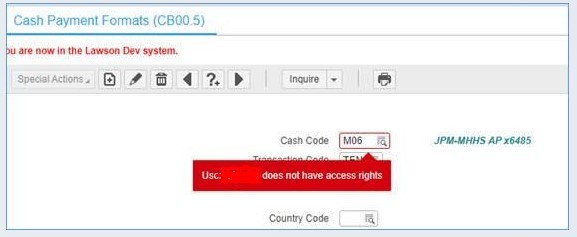
When I try to add a record in Cash Ledger (CB), I get the error message User XXXX does not have access rights, even though I have security to run CB jobs. How do I resolve this error?
Solution
To resolve this error, follow the steps outlined below.
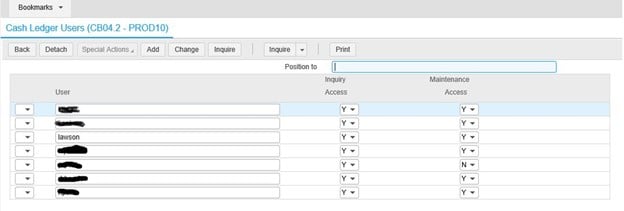
(Cash Code Security).
Sometimes you might inadvertently add a server definition in LID, or you may have some old server definitions hanging around that you would like to remove from the list to clean up space and keep up with some basic housekeeping/organization.
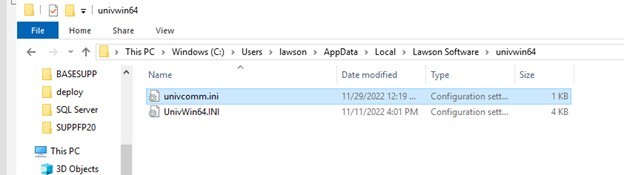
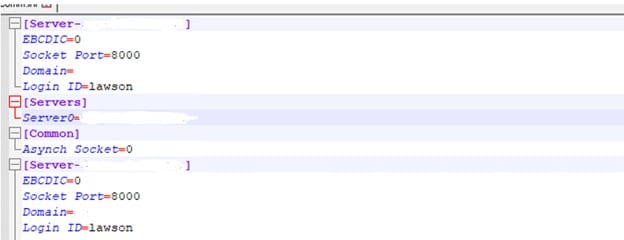
The good news is this is an easy task to perform. In order to do this, you will first need to go to %AppData%/Local/Lawson Software/ univwin64. Next, find and open the univcomm.ini file. Look for the server definition(s) that are no longer valid for you and from here you are able to remove them. You can refer to the example screenshots below as a guide.

When updating a Lawson system user, we need to make sure that the user is not LDAP bound and check if it needs a ldap rebind.
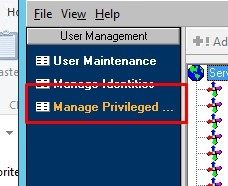
The first thing you need to do is login to Lawson Security Administrator then navigate over to Managed Privileged Identities.
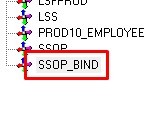
From here, you need to select SSOP_BIND.
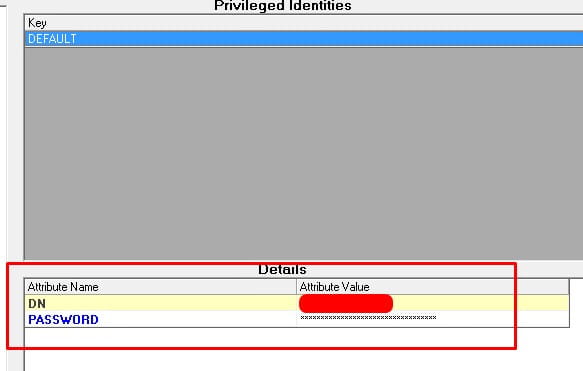
Next, select the DEFAULT key as shown below. Make note if the DN Attribute name is the same as the system user. If so, you will need to do a full LDAP rebind. If not, you’re okay to change the password.
And you’re all done. Good luck!

PROBLEM
When I run CB187 job, I found an error message at CB N-68 as per below:
I am not able to delete CB entry with error message “cannot delete non-GL journal entries”. Should I go ahead and post the CB or is there any way I can delete the entry?
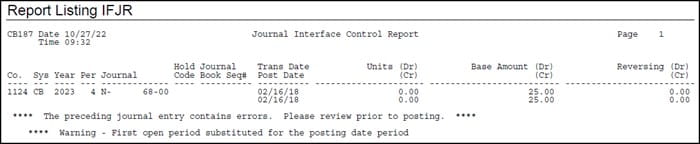
RESOLUTION
The message that you cannot delete a non-GL journal is a system enforced error. If the issue results in GL substituting error suspense, a sequenced journal will be created.
Otherwise after it is posted, you could copy with reversing entries to create a new journal with exact opposite data so the two ultimately net to zero.
Or if you simply need to reallocate an entry, a manual entry could be created to “fix” the data.