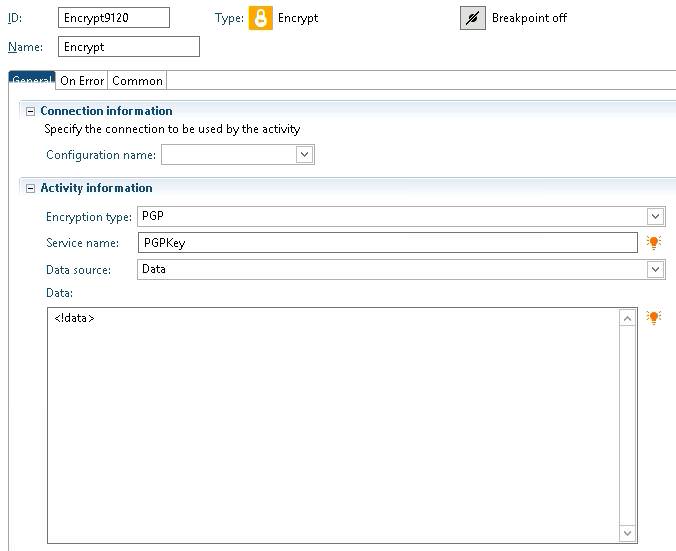
These nodes can be used to encrypt/decrypt data or files for secure transmission.  Before you begin, you must have a PGP key pair generated by a network security administrator.

Both nodes have the same properties:

  • Configuration name – Select the configuration you wish to use for this encryption. If the configuration name is blank, the default will be used.
  • Encryption (or Decryption) Type – PGP is the only encryption type available
  • Service Name – This is the name of the service that was assigned for the generated key pair.
  • Data Source – Encrypt raw data, or provide a file name to encrypt the contents of the file.
  • Data – Provide the data or the full path of the file that will be encrypted.
Sometimes when you are troubleshooting issues with Ming.le, your support technician will ask which version of Ming.le you are using, Enterprise or Foundation.  There are a couple of ways to determine this.

First, you can open your Ming.le website and direct your attention to the header.  If you see the “social” apps section in the header (highlighted below), you are running Ming.le Enterprise.  Otherwise, you are running Foundation.

Enterprise:

Foundation:

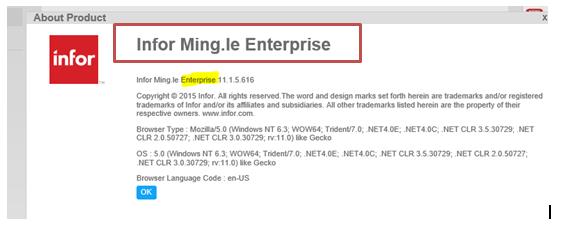
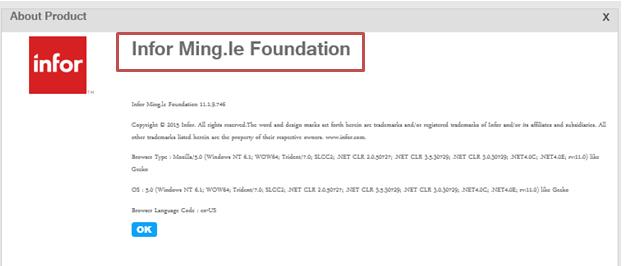
Another way to determine your Ming.le version is to click the “i” icon at the top of the page .


Enterprise:

Foundation:

It’s not a simple decision to choose to invest your company in enterprise resource planning (ERP) software. Unfortunately, many companies try to get through this decision quickly and end-up making costly mistakes. Here are a few steps to follow to prevent from making those mistakes.

  1. Analyze specification requirements
  2. Get realistic with deadlines and resources
  3. Invest in training and change maintenance
  4. Decommission legacy applications
  5. Have an active load testing environment
  6. Conduct through vendor browsing
  7. Compare long-term benefits against initial costs

It can be quite time-consuming to select the software that is best for your company needs, but if done well the outcomes can greatly benefit the company and outweigh the expensive use of budget and time.


For Full Article Click Here


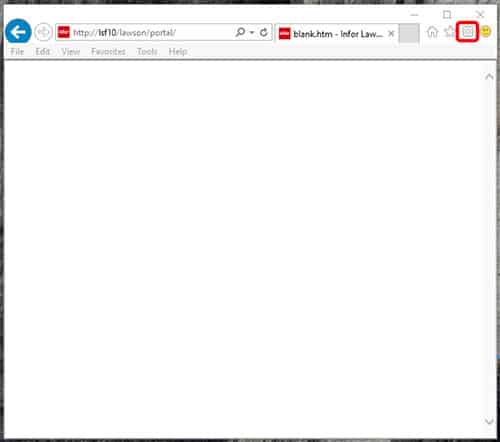
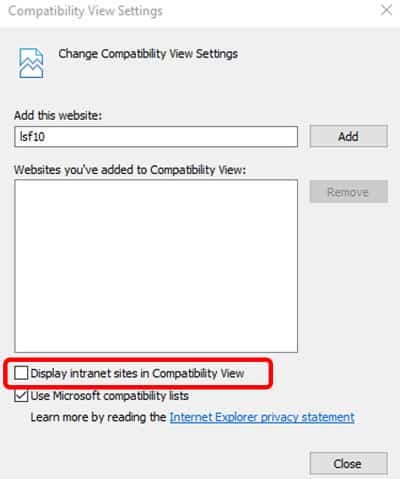
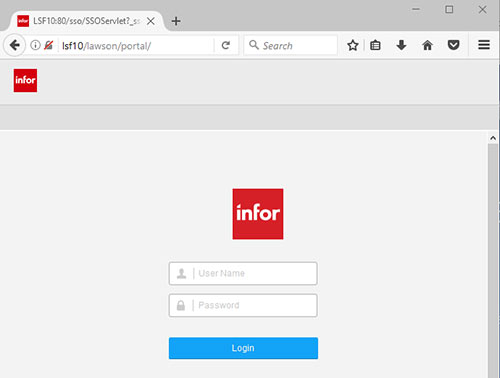
Users may find that the browser returns blank.htm when accessing the Lawson portal screen.  With Internet Explorer, this can be caused by Compatibility View Settings.  To verify the setting, click on the cog in the upper right of the browser.  From the menu under the cog, select Compatibility View Settings.  A window will return showing the Compatibility View Settings.  Uncheck the box labeled “Display intranet sites in Compatibility View” and refresh the page.  Also within the Compatibility View Settings, verify that the  site is not in the list under “Websites you’ve added to Compatibility View.”  If the site is in the list, click on the site and then click the Remove button.  After closing the Compatibility View Settings window, refreshing the page should then allow the portal to be displayed properly by returning the login screen.  If the compatibility view is not available or changes to it are not allowed, other browsers such as Chrome or Firefox could also be used to access the page.

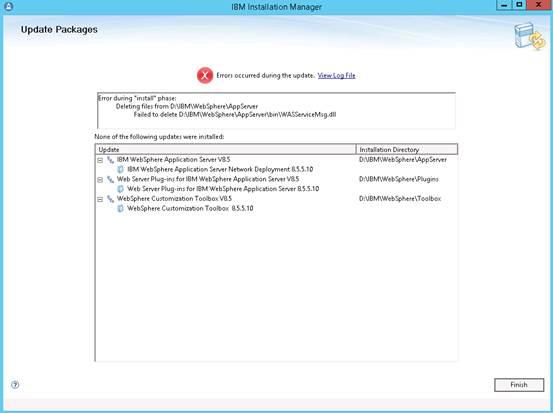
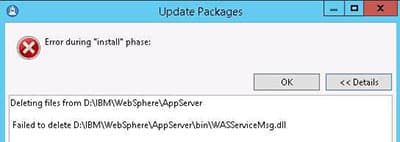
When updating a WebSphere fix pack, the following error can be seen from the IBM Installation Manager.

The update in this example is from WebSphere 8.5.5.0 to Fix Pack 10 – 8.5.5.10.

Looking at the error details shows that a dll file was unable to be deleted –

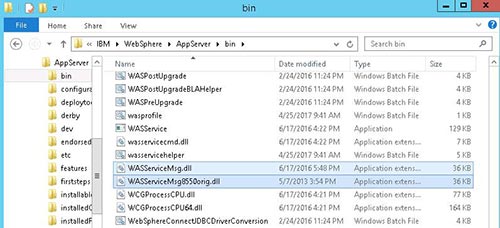
D:\IBM\WebSphere\AppServer\bin\WASServiceMsg.dll. This file can be locked by the Cell Manager when the server is started.

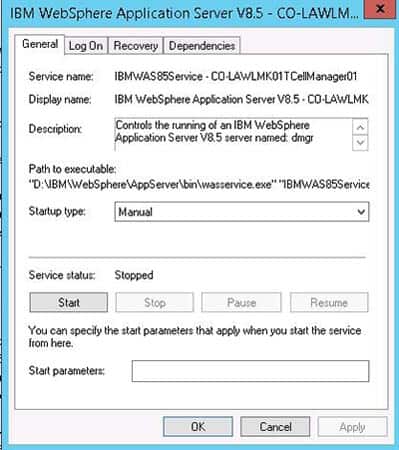
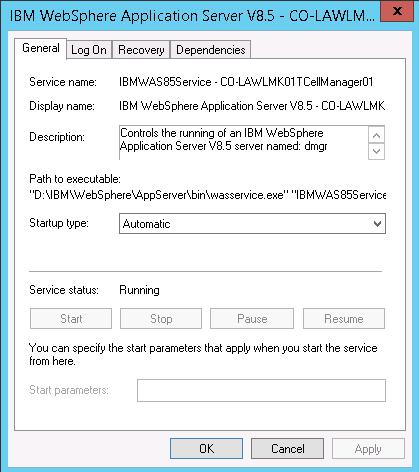
To resolve the issue, stop the WebSphere service in Computer Management and set it to manual start (not to start automatically).

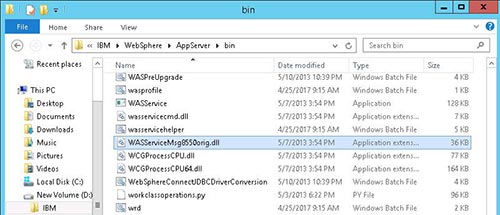
Then find the file that was locked (WASServiceMsg.dll) and rename it to something like WASServiceMsg8550orig.dll.

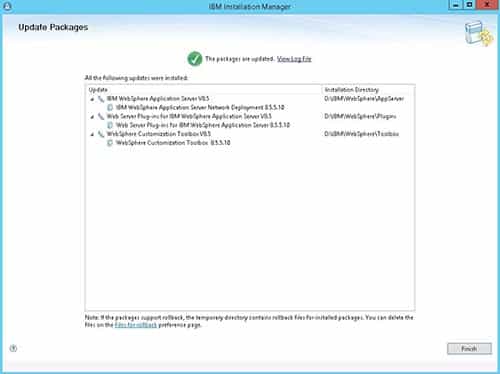
Permissions may need to be added to the IBM directory to ensure Full Control is Allowed for your user id. Then restart the server and run the IBM Installation Manager again to apply the update.

Afterwards, you can see an updated version of the dll is available along with the original file that was renamed.

Be sure to change the service back to start automatically after the update is complete.

This article will demonstrate how to set up the most commonly-used Infor Lawson configurations in Landmark.

Infor delivers two configuration sets with Landmark: “main” and “system”.  “Main” refers to the LSF environment, and “system” refers to the Landmark environment.  It is best practices to use these configuration sets for the processes that access these systems.

Here are the most commonly used configurations for Lawson:

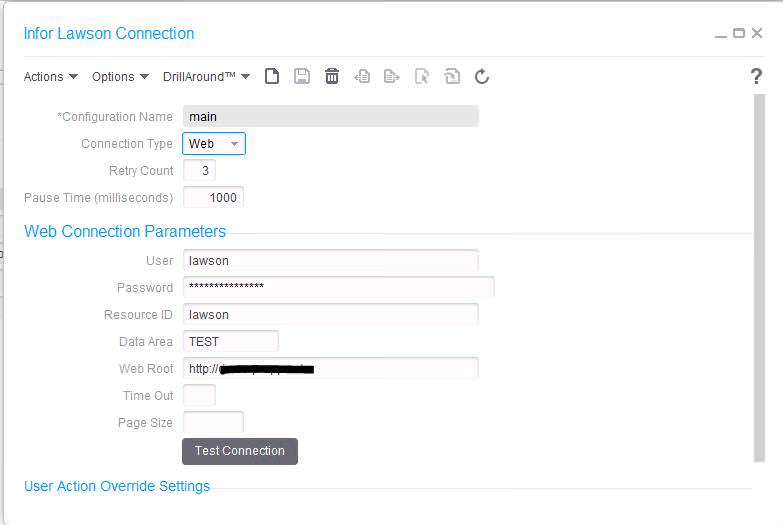
Infor Lawson

Used for web calls (DME/AGS) to Lawson, as well as Resource queries (Lawson Security)

  • Infor recommends using Connection Type “Web”
  • Retry Count – number of times IPA will retry the connection after a failed attempt
  • Pause Time – Amount of time in milliseconds between each attempt to reconnect when web call fails
  • User – the web user who has access to DME/AGS calls and/or Lawson Security
  • Password – the web user’s password
  • Data Area – the name of the data area being accessed in the LSF environment
  • Web Root – https://servername.company.com
  • Time Out – Number of seconds of attempting to connect after which a timeout occurs
  • Page Size – The number of records returned in a DME query (blank means no limit)

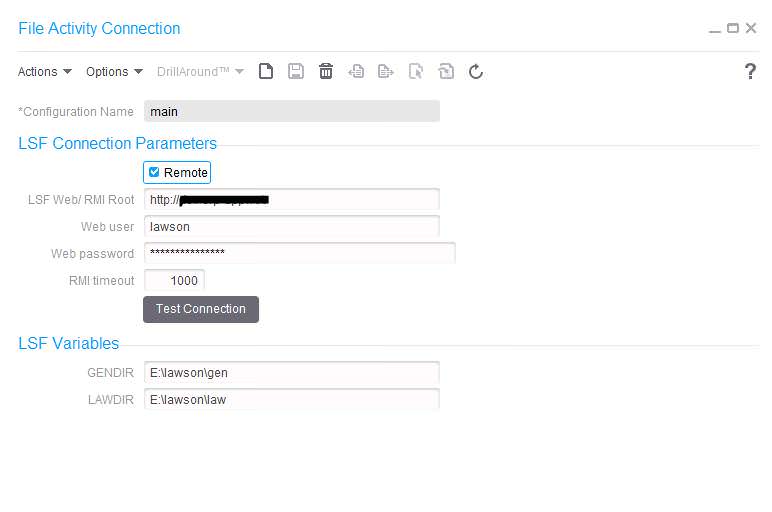
File Access

Used for file reads and manipulation on the LSF server

  • Click “Remote” if LSF resides on a different server from Landmark
  • LSF Web RMI Root – Same as Web Root in the Infor Lawson connection (https://server.company.com)
  • Web user – the user who has directory access on the Lawson server
  • Web password – the above user’s password
  • RMI timeout – Number of milliseconds of attempting to connect after which a timeout occurs
  • GENDIR – GENDIR environment variable value on the LSF server
  • LAWDIR – LAWDIR environment variable value on the LSF server


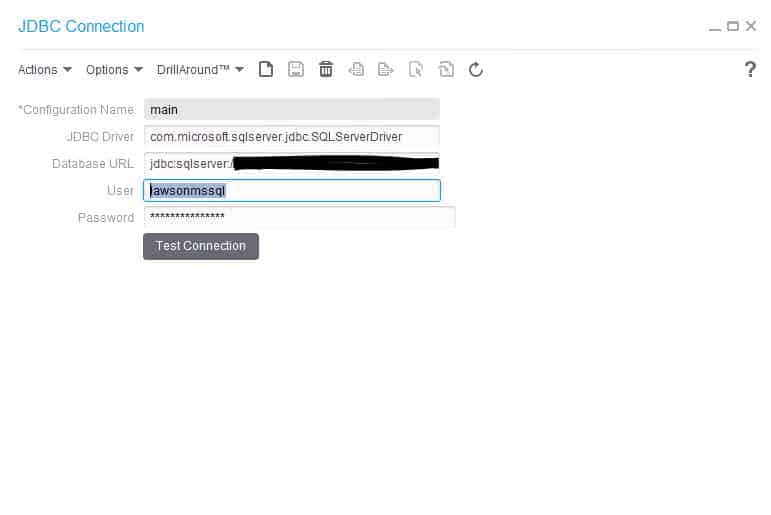
JDBC

Used for SQL Queries and transactions

  • JDBC Driver – the driver name used for JDBC
  • Database URL – build the URL for your db
    • Example: jdbc:sqlserver://servername\instancename:port;databasename=databasename
    • Instance Name is optional
    • Port is optional (default is 1433)


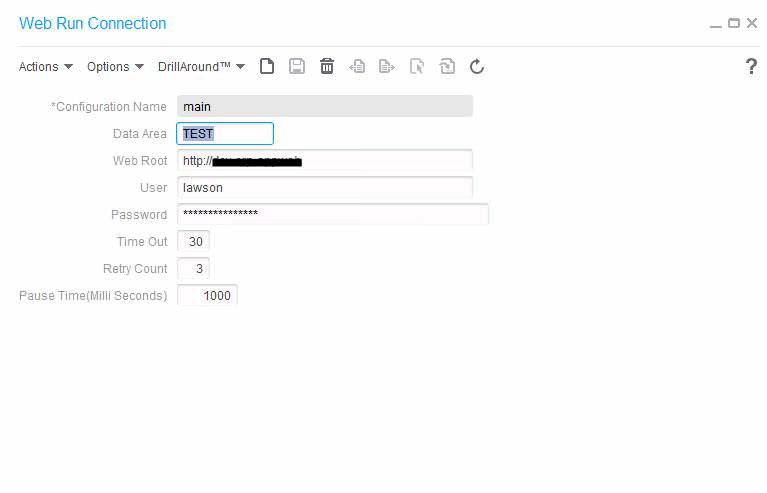
Web

Used for the Web Run process node (can be used to update and run batch jobs, etc.)

  • Data Area – the data area to which you are connecting on LSF
  • Web Root – https://servername.company.com
  • User – the user who has access to web run calls
  • Password – the above user’s password
  • Time Out – Number of seconds of attempting to connect after which a timeout occurs
  • Amount of time in milliseconds between each attempt to reconnect when web call fails


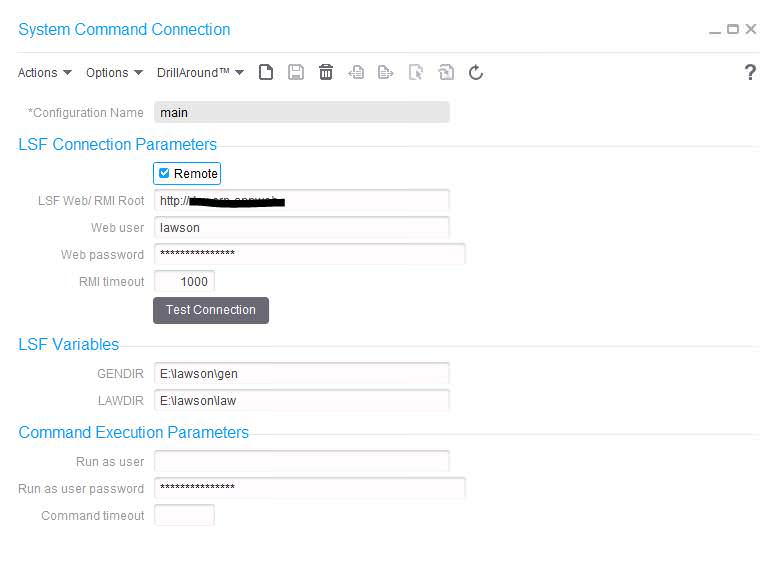
Sys Cmd

Used to run command line system commands, including Lawson commands such as importdb

  • Check “Remote” is LSF resides on a separate server from Landmark
  • LSF Web/RMI Root – https://server.company.com
  • Web User – the user who has access to the LSF system
  • Web password – Web User’s password
  • RMI timeout – Number of milliseconds of attempting to connect after which a timeout occurs
  • GENDIR – GENDIR on LSF system
  • LAWDIR – LAWDIR on LSF system
  • Run as user – the provide user credentials under which the command should run
    • NOTE: Windows no longer allows cmd to be run as a different user, so command line will always be run under the user running the bpm service. This is most likely the system user, and as a result, that user will have to be added to Lawson security and given access to run Lawson commands (if that is how this node is used)
  • Run as user password – above user’s password (see note above)
  • Command timeout – Number of milliseconds of attempting to connect after which a timeout occurs

With the current administration’s goal to repeal parts of the Affordable Care Act, the future of Healthcare is in question. Infor just recently announced that they will soon be adding 6 new modules, which it refers to as Infor Provider Market Insights to Cloudsuite Healthcare.

These new modules include 4 core modules – Market Analytics, Provider Module, Access Module, and Referral Module, as well as 2 optional modules – Mergers & Acquisitions and De Novo Insights. The two optional modules are focused towards organizations whose goal is to expand their business, while the core modules are best for organizations who are looking to weather the upcoming healthcare storm.

While there is still much information about these modules that is still to be determined, the goal is to provide insight for healthcare leaders and their implementation of strategic decisions.

For Full Article Click Here

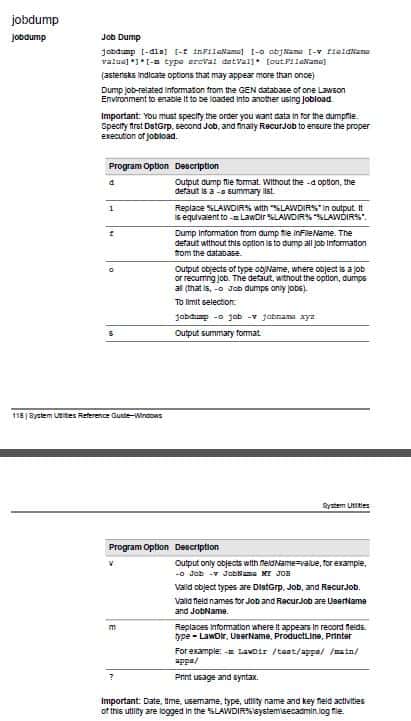
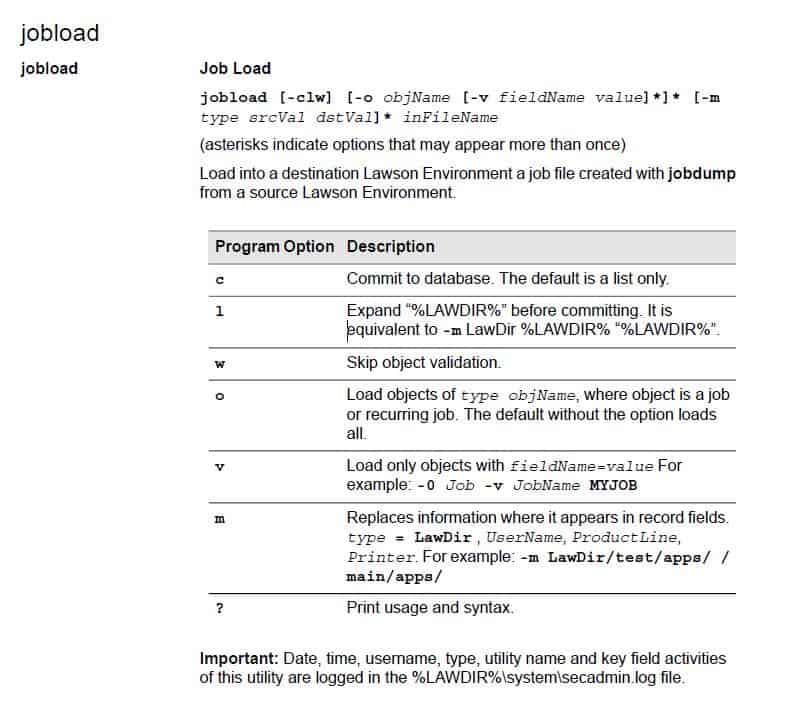
These are instructions for copying user jobs (by user) between environments. This will NOT allow you to copy jobs between environments on different versions of LSF (i.e. you cannot use these commands to copy v901 jobs to v10x).

  1. Run listusermap in both environments and make note of the NTID for the user in each environment
  2. In the source environment, run the command

jobdump –d –o job –v UserName “DOMAIN\UserName” outputfile

  1. Open the output file created by the command in a text editor
    1. Update any references to the NTID from the source system with the NTID of the destination system
    2. Make any directory structure changes as needed (i.e. change “D:\lsfprod to D:\lsftest”)
  2. Copy the output file to the destination system
  3. In the destination environment, run the command

jobload –c –o job inputfile

More on jobdump/jobload

You may be upgrading a client from LAUA to 901+ and will need to view their existing security classes in LAUA.  Whatever the reason, this is how you dump LAUA security.

Login to your server through LID.

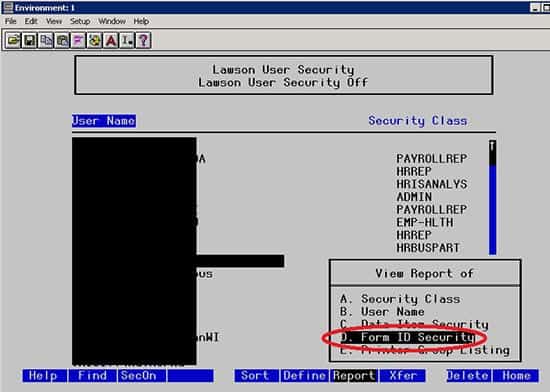
Type LAUA >> Press Enter and you’ll be in Lawson User Security screen.

Press F7 >> D (Form Security)

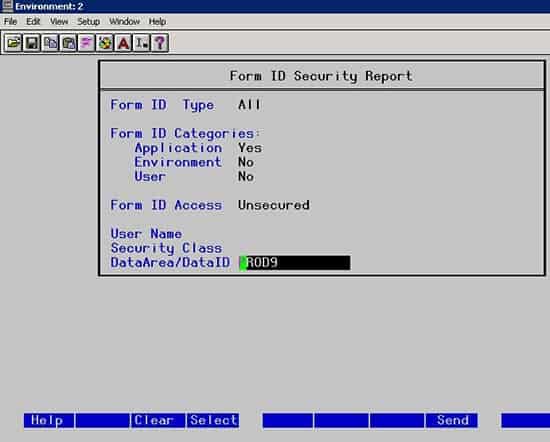
Follow these parameter settings:

Now press F8 and sent to A. File, B. Printer, C. Screen

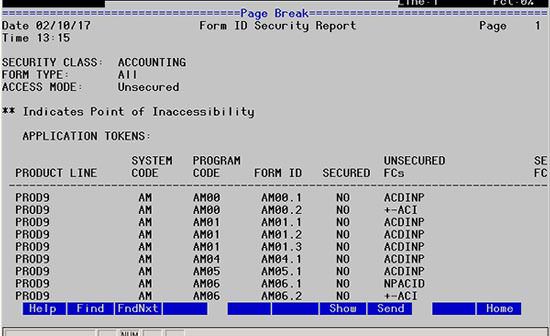
Your output should look something similar to this:


That’s it!  Now you can maneuver through LAUA screens and view/dump other useful data such as security class assignments, etc.