


Description:
Error when accessing a form in Lawson Portal
” An Error occurred outside of IOS while accessing Lawson Security” then “No Programs or bookmarks were found for ‘<token>‘.”
You may find this stack trace in the lase_server_x_x.log and ios.log files:
Stack Trace : com.lawson.lawsec.author.runtime.LawsonSecurityException:Exception while checking security on token <FIELD-NAME> for user <username>. Message: org.mozilla.javascript.EcmaError: ReferenceError: “MISSING” is not defined. (<RuleAttribute>#1)
Stack Trace : org.mozilla.javascript.EcmaError: ReferenceError: “MISSING” is not defined. (<RuleAttribute>#1)
Resolution:
This message in the ios.log file indicates the security server (LASE process that runs) lost its connection to the ldap instance where the rules are stored for Lawson Security.
Run a User Security Report for the application profile in question. Within that report, look for the word MISSING on the right hand side of the report where the ruleText is listed.
Most of the time, when this error is presented, you can use the Lawson Security Administrator (LSA) tool to fix the issue without doing a full restart of the Lawson related services.
If you do see the word MISSING, do the following from within the LSA tool:

This article will demonstrate how to clear out a Lawson system so that you can start a completely fresh compile of the full productline.
First, open a command line utility with the Lawson environment variables set. Then, navigate to LAWDIR\<pdl>.
Next, run the following command: rm -rf on the following directories (for visual reference, look at the screenshot below and make sure that your screen matches all of the commands):
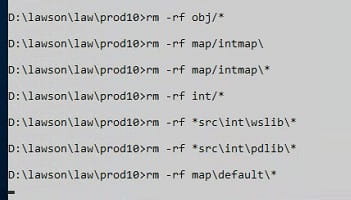
Finally, run the command combcmp <pdl>. If everything was run correctly, then this will recompile every program in the productline and create fresh compiled code.

If you need to update Lawson database tables to match custom form field changes, follow these steps:
First update your .scr forms, kndef, skndef fields if creating new columns. Updated your .sr file to include any additional fields if needed.


Then in dbdef <productline>
F6 (Define) >> Files and update the database table names
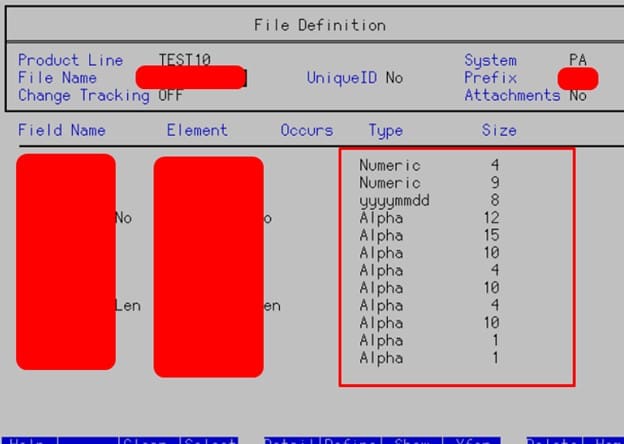
Once done, follow these procedures:
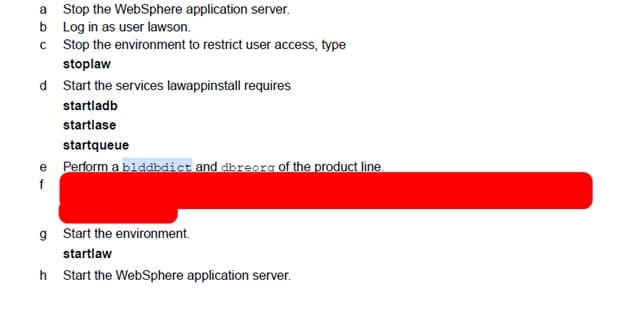
You can run a bldddbdict <productline>
Then dbreorg -l <productline> to see affected tables.
Then dbreorg <productline> to complete the dbreorg.
NOTE: If DBReorg fails, make sure websphere apps are down and java processes are not running, try and restart server then perform dbreorg again if needed.
Qcompile your file and clear cache/ios cache, then test changes.
If you are getting a connection timeout when trying to run certain nodes in IPA, it could be due to your firewall blocking port.
Look for the following error message in your work unit log:
Failed with error com.lawson.bpm.db.model.helper.LawsonDBException: java.rmi.ConnectException: Connection refused to host: <ip address>; nested exception is:
java.net.ConnectException: Connection timed out: connect
RMI expects to work over the ephemeral port range, which is typically 49152 to 65535. If you do a telnet from your Landmark to Lawson server over one of those ports, and you get a timeout error, this is likely because your network admin has closed off all ports between those servers, besides the ones specified. In this case, you need to tell Lawson which port it is going to use for RMI.
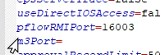
In LAWDIR/system/bpm.properties, set the pflowRMIPort value to the specified port (0 is all ports). Make sure this port is also opened between the Lawson & Landmark servers by your network admin.
Reboot the Lawson server or restart services.


If you want to know how to bookmark a custom cobol ‘Vanilla’ Form, follow these simple instructions below:
This is how the custom cobol “vanilla” form in RD69 shows under ID it’s called XX3.1_TEST
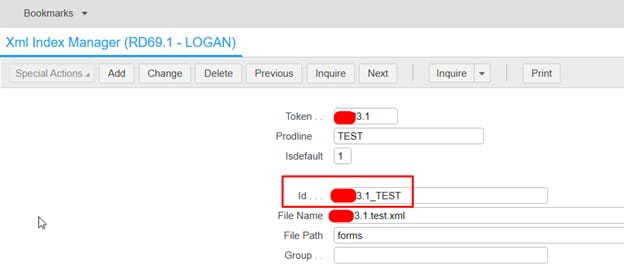
So you may think you need to add it in as XX3.1_TEST when adding as a favorite or creating a bookmark.
An example:
LAWFORM|PDL=PROD10|TKN=XX3.1|ID=XX3.1_TEST
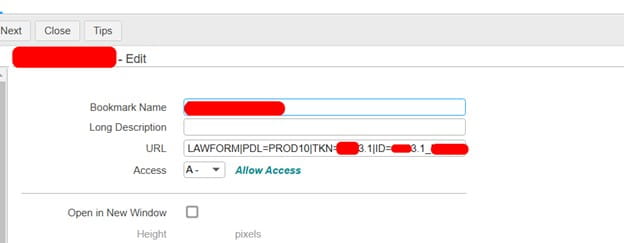
Instead, since it is the custom “vanilla” cobol program, you only need to mention the TKN, not the ID
LAWFORM|PDL=PROD10|TKN=XX3.1
That’s all there is to it! Just clear the IOS cache and browser cache, then you should be able to load the bookmark now.
If you need to update your SQL Tables after a data refresh, follow the simple steps below:
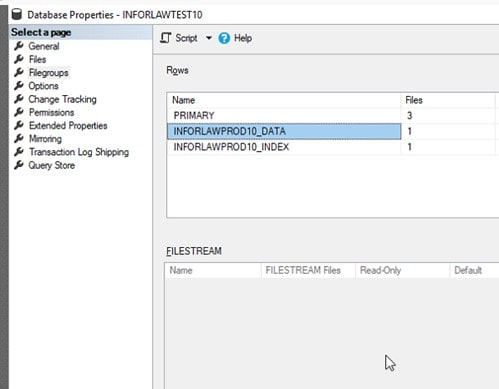
First, open up the properties for the DB that was just refreshed and you can see that the DB tables have the PROD name instead of TEST.
Next, run the following SQL query for the TEST DB:
ALTER DATABASE INFORLAWTEST10 MODIFY FILEGROUP INFORLAWPROD10_DATA NAME = INFORLAWTEST10_DATA
ALTER DATABASE INFORLAWTEST10 MODIFY FILEGROUP INFORLAWPROD10_INDEX NAME = INFORLAWTEST10_INDEX
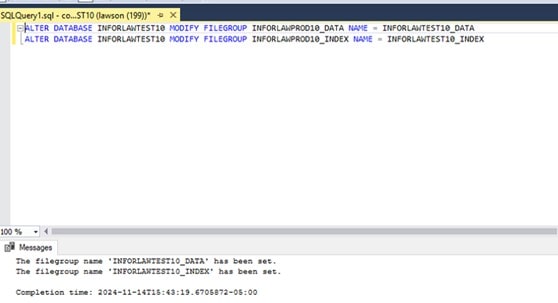
Your SQL tables should now be updated after doing a data refresh. Continue to repeat these steps whenever you do refreshes.