When setting up an SMTP host and user email inbox for LBI and or Smart Notifications, you may want to consider using an MX (Mail Exchanger) Record for your next setup via direct send. This can not only save you on license costs, but also skip the need for setting up an inbox.
If you’re not a network admin and solely working within Lawson, you’ll need to reach out to one to setup the MX Record for you. You can also read up more on this topic here if needed.
Once setup, the network admin will send you an MX Endpoint URL similar looking to this: contoso-com.mail.protection.outlook.com
- Now in LBI go to Report Administrator
- Under Server Administrator >> Select Email and Printer Settings
- Under Device Type Tools >> Select Manage Device Types >> Select Email
- Copy the MX Endpoint into the Host field, the From address could be anything you prefer
- Now go to Smart Notifications (if needed).
- Select Admin >> under Settings >> Select Install Validator
- Under Field 16, select “Click here to modify”
- Enter same settings:
- Now run some smart notification and LBI tests to verify all is working. Make sure you check your junk mailbox. Good luck!
There are a few common reasons why scanned invoices may stop showing up in Lawson Portal via MHC’s IXDrill.
Reason 1 – IXDrill is outdated on the user’s PC and may need a newer version (assuming auto-update is not enabled or working).
Reason 1 resolution: The server’s version of IXDrill may have updated, you’ll need to contact MHC or your organizations Windows IT support to get a newer version installed of MHC IXDrill
Reason 2 – Error: Cannot connect to ixQueryEngine Server
Reason 2 resolution: The server’s IXQueryEngine process may have crashed and your organizations local IT windows support may need to reboot it. Alternatively, the server may have migrated to a new virtual machine and the URL in your IXDrill settings will need to be updated.
Reason 3 – Incompatible or Outdated Browser
Reason 3 resolution: Contact MHC to get a compatibility matrix for browser supported with the version if IXDrill you’re currently using or contact your Lawson support team to verify the browser in use is also supported with Lawson Portal.
Lawson Business Intelligence has this common issue where users load up a report and get an error that they don’t have the proper rights to access a report setup with bursting. At first glance it appears they are all setup but are they?
Resolution:
- Login into LBI (must have admin rights) >> Tools >> Report Administration
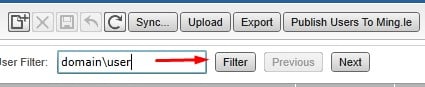
- Go to Maintain Rights and filter down on the user that is having this issue:
- At this point it appears the user is setup correctly but there are two checks that need to be done.
- Verify the report the user is accessing (assuming it’s a historical instance) was generated after the Start Date field, else change the Start Date to an earlier date to resolve.
- Click on the blue green people icon to make sure the user’s bursting rights weren’t setup before the user synchronized into LBI from LSF.
- If you see the user is categorized as a (Custom Group), delete the users current rights.
- LBI dashboard >> Tools >> Synchronize Users and Roles >> Click Synchronize
- Go back and create the users rights and verify the (Custom Group) is no longer displayed near their name.
Hope this was helpful, good luck!
If you’re reviewing an Infor Process Automation log and notice the “Error: Unable to lookup RMI object rmi://localhost:16003/dbSecurity” or something similar firing on a FileAccess node, this means your bpm.ear config file got updated (possibly from an environment update) and needs to be fixed.
To resolve this, you’ll need to update the dbrmihostname field from “localhost” to the LSF server domain name in the bmp.ear file. See steps below.
To update the bpm.ear and bpm.war files follow the steps below:
- You must run the command from the same directory as where the bpm.ear file and bpm.war file exist:
cd %GENDIR%/assembly/products/bpm/jar
- Execute the perl script to rebuild the files, providing the new RMI port and hostname of your LSF machine:
- perl %GENDIR%/bin/updateArchive.pl <RMI_PORT> <HOSTNAME>
- Example: perl %GENDIR%/bin/updateArchive.pl 16003 lsfserver.domain.com
- Redeploy bpm.ear in WebSphere from the %GENDIR%/assembly/products/bpm/jar directory.
- Generate and Propagate the Plugin in WebSphere.
- Restart Process Flow.
- Restart the LSF WebSphere Application Server(s).
- Restart the web server.
Problem – PA100 Job goes into recovery with similar error:
“Error connecting to Taxfactory11 – THE PROVISIONAL LICENSE IS NOW EXPIRED.”
- To resolve this issue, login to your MyBSI account at https://mybsiconnect.force.com/login
- Go to your TaxFactory Tab on the Home Page
- Select Maintain Machine Key
- Click Add New Key >> Select Desired Version and enter Host Name where BSI is being hosted.
- One you enter the New Key Info, select the Request Server Key button
- You should now see your newly added Machine Key, click Save as File to download
- Copy the machinekey.lic file to the server where TF11 is installed and the tf11lic.exe is located
- In command prompt, cd to where tf11lic.exe is and type this command: tf11lic -i machinekey.lic
- Type tf11lic -v to validate if the license is valid.
- In Lawson portal, calculate a PR80 record to verify Lawson is connecting to BSI
- Connect to Lawson Interface Desktop >> jobschd >> recover PA100 job in recovery (or any other job that requires a valid BSI license that went into recovery)
That’s it! Good luck!
If you’re using Microsoft Edge and trying to access Lawson but it’s redirecting you to an IE11 browser page with the error: “The request contained illegal input and was cancelled”, there is an easy solution to resolve this.
- This issue is caused by using a deprecated Legacy version of Microsoft edge instead of a new Microsoft Edge Chromium version.
- The best way to verify you’re using the correct browser, is comparing the Edge browser icons (see below)
Using the New Edge version should resolve this annoying redirect and get you into Lawson faster since IE11 is no longer supported.
Good luck!
You may have installed a new BSI update/license or need to verify if it’s safe to run an update batch job.
An easy way to do this is to run a simple smoke test in PR80.
- Login to Lawson portal and go to PR80
- Start with a company, employee, bank code, and payment number
- Under the Time Records tab FC >> Add >> Pay Code 0001 >> Hours 80
- Go to Payment Tab >> Select a Payment Date >> Deduction Cycle 2
- Now click Calculate and wait for it to finish.
- You should be brough to a HR99.1 Messages form with warnings etc. This means everything ran and Payroll communicated with BSI.
NOTE: Remember that the parameters above may be different for your organization and most can be anything since we are simply testing to see if Payroll is communicating with BSI by doing a calculation. As long as we are selecting Calculate, nothing is being changed with the record.
Good luck!