Dumping Lawson jobs can often be confusing with the many different flags. Recuring jobs get a little more confusing but don’t be discouraged! There is an easy wat to know how to dump your Lawson recurring jobs from a user or system user. Follow the simple steps below:
First, log in to Lawson Interface Desktop and switch the to the directory you wish to dump the job file
Let’s say I want to dump all recurring jobs from user joesmoe.
Locate the joesmoe _recjobs.txt file and that’s it! Good luck!
https://www.nogalis.com/wp-content/uploads/2023/05/How-to-dump-Lawson-recurring-jobs-from-a-user-or-system-user.jpg470470Angeli Mentahttps://www.nogalis.com/wp-content/uploads/2013/04/logo-with-slogan-good.pngAngeli Menta2023-05-26 08:48:492023-05-24 17:10:58How to dump Lawson recurring jobs from a user or system user
Infor has announced that their mainline support for Lawson will continue through 2030, and extended support for Windows Server 2012 is ending this October! Are you ready? Join us for some tips to make your migration to Windows Server 2019 as smooth as possible.
Get Started Today!
Don’t wait! Contact us to get a quote on your server migration now!
An accompanying article for this webinar can be found here
https://www.nogalis.com/wp-content/uploads/2023/05/Migrating-Infor-Lawson-v10-Applications-to-Windows-Server-2019-min.jpg470470Angeli Mentahttps://www.nogalis.com/wp-content/uploads/2013/04/logo-with-slogan-good.pngAngeli Menta2023-05-22 11:07:122024-01-30 14:44:02Migrating Infor Lawson v10 Applications to Windows Server 2019
Windows Server 2012 R2 extended support ends in October of 2023. Infor recently announced that the Lawson S3 end of support has been schedule for 12/31/2030, and extended support should go a couple of years beyond that. So, Lawson customers now have just under 10 years left to use Lawson. Staying in Windows Server 2012 is very high risk, not only due to potentially missing important Microsoft updates, but also due to Lawson regulatory updates. Occasionally, Infor makes updates to their patch installer, as they did a few years ago. Often, these updates require an update to the core technology. So, if customers are forced to update the core technology to a version that isn’t compatible with Windows 2012, that is going to be a very painful year end process. It is imperative for organizations on Windows 2012 to migrate ASAP, but this is also an excellent opportunity to migrate from another OS, such as Linux or AS400.
Tips For a Successful Migration
A server migration of the Infor application looks very much like any other major project. There should be a planning/requirements gathering phase, a preparation phase, the execution phase, testing, and finally, deployment.
Plan & Decide
This step in the process will probably take a couple of weeks. This is where you will choose an installer for your project, and you will have them answer some questions for you and work with you on the basic requirements for the install.
FAQ
These are some of the questions that we most often receive when beginning a migration project.
Q: Can we upgrade in place?
A: No. Infor does not support, nor recommend trying to upgrade Windows in place. There are many pieces involved with Lawson application installs, and often one of the underlying pieces will be corrupted by an update in place, which will cause more hours to fix than just a fresh install.
Q: Can we migrate to Windows Server 2022?
A: Not at this time. At the time of the writing of this article, Infor is supporting only Windows Server 2019. Make sure you always check the compatibility matrix before you begin any work in your Lawson environment.
Q: Do we need to upgrade our applications?
A: No. While we do recommend that you upgrade your applications on a regular basis, to take advantage of the latest fixes, and to stay on a well-supported environment, it is not necessary to do so as part of this project. In fact, we recommend separating out those activities into two different projects. Separating the activities makes testing much easier for your users, but also significantly decreases the downtime during cutover.
Authentication Decisions
Migrating Lawson to new servers provides a good opportunity to take a look at your current authentication methods for Lawson, and determine if you’d like to make any changes. If you haven’t already made the move to AD FS, now would be a good time to do so. Also, you have the option of using Infor OS as STS, which opens you up to more identity providers if needed. If you take that route, you will want to consider giving your Infor OS server more resources, as it would become your entry point into Lawson, and it does take up quite a lot of resources. It is also important to note that, if you have or will have any IPA process that connection to Lawson (file access, DME, etc), then Lawson MUST be bound to Active Directory for that authentication. This means that you must retain at least one domain controller with an instance of Active Directory. Azure AD is not supported for this configuration at this time.
Cloud Options
You do have the option of creating your own cloud environment in AWS or Azure. There are just a couple of things to note. Currently, Infor does not support database as a service. This means that your database engine must be installed on a server instance, even in the cloud. Additionally, as mentioned above, you will still need to keep at least one domain controller with an instance of Microsoft Active Directory.
Other Decisions
Before getting started on your migration, it is important to make a few more decisions and communicate them to your installer. For instance, do you want to bring over print files or other types of files such as interface, etc.? This decision can affect the server sizing, as well as the scope of the project, so it is important to have the discussion early. We always recommend keeping the new server as clean as possible, but we are also sensitive to the needs of each organization. Another decision would be whether to switch to Portal 10.1. Portal 10.1 is simply a different look & feel to Portal 10.0. This project is going to be a huge technological change, so it might make more sense to stick with 10.0 and move to 10.1 later.
Prepare
The next step in the process is preparation for the migration. These things will need to be done before your installer begins their work, and some of it can be done in parallel with the planning phase.
Licenses
!!! MicroFocus Visual COBOL licenses are required before the install can begin. You must reach out to your Infor account rep ASAP to get the process started. This process can take several weeks, and your installer cannot begin without them. This is important!!
Infor OS Lite is not automatically available in Product Downloads on Infor Concierge. If you haven’t installed it already, you will need to reach out to your account rep to start that process as well. They will likely want to have a discussion with you about your Lawson roadmap, and they will also need for you to sign a $0 order to open up the downloads. Infor OS Lite is included in your S3 licensing.
Compatibility
Always check the Infor Lawson compatibility matrix before beginning any work in your Lawson environment. Below are our minimum recommended versions of software and components, but we usually do like to take the latest versions of Lawson and Landmark, and match up the component versions from there.
LSFCT 10.0.11.10+
MicroFocus Visual COBOL 7
JDK 1.8 or Amazon Corretto JDK 8
MSSQL Server 2019/Oracle 21c
ADFS 5.0 or Infor OS as STS
Landmark 11.0.1.13+
Server Specs
Below are our minimum recommendations for server sizing. You will want to discuss these things with your installer ahead of time, and take into account the size and needs of your organization, as well as your current Lawson sizing.
32 GB RAM
4 virtual CPUs
Recommend 150% above current disk size
Customizations
It is very important to at least list out all your customizations for your installer, but even better if you can document each one. The installer will bring them into the new environment and compile and system test them, so it is very good if they have a list to work from, and a little bit of an understanding of how they should work. These customizations include, reports, IPA processes, Design Studio forms, 4GL custom COBOL, or any 3rd party interfaces.
Execute
Now it is time for your installer to…install! This phase of your project should be relatively hands off for your organization. Once the installer has everything they need, they will spend the next several weeks heads down, doing the work.
Resources for a Successful Implementation
While the installer should be mostly working on their own during the implementation, there are times when they will need support for your team. It is usually optimal for them to have one person (point of contact) whom they can reach out to for assistance, or to be pointed in the right direction. Additionally, these projects tend to work really well if there is a project manager on one or both sides, and some kind of project management tool for task tracking and visibility. It is also important to have user buy-in on the project. Their UAT should be relatively light compared to an application upgrade, but it is still important that they are aware of the project, and especially aware that there will be a downtime involved during cutover.
Testing
For this migration, provided you DO NOT upgrade applications, we recommend high-level forms testing from the users. They should make sure they can inquire on all the forms they use on a normal basis. They can test making a couple of updates, and run some batch jobs. The most important thing is that they test their security. While the applications can be copied over exactly in one swoop, the security is migrated in several steps, and this is where we tend to see issues. The other side of the testing will have to be interfaces. Anything that interfaces into or out of Lawson, including moving files, will need to be tested end-to-end. Because the servers are changing, and directories could be changing, this is where we find the most issues during a mitraion.
Timeline
This is a basic sample of a timeline for a migration project. Yours will vary based on the complexity of your environment.
Get Started Today!
Don’t wait! Scan this QR code to get a quote on your server migration now!!
https://www.nogalis.com/wp-content/uploads/2023/05/Migrating-Infor-Lawson-v10-Applications-to-Windows-Server-2019-min.jpg470470Angeli Mentahttps://www.nogalis.com/wp-content/uploads/2013/04/logo-with-slogan-good.pngAngeli Menta2023-05-22 10:51:512023-12-29 10:44:09Migrating Infor Lawson v10 Applications to Windows Server 2019 (Supporting Article)
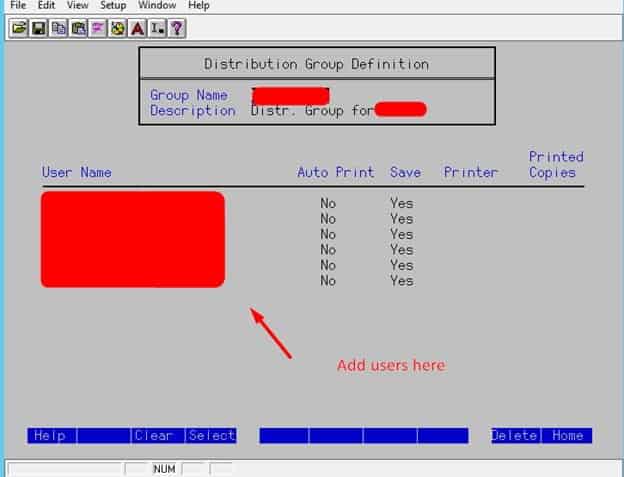
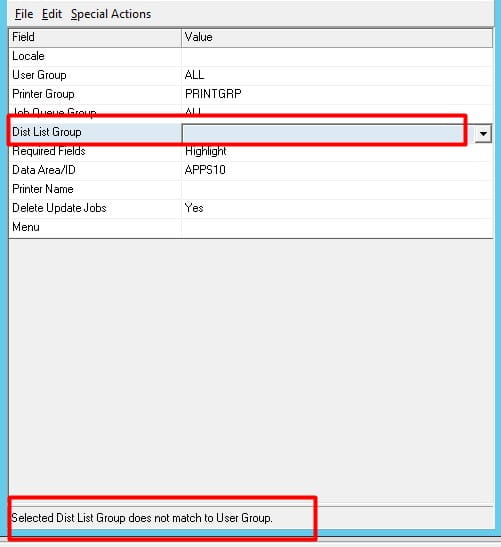
You may come across an issue in LSA such as the following, “Selected Dist. List Does Not Match To User Group.” This issue occurs when you don’t have your user assigned to the proper group (and also trying to assign dist. list group via LSA vs ISS). Here is how to fix it:
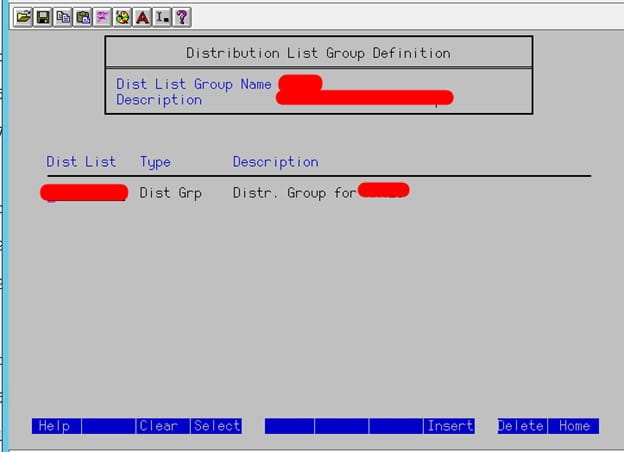
Confirm the user is assigned to the group in grpdef:
Add the group you created with users in dstlstgrpdef
Lawson Security Administrator (LSA) may have an issue adding this user in their environment info
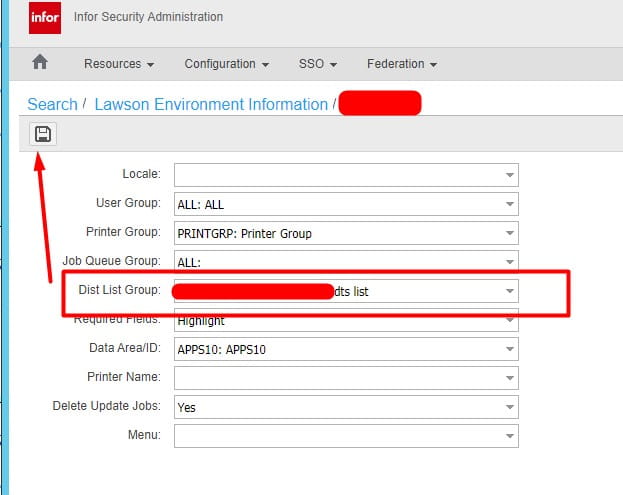
Login to Infor Security Service (ISS) and assign the distribution group their to the user.
That’s it!
https://www.nogalis.com/wp-content/uploads/2023/05/Lawson-Error-Selected-Dist-List-Does-Not-Match-To-User-Group.jpg470470Angeli Mentahttps://www.nogalis.com/wp-content/uploads/2013/04/logo-with-slogan-good.pngAngeli Menta2023-05-19 08:12:112023-05-17 15:19:52Selected Dist. List Does Not Match To User Group
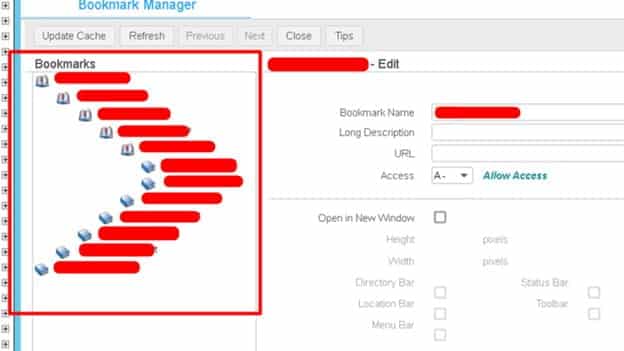
If a user is having issues seeing a bookmark in Lawson, it may be because the bookmark is a parent of itself which can cause the bookmark to not appear for users even though they have access to it.
This issue can also create an infinite child bug in the Bookmark Manager as seen below:
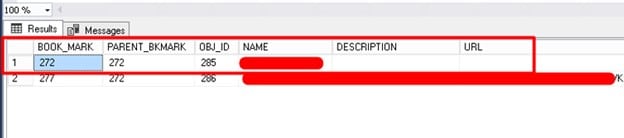
In the database under the table “LOBKMARK”, we see that this BOOK_MARK 272 is the parent of itself (PARENT_BKMARK is also 272).
IMPORTANT: Always be cautious when making updates to the database.
To fix BOOK_MARK 272, we need to update its PARENT_BKMARK and set it to 0.
Here is the code to do this:
UPDATE LOBKMARK SET PARENT_BKMARK = 0 where BOOK_MARK = 272 and OBJ_ID = 285
We add the OBJ_ID in there as an extra check. It’s always recommended to build and update query with a select query first so you don’t change more than what you need.
https://www.nogalis.com/wp-content/uploads/2023/05/Lawson-user-is-not-able-to-add-or-see-bookmark-they-have-access-to.jpg470470Angeli Mentahttps://www.nogalis.com/wp-content/uploads/2013/04/logo-with-slogan-good.pngAngeli Menta2023-05-16 08:21:022023-05-15 15:47:58Lawson user is not able to add or see bookmark they have access to
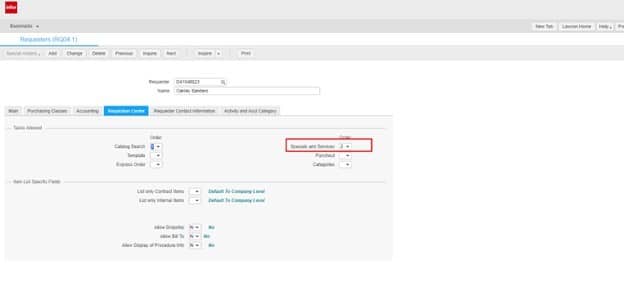
The “Lawson RQC Requisition user not able to see Service Tab” issue can crop up from time to time for select users, but it is a simple fix (see below).
After verifying the user has adequate access for requisitions and the RQ04 record is created.
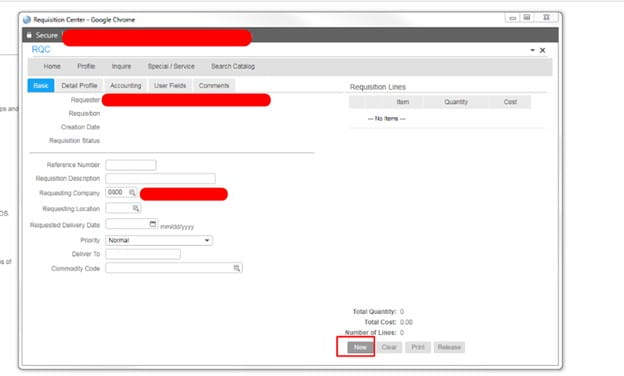
Have the user clear browser cache go to Requisition Center >> Shopping >> and Press NEW.
Have the user logout and back in, check to see if the Service Tab is now there.
Also, in RQ04, you can set a value for Special/Service Items in one of the tab options to see if that resolves the issue as well.
Good luck!
https://www.nogalis.com/wp-content/uploads/2023/05/Lawson-RQC-Requisition-user-not-able-to-see-Service-Tab.jpg470470Angeli Mentahttps://www.nogalis.com/wp-content/uploads/2013/04/logo-with-slogan-good.pngAngeli Menta2023-05-12 08:17:272023-05-11 16:30:52Lawson RQC Requisition user not able to see Service Tab
When I try to access or add a rule to a security class in the Lawson Security Administrator (LSA), I get the error message, “Data area has been suspended”. How do I resolve this issue?
Resolution:
This error usually occurs after running dbreorg without stopping your LSF WebSphere Application Server prior to the execution of dbreorg. This is a simple fix.
Basic steps to resolve this issue:
First, we need to stop WebSphere
Next, stop LSF
From here, you must make sure that there are no java processes running. This is important so you won’t get the same error message again.
After confirming, then you can re-start LSF
Finally, start WebSphere again. You shouldn’t get the error message anymore.
https://www.nogalis.com/wp-content/uploads/2023/05/Lawson-Security-Data-area-has-been-suspended.jpg470470Angeli Mentahttps://www.nogalis.com/wp-content/uploads/2013/04/logo-with-slogan-good.pngAngeli Menta2023-05-09 08:49:362023-05-04 17:03:27Lawson Security: Data area has been suspended