


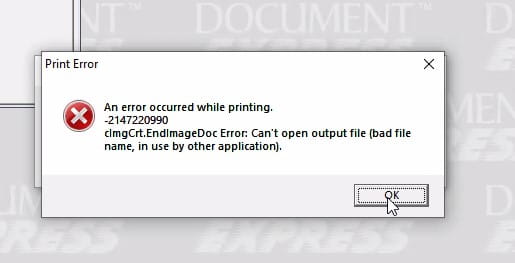
You may have come across this message on Lawson MHC – An error occurred while printing. This problem happens when printing Lawson forms or checks from MHC Image Express, and users may receive the error on their screens while printing.
In MHC, users often print 1099 forms, checks, etc. and may need to re-print a form.
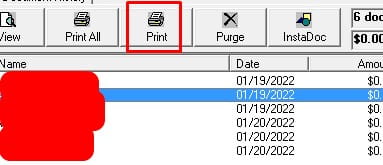
When re-printing they sometimes run into this error and are unable to resolve on their own:
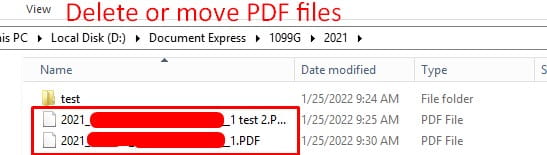
MHC Image Express integrates with Lawson and it’s a lot to ask of an individual Lawson employee to maintain when they may be tied up with other daily issues.
To combat this, organizations often bring on Lawson consultants who offer managed service and typically have expertise in maintaining and updating MHC related products (especially around year-end).
Good luck!
Sometimes you may find that your scheduled flows have not run, seemingly with no explanation. When this happens, there is a good possibility that there was an error in the scheduler that needs to be resolved. To check the scheduler, log into Rich Client or your IPA Web Administrator.
To view/edit your own schedules, to Start > My Actions.
To view/edit ALL schedules, log into Rich Client and navigate to Start > Applications > Async Framework Components > Requests. From there, you will be presented with a list of all Async Action Requests. The IPA process schedules are under module “pfi”.
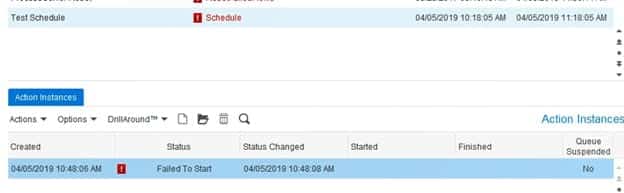
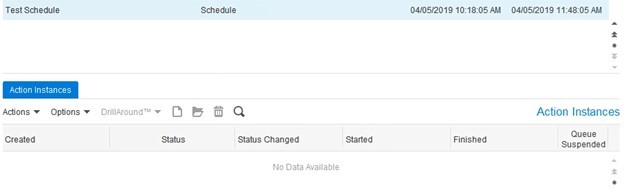
Find the schedule of the flow that didn’t run, and verify if there is an error. Double-click on the failed instance at the bottom of the screen to get more detail on the error.
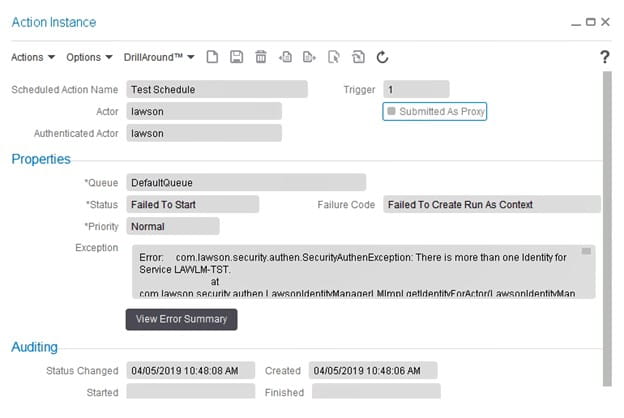
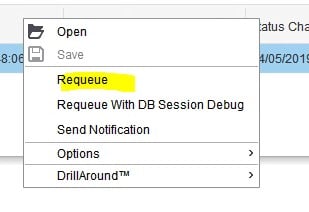
Once you have resolved the issue that caused the error, right-click on the instance and select “Requeue”. Note that this will cause your schedule to run immediately.
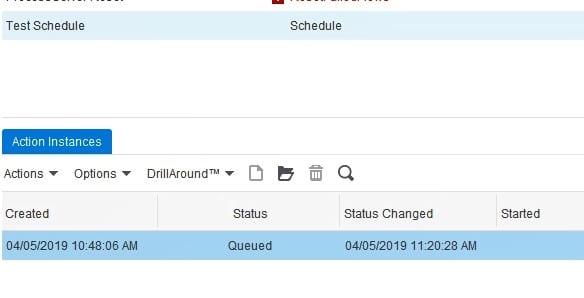
After the schedule has run successfully, there will not be any more items in the “Action Instances” tab.
If your schedule is still failing, open a chat session with Nogalis and we would be happy to help you with a bit of troubleshooting! And if IPA is a pain point for you, we have some great resources on hand who can provide managed services of your system, training, and project work. Check out our managed services program today!
Problem: User is trying to login to Lawson add-ins and receives a Script Error, blocking them from entering their credentials.
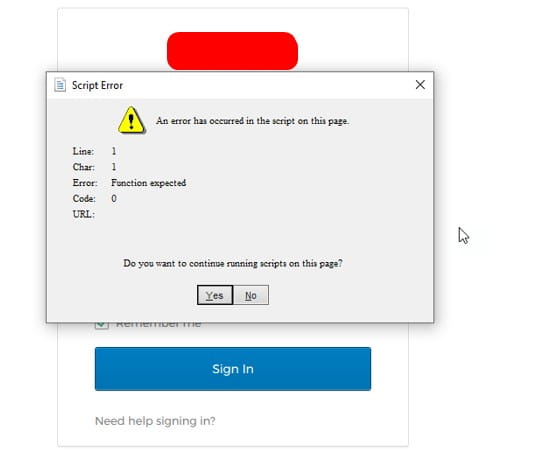
Temporary workaround: Copy the users username and click Yes on the dialog error and quickly paste in the username. Do the same thing for the password.
NOTE: As of posting this article, this info may still be relevant but likely will be resolved through updating the users PC to the latest Windows OS as well as a later version of add-ins and Microsoft Excel.


Here is a simple solution for common LBI Install Errors.
Problem:
During an LBI install you get this error regarding a trigger name not the same collation as refencing column.
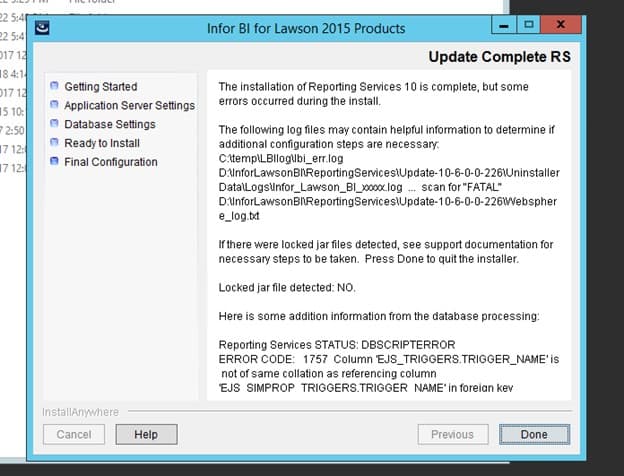
Resolution:
Run this query
IF NOT EXISTS (SELECT * FROM dbo.sysobjects WHERE id = object_id(N'[dbo].[EJS_SIMPROP_TRIGGERS]’) and
OBJECTPROPERTY(id, N’IsUserTable’) = 1)
CREATE TABLE [dbo].[EJS_SIMPROP_TRIGGERS]
( [SCHED_NAME] NVARCHAR(120) NOT NULL,
[TRIGGER_NAME] NVARCHAR(130) COLLATE SQL_Latin1_General_CP1_CI_AS NOT NULL,
[TRIGGER_GROUP] NVARCHAR(160) COLLATE SQL_Latin1_General_CP1_CI_AS NOT NULL,
[STR_PROP_1] NVARCHAR(512) NULL,
[STR_PROP_2] NVARCHAR(512) NULL,
[STR_PROP_3] NVARCHAR(512) NULL,
[INT_PROP_1] INT NULL,
[INT_PROP_2] INT NULL,
[LONG_PROP_1] BIGINT NULL,
[LONG_PROP_2] BIGINT NULL,
[DEC_PROP_1] NUMERIC(13,4) NULL,
[DEC_PROP_2] NUMERIC(13,4) NULL,
[BOOL_PROP_1] NVARCHAR(2) NULL,
[BOOL_PROP_2] NVARCHAR(2) NULL,
CONSTRAINT PK_EJS_SIMPROP_TRIG PRIMARY KEY (SCHED_NAME,TRIGGER_NAME,TRIGGER_GROUP),
CONSTRAINT FK_EJS_SIMPROP_TRIG FOREIGN KEY (SCHED_NAME,TRIGGER_NAME,TRIGGER_GROUP)
REFERENCES EJS_TRIGGERS(SCHED_NAME,TRIGGER_NAME,TRIGGER_GROUP));
Start your install over and the same error should not repeat.
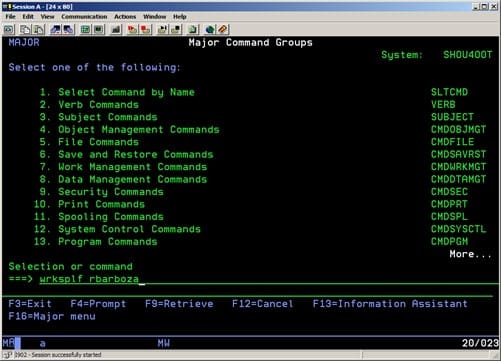
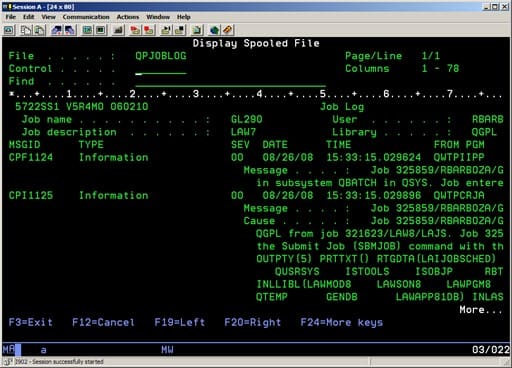
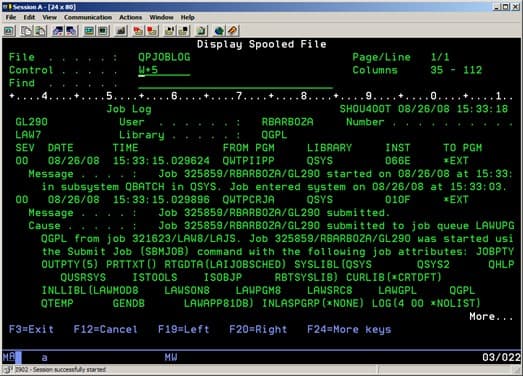
This is a helpful guide for AS400 to view an examine log for a Job in waiting queue. Follow the simple steps below.
Login to Green Screen
Type in wrksplf “username”
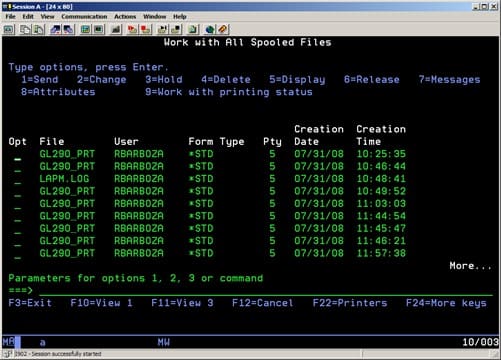
Hit F11 to get date and time
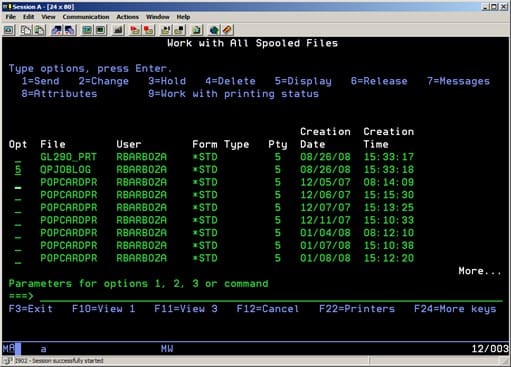
Find QPJOBLOG for the user and enter a 5 on the OPT column and enter
The examine log shown below


Interface versions are important when debugging an issue. This way you can check whether or not a patch exists that addresses the issue or if Infor is assisting you with the problem and needs a starting point.
Some of the most common ones needed are:
Its quite simple as long as you have access to LID, Infor Security Services (cloud) and Landmark Command Line (cloud) access.
Starting with LID:
Infor Security Services (ISS):
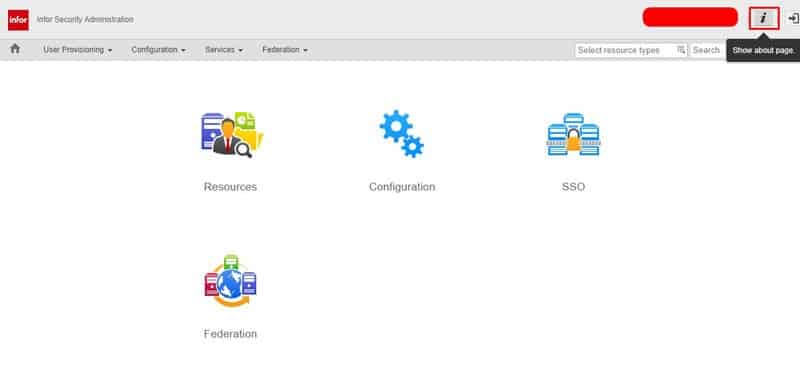
Landmark Command Line (ILMRK):
It is recommended to run monthly health checks to get versioning a long with analyzing server health and logs. Organizations with a single Lawson professional are sometimes spread thin and overwhelmed.
These organizations often hire a Lawson consultant team who offer managed services at a fixed monthly rate. These Lawson teams have a wider range of expertise and knowledge and are ideal for larger organizations but also are great for smaller ones that don’t need a dedicated Lawson employee on-site.

Sometimes uninstalling Crystal Reports Application Server from the Programs utility leaves behind extra “stuff” that needs to be removed. Else, you won’t be able to upgrade or reinstall CRAS.
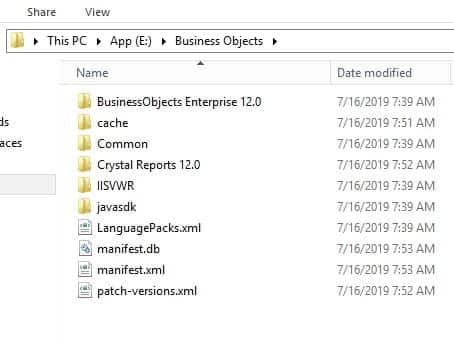
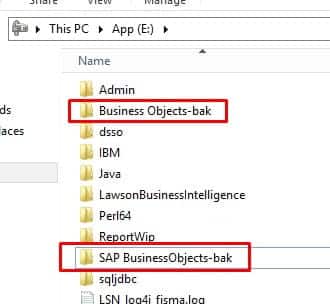
To clean up CRAS after an uninstall, first make sure install files are deleted (usually under the Business Objects or SAP BusinessObjects folder).
Next, delete the following registry keys:
HKEY_LOCAL_MACHINE\SOFTWARE\SAP BusinessObjects
HKEY_CURRENT_USER\Software\SAP BusinessObjects
HKEY_USERS\S-#-#-##-…-####\Software\SAP BusinessObjects
The number signs (#) represent a series of numbers that are different on each computer.
Restart the computer
You should now be good to install a new version of CRAS.