Follow the steps below to learn how to find logs for users that are getting an error when logging into Lawson.
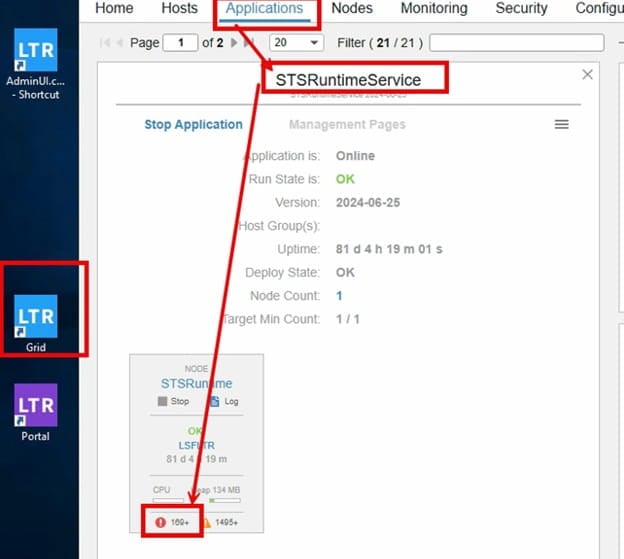
First, look for errors on the LTR Grid (Local Technology Runtime) by going to applications/STSRuntimeService and click on the lower left hand corner number as shown below:
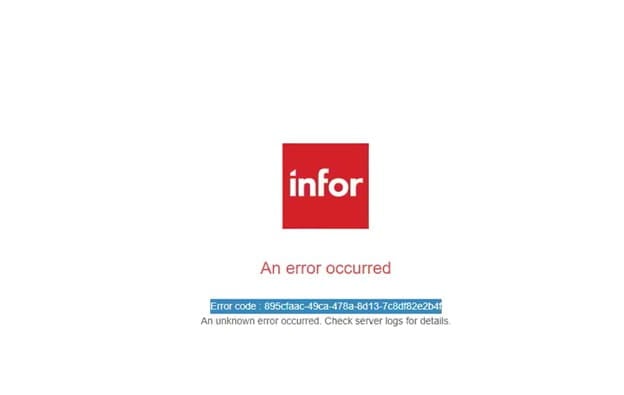
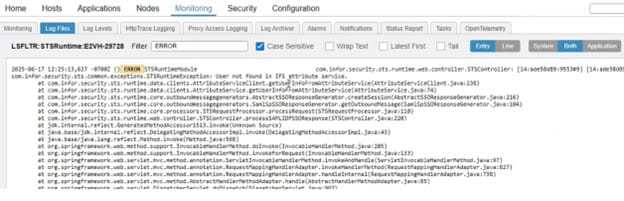
Next, search for code in the error message to determine why it is erroring out. (suggestion: use the Find function to detect the errors in the logs faster)
You IT should be notified of these errors in the logs and be able to resolve it quickly to allow user access the next time they log in.
https://www.nogalis.com/wp-content/uploads/2025/12/How-to-find-logs-for-Users-getting-error-logging-into-lawson.jpg470470Angeli Mentahttps://www.nogalis.com/wp-content/uploads/2013/04/logo-with-slogan-good.pngAngeli Menta2025-12-30 12:51:022025-12-29 13:00:57How to find logs for Users getting error logging into Lawson
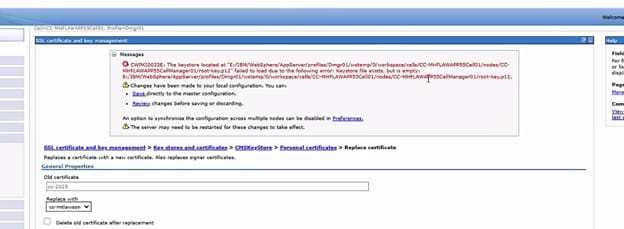
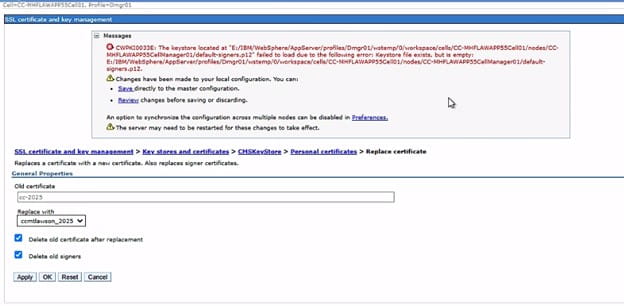
Summary: When trying to replace a cert with a new imported PFX cert, we get the error below (whether we select delete old cert/signers or not).
“Failed to load due to the following error: keystore file exists, but is empty”, specifically complaining about the root-key.p12 file in the path below.
IMPORTANT: make sure this file is empty before proceeding else it could be a different issue. Backup the entire VM before proceeding.
Potential resolution to above error:
Go to the specified directory and delete the root-key.p12 file.
Press okay again and it will complain about the default-signers.p12 file, then go into that directory and delete it as well.
Press okay again and it may re-generate the default-signers.p12 file, delete it once more and try again.
If it keeps throwing the error, save to master and see if it updates anyways.
Other potential solution to the above issue (Updated 2025):
In the Websphere CA Certification Installation.docx word doc, go to Step 4 and follow instructions on generating and propagating the web server plug-ins. We did this before doing the steps above and this may have resolved the issue as well.
LBI Websphere cert error: When updating the certs in LBI websphere, when we imported and replaced, it complained about a security.xml file.
Potential solution:
Update the IIS certs and iisreset /restart after completing via CMD
Attempt to replace cert again, and just save to master even with error. Check the personal cert again to see if it saved configuration changes (or log back into websphere).
If you found this article helpful, Nogalis offers expert managed services to resolve similar Lawson related cert errors like this. Our offerings include troubleshooting technical issues, streamlining processes, and providing functional resource assistance (HR, Finance etc.). Whether it’s addressing security settings, resolving errors, or enhancing workflows, our managed services ensure your finance operations run smoothly without the need for a full-time, in-house team. Contact us to learn how we can simplify and optimize your Lawson experience.
https://www.nogalis.com/wp-content/uploads/2025/12/Websphere-Personal-Cert-Errors-and-potential-solution-Updated-2025.jpg470470Angeli Mentahttps://www.nogalis.com/wp-content/uploads/2013/04/logo-with-slogan-good.pngAngeli Menta2025-12-26 08:46:202025-12-18 11:57:09Websphere Personal Cert Errors and potential solution – Updated 2025
Infor Support may ask you to Grab a SAML trace, which is a plugin for chrome. A SAML trace is used for troubleshooting and diagnosing issues related to Security Assertion Markup Language transactions. It allows you to view the complete exchange of SAML transactions and verify the accuracy and completeness of the data in the SAML exchange.
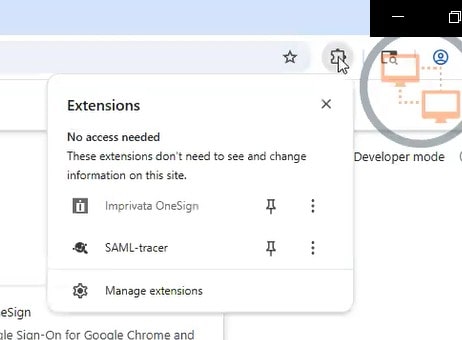
Once you download and install it to your machine, you will need to pin it to the Chrome bar (see the screenshot below)
You may need to refresh your page after installing and pinning the plugin. Let it run in the background and duplicate the issue that you need to have diagnosed.
https://www.nogalis.com/wp-content/uploads/2025/12/SAML-for-troubleshooting-and-diagnosis.jpg470470Angeli Mentahttps://www.nogalis.com/wp-content/uploads/2013/04/logo-with-slogan-good.pngAngeli Menta2025-12-23 09:51:592025-12-23 09:51:50SAML for troubleshooting and diagnosis
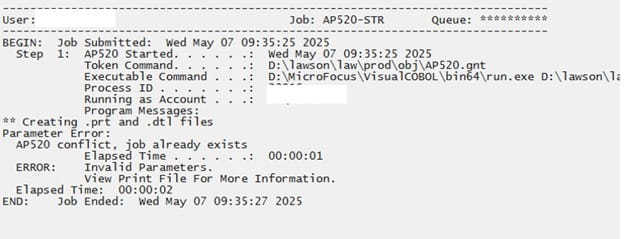
If your AP520 job goes into recovery with invalid parameters, and the examine log contains the error message “AP520 conflict, job already exists”, that means either an AP520 is already in recovery, or you will need to delete the conflicting record from APMONITOR. First, check to see if any user has an AP520 job in recovery. If they do, then resolve the issue and recover the job. If there is no AP520 in recovery, you will need to delete the conflict from APMONITOR. Either create a paint screen for the APMONITOR file, or connect to your database directly using a database utility. Look for a duplicate AP520 job to the one that you are trying to run. Remove that record from APMONITOR and recover your job.
Follow the quick guide below to learn how to fix users not seeing bookmarks even though they have access Lawson v10.
Problem:
When logged in to the Lawson v10 dashboard, you notice that the user is missing a Manager Self-Service bookmark (see screenshot):
Resolution:
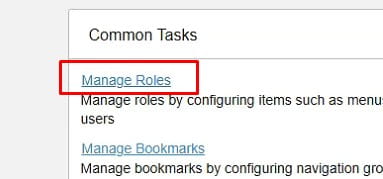
As an admin, navigate to “Manage Roles” on your Lawson Homepage:
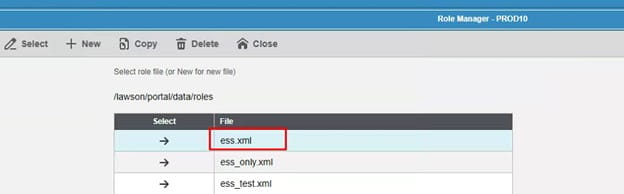
Select the portal role assigned to user (if default.xml, then create a new one):
Next, enable “Allow use of menus and user defined bookmarks”:
This should now show the additional bookmarks the user has access to:
They may have to log out then log back in to see the changes made. That’s it!
https://www.nogalis.com/wp-content/uploads/2025/12/How-to-Fix-users-not-seeing-bookmarks-even-though-they-have-access-Lawson-v10.jpg470470Angeli Mentahttps://www.nogalis.com/wp-content/uploads/2013/04/logo-with-slogan-good.pngAngeli Menta2025-12-16 08:02:452025-12-12 12:10:24How to Fix users not seeing bookmarks even though they have access Lawson v10
Learn how to debug Lawson Business Intelligence (LBI) Report prompting Database Login.
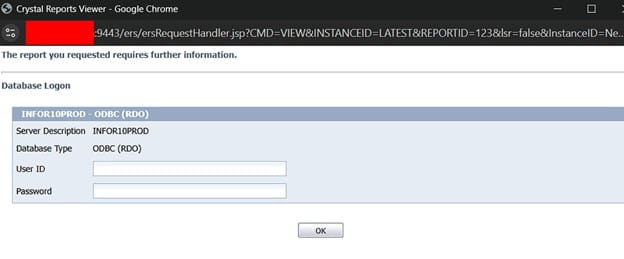
Here is an example issue when opening a report via LBI dashboard:
It prompts to a login screen and no credentials work:
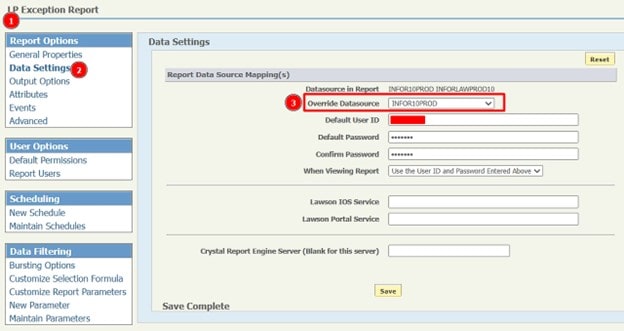
To solve this, first validate the datasource of the report and validate its correct (it may resolve after you click save and test the report again)
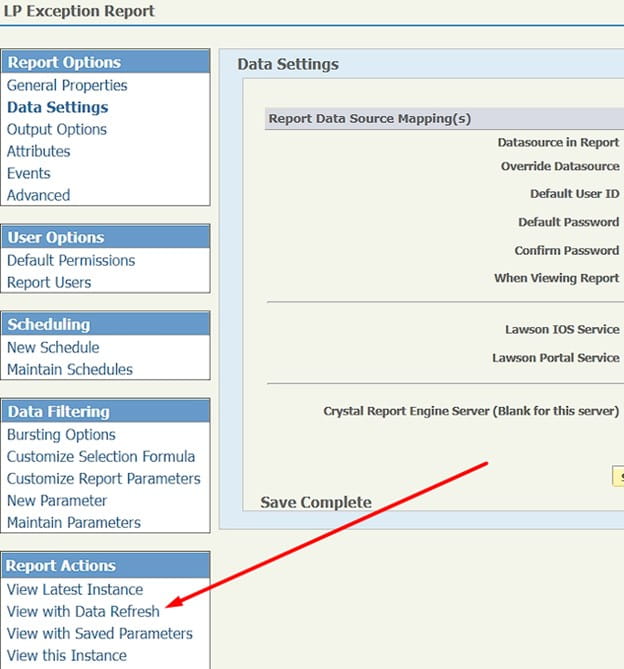
If not, see if you can view the report with Data Refresh
If it generates data, you can grab this URL:
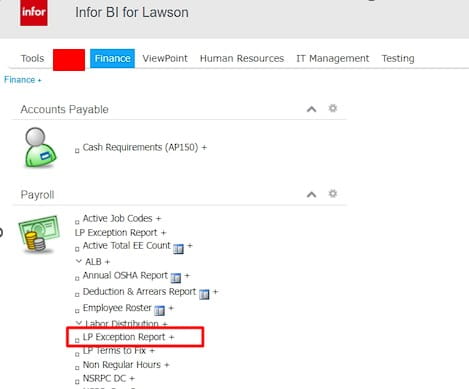
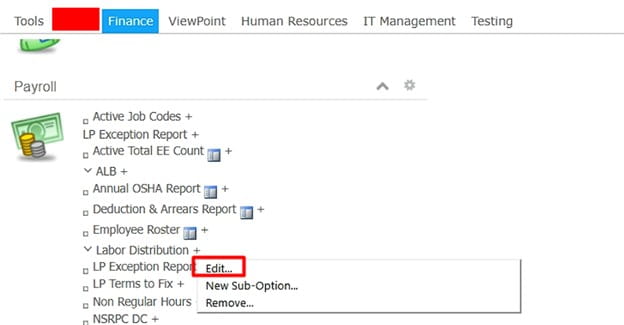
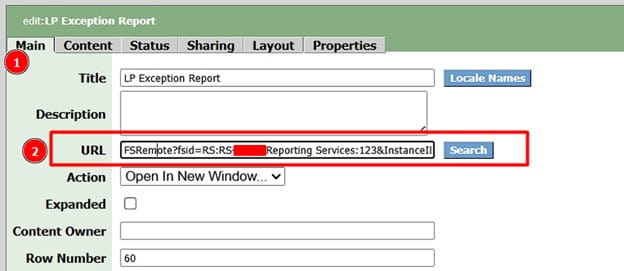
Edit your report from the dashboard, in this example we edit the “LP Exception Report”:
You can copy this URL:
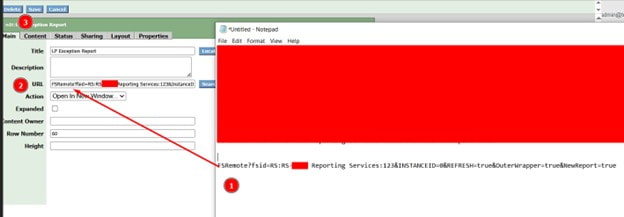
You can either replace it complete with the top URL shown below with the HTTPS://yourorg.domain.com…. Etc.
OR
You can modify the link with just the tail end of it as shown below:
Then copy and paste this URL back in and save:
That’s it! Test it and the database login prompt should no longer show if you followed everything correctly.
If this is too complex for you and you need Lawson specialists to help manage your Lawson ERP system, Nogalis offers a team of consultants to help manage this for you under one MSP contract. Feel free to reach out to us to get a free consultation today.
https://www.nogalis.com/wp-content/uploads/2025/12/How-to-debug-Lawson-Business-Intelligence-Report-prompting-Database-Login.jpg470470Angeli Mentahttps://www.nogalis.com/wp-content/uploads/2013/04/logo-with-slogan-good.pngAngeli Menta2025-12-12 08:01:182025-12-08 12:09:49How to debug Lawson Business Intelligence (LBI) Report prompting Database Login
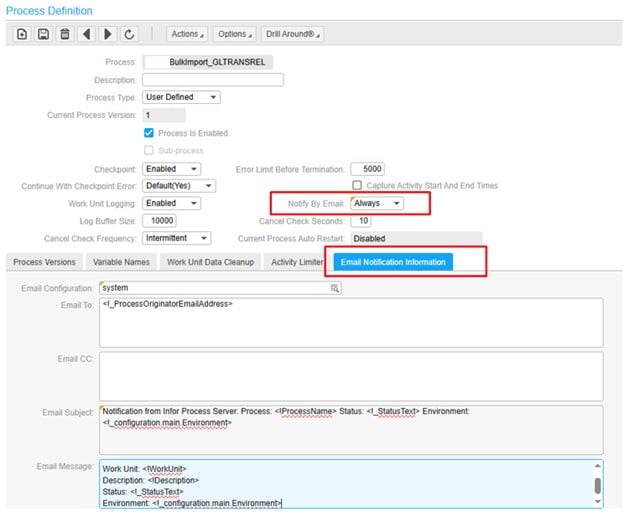
There may be some cases where you want to notify your IT or other staff that an Infor Process Automation (IPA) flow has run successfully, or has run with errors overall, in addition to internal notifications for specific events. Follow these steps to set up notifications on an IPA process.
First, log into Process Administrator.
Next, navigate to Configuration > Process Definitions > User Defined Process
Open your Process.
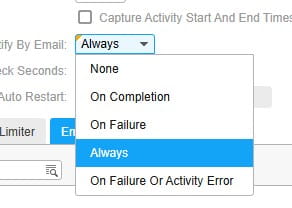
On the “Notify by Email” option, select your preferred option.
Once you select an email notification type, the email notification tab will open up.
You can use global parameters in the email details.
You are now set up to receive notifications!
https://www.nogalis.com/wp-content/uploads/2025/12/IPA-Process-Notifications.jpg470470Angeli Mentahttps://www.nogalis.com/wp-content/uploads/2013/04/logo-with-slogan-good.pngAngeli Menta2025-12-09 08:48:402025-12-08 12:00:02IPA Process Notifications
What is the best way for me to get a list of active or disabled users within theLawson environment?
Resolution:
To see all users who are “Active” or “Disabled”, run the “RM User Attribute report” within the LSA tool. Follow these steps below.
Reports
Report Maintenance
Click New Report
Choose the “RM User Attribute Report”
Add a report a name
OPTIONS:
ACTIVE USER LISTING: Create a query for the Filter Criteria where IsDisabled isNot YES
or
DISABLED USER LISTING: Create a query with the filter criteria set to IsDisabled is YES
Hit next
Choose the attributes about the user you want to see, such as First Name, Last name, etc… By default isDisabled is already checked and ID will automatically show up on the report as well. Click Ok to save the report.
Run the report by highlighting the report and clicking the “Run Report” button at the top of the screen, choose your report format, html, pdf or csv.
Use the Refresh button at the top of the screen and wait for the status of the report to show as “completed”. Once it’s complete, make sure the report name is highlighted then choose View Report. Put a check next to the report format and click View File.
https://www.nogalis.com/wp-content/uploads/2025/12/Active-or-Disabled-Users-Reporting.jpg470470Angeli Mentahttps://www.nogalis.com/wp-content/uploads/2013/04/logo-with-slogan-good.pngAngeli Menta2025-12-05 08:04:412025-12-04 11:07:20Active or Disabled Users Reporting
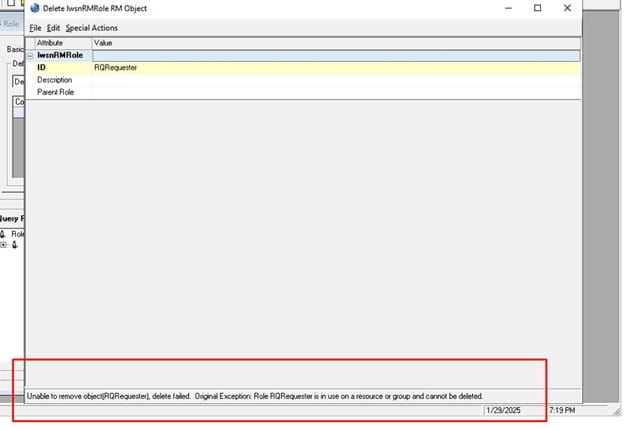
Follow these simple steps to know how to resolve the Lawson Error, “Unable to remove object delete failed”
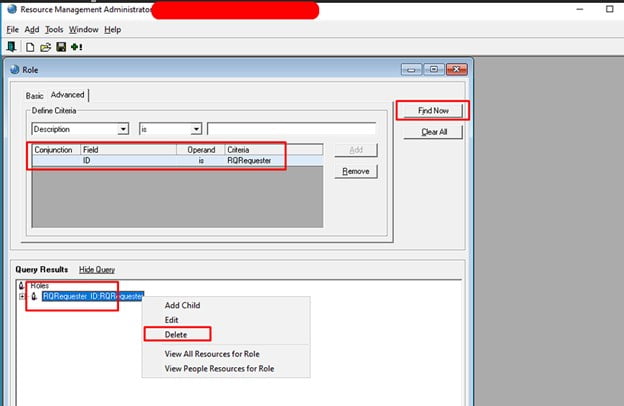
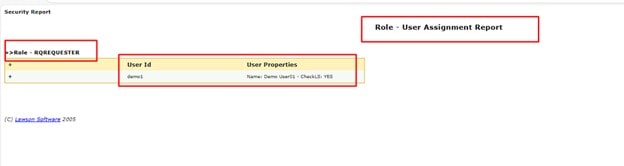
You may come across the following: Unable to remove object (RQRequester), delete failed. Original Exception: Role RQRequester is in use on a resource or group and cannot be deleted. (Note: there are 3 screenshots below)
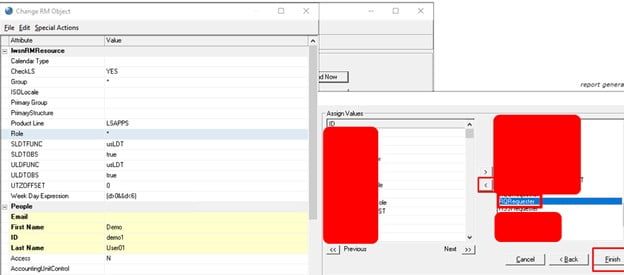
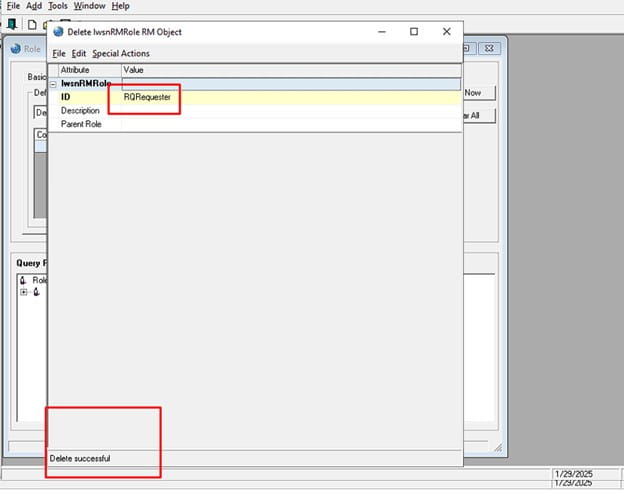
To resolve, you need to remove role from the user and try again. follow these visual guides for the role removal process: (Note: there are 2 screenshots below)
That should be it!
https://www.nogalis.com/wp-content/uploads/2025/12/How-to-resolve-Lawson-Error-Unable-to-remove-object-delete-failed.jpg470470Angeli Mentahttps://www.nogalis.com/wp-content/uploads/2013/04/logo-with-slogan-good.pngAngeli Menta2025-12-02 12:08:092025-12-02 13:15:13How to resolve Lawson Error Unable to remove object delete failed