
Use Microsoft Management Console to connect to Lawson LDAP
Microsoft Windows Server provides a tool called ADSI Edit, which can be used to get a closer look at your LDAP configuration.
Please be careful when you are moving around in LDAP, as mistakes here can destroy your Lawson Security configuration.
Your first step should always be to back up LDAP. Nogalis provides another article with instructions on how to do that. (How to Backup LDAP in Lawson v10)
Next, verify that the necessary features are installed on your Windows Server.
- Open your Windows Features & Roles
- Navigate to Features
- Check for AD LDS Snap-Ins and Command-Line Tools
- If not installed, install it
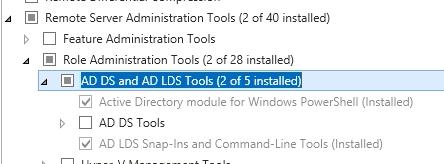
- If not installed, install it
Once the AD LDS Snap-Ins are installed, go to Start > Run > mmc.exe
Go to File > Add/Remove Snap-Ins
Add the ADSI Edit Snap-In
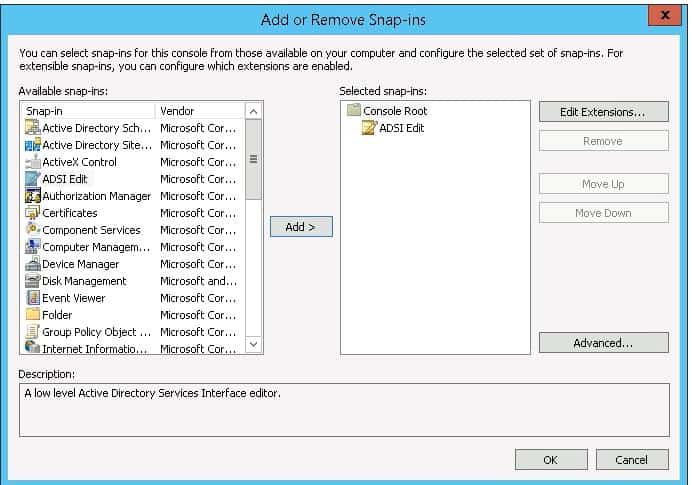
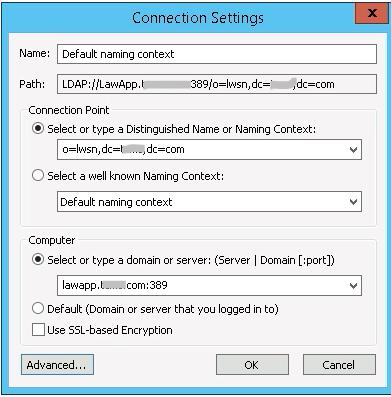
Right-click on ADSI Edit, and select “Connect to…”
Type in your LDAP server name under “Select or type a domain or server”
- The LDAP URL can be found in your Lawson install.cfg file, under the setting LDAPHOST
Type in your Connection Point
- This can be found in Install.cfg under the LDAPBINDDN setting (everything except the ldap admin username)

If you need to provide credentials to connect to your LDAP instance, click “Advanced…”
Select “Specify Credentials”
Type in the LDAP admin username
- This can be found under the LDAPBINDDN setting in Install.cfg
Type in the port number
- LDAPPORT in Install.cfg
Select “Simple bind authentication” if applicable
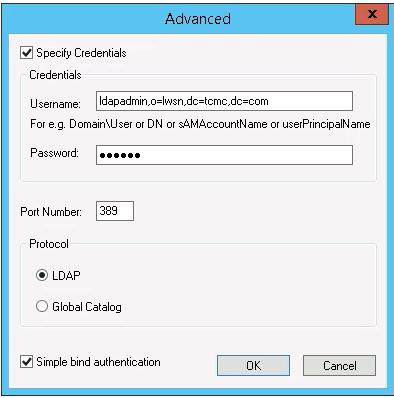
Click OK and OK
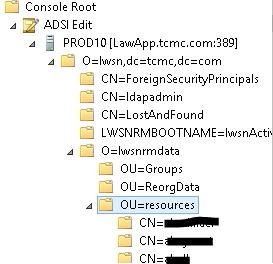
You are now ready to expand the tree on the left side of the application, where you can view resources and other security settings
Retiring Lawson, PeopleSoft, or Oracle? APIX archives the entire application — every table, every year, attachments and security included — into your own AWS account in about 30 days, so you can decommission the legacy system and keep full access to the history.

