
Updating the ADFS Token-Signing Certificates
When the ADFS Token-Signing certificate is updated on the ADFS server, it will have to be imported to Lawson and Infor OS. The networking team should let the Lawson team know when the certificate is being updated in ADFS.
The networking team will need to export the certificate and provide you with the “.cer” file before these tasks can be completed.
Update the Certificate in Lawson
- Log onto the Lawson Server
- Start a ssoconfig -c session
- Go to “Manage WS Federation Settings” > “Manage Certificates”
- Select “Delete IdP certificate”
- Enter the IdP service name for your ADFS configuration
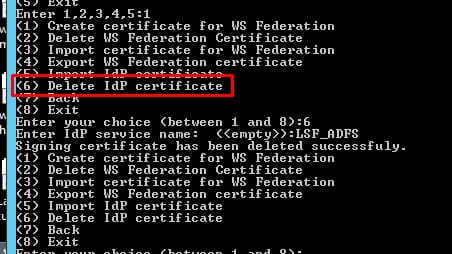
- Enter the IdP service name for your ADFS configuration
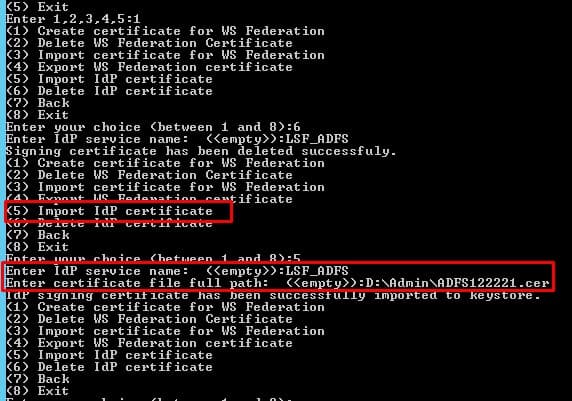
- Select “Import IdP Certificate”
- Enter the IdP service name for your ADFS configuration
- Provide the full path where you have the token-signing certificate saved

Reboot the server
Update the Certificate in Landmark
- Open a LMK command line window
- Type in secadm -m
- Type the password
- Manage WS Federation Settings > Manage WS Federation Certificate
- Select “Delete IdP Certificate”
- Enter the IdP service name for your ADFS configuration
- Property name is IdPSigningCertificate
- Exit
- Select “Import IdP Certificate”
- Enter the IdP service name for your ADFS configuration
- Provide the full certificate path
- Property name is IdPSigningCertificate


Update the Certificate in Infor OS
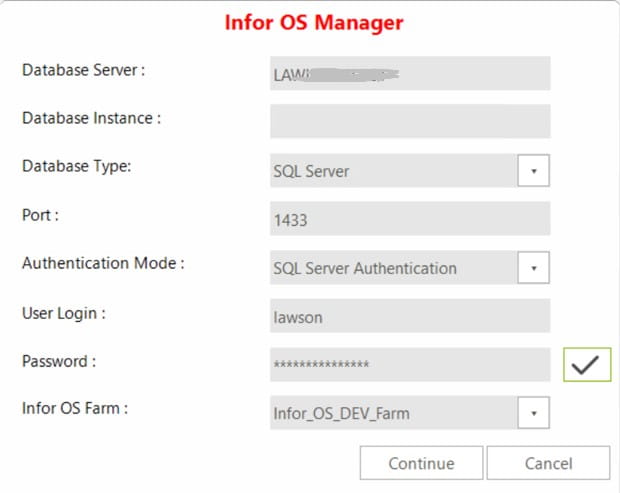
Log into the Infor OS server as the LAWSON user
Double-click on the desktop icon for InforOSManager
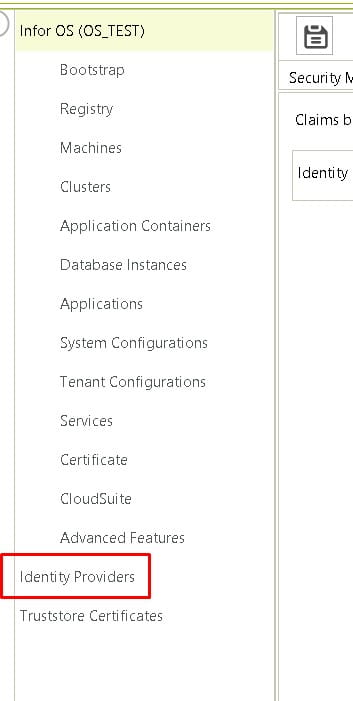
Go to Identity providers on the left side
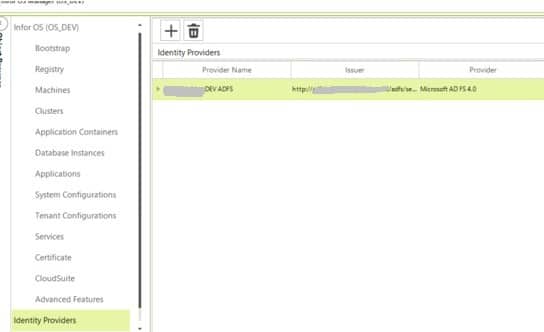
Double-click on the identity provider
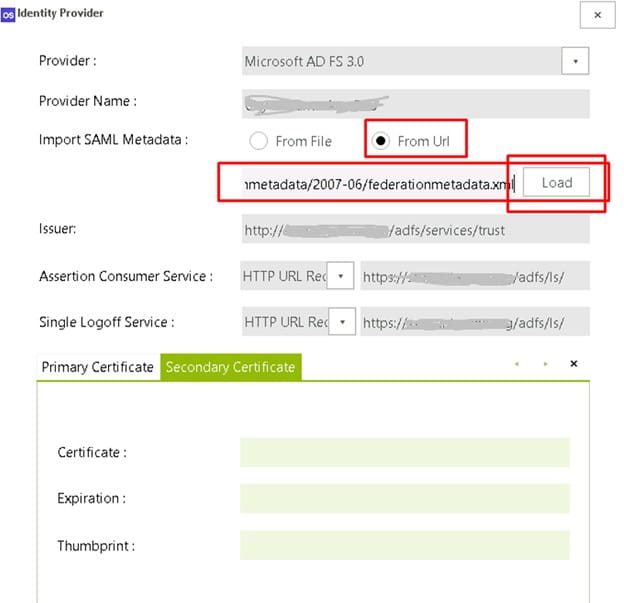
Select “From URL” to import the new certificate and metadata
Provide the URL: https://<adfsserver>/federationmetadata/2007-06/federationmetadata.xml
Click “Load”
Make sure the certificates load (there may only be one, but there should be at least one)
Reboot the server
Retiring Lawson, PeopleSoft, or Oracle? APIX archives the entire application — every table, every year, attachments and security included — into your own AWS account in about 30 days, so you can decommission the legacy system and keep full access to the history.

