
Run a Process in IPA
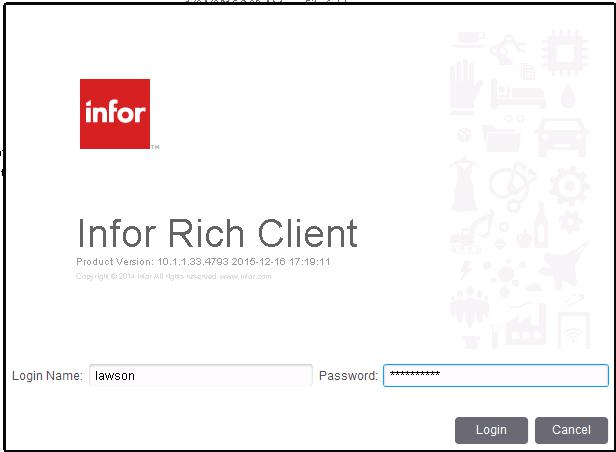
- Open Infor Rich Client

- At the login prompt, enter the correct username and password

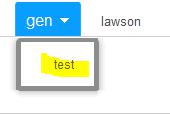
- The canvas is now open. Look in the upper left corner and make sure you are pointing to the prod or test data area (not gen)

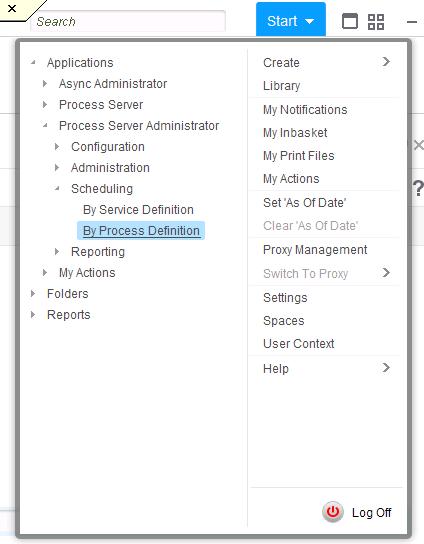
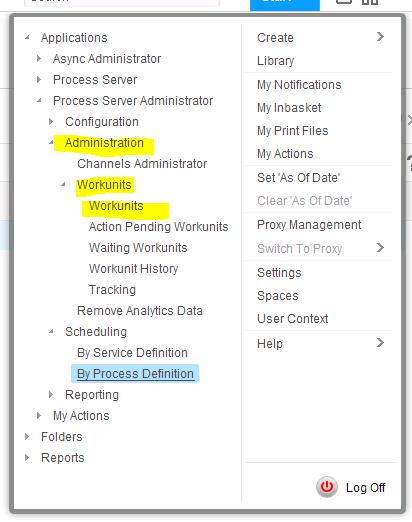
- In the upper right corner, click “Start > Applications > Process Server Administrator > Scheduling > By Process Definition”

- At this point, you can click, HOLD, and drag the “By Process Definition” link to the canvas. That way, it will create a shortcut on the canvas.

- At this point, you can click, HOLD, and drag the “By Process Definition” link to the canvas. That way, it will create a shortcut on the canvas.
- Once you are in User Defined Processes, you should see a list of Process Triggers that have been set up
- Locate the process that you wish to run
- If you do not see the process you wish to run, you must create a new trigger for it.
- Click the “New” icon

- Select the Process Name you wish to run




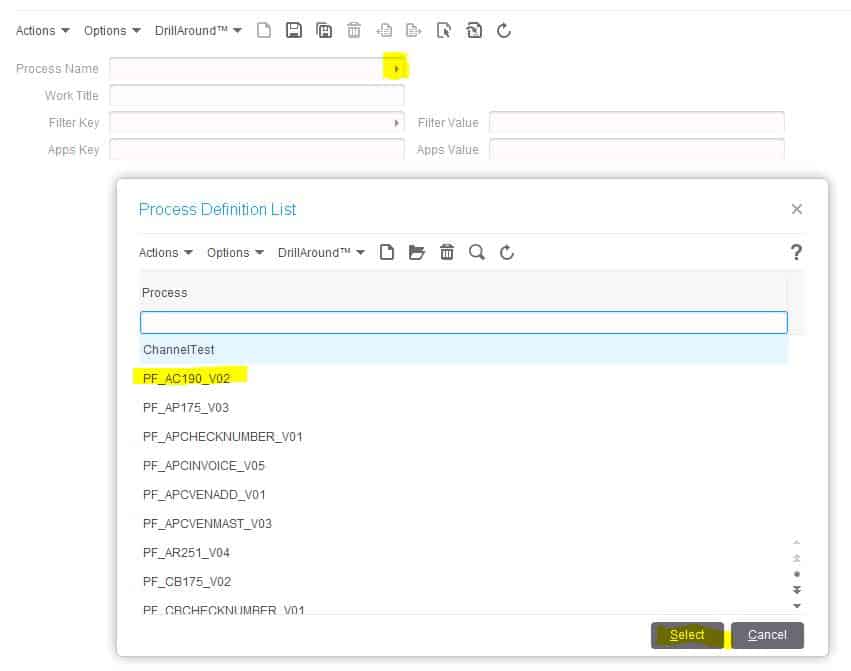
- Give the trigger a “Work Title” (this is a required field for the trigger to function)

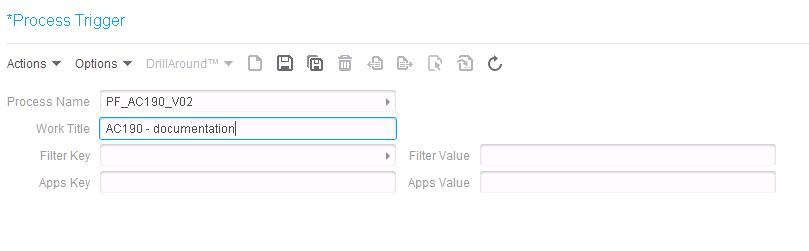
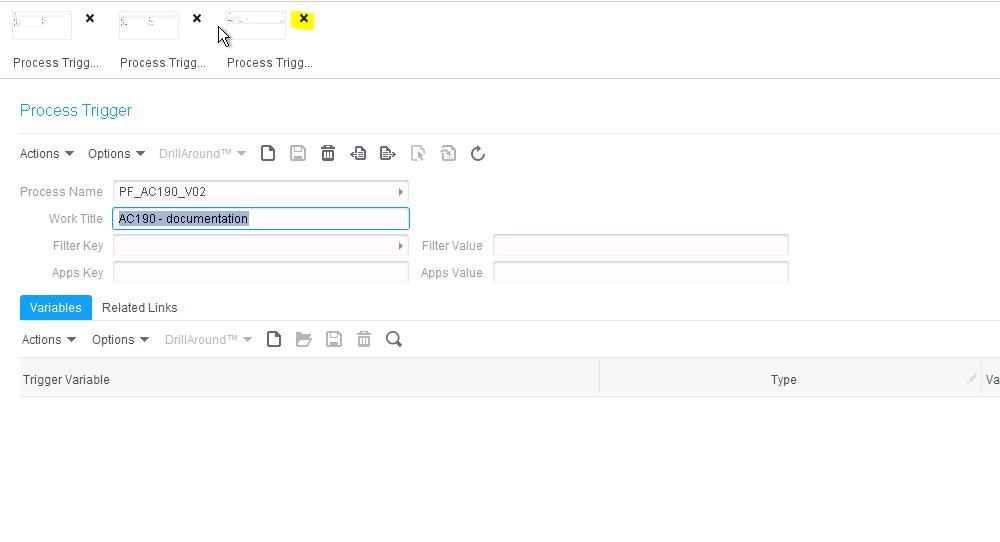
- Save the trigger
- Close this screen

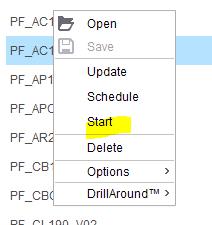
- Right click on the process and select “Start”

- To check the status of the process, open the work units screen at “Start > Applications > Process Server Administrator > Workunits > Workunits”

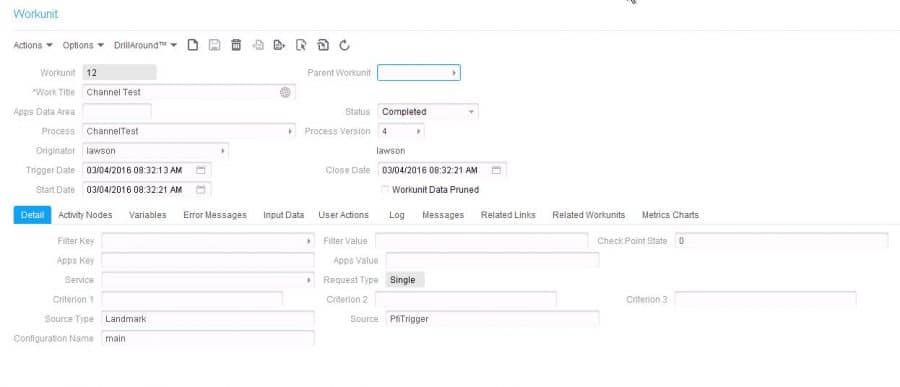
- This presents a list of workunits. Choose the workunit corresponding to the process you just ran, and double click to open the information screen
- Here, you can see any error messages and view the log

- Here, you can see any error messages and view the log
Retiring Lawson, PeopleSoft, or Oracle? APIX archives the entire application — every table, every year, attachments and security included — into your own AWS account in about 30 days, so you can decommission the legacy system and keep full access to the history.

