

How to find Soft Deleted Users in Mingle/InforOS
The user does not appear on the Soft Deleted Users page until being deleted from the Users page.
If Soft Delete is the user deletion method, to delete a user:
While logged in as a user with a UserAdmin role, click the profile icon in the top right corner of the screen to access the profile panel.
Click User Management on the profile panel.
Click Soft Deleted Users under Manage.
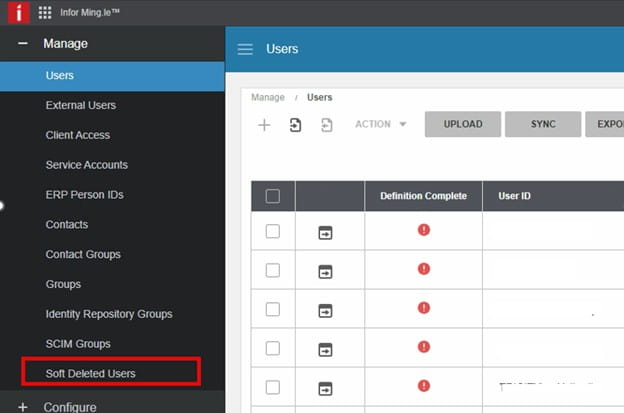
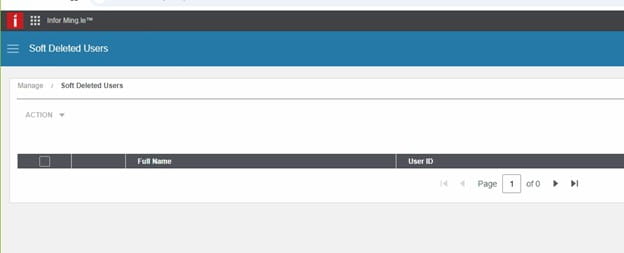
On the Soft Deleted Users screen, enter the name of the user to be deleted in the search box on the right and press Enter.
Click the Soft Deleted Users table and select the check box next to the name of the user to be deleted.
Select Action > Delete.
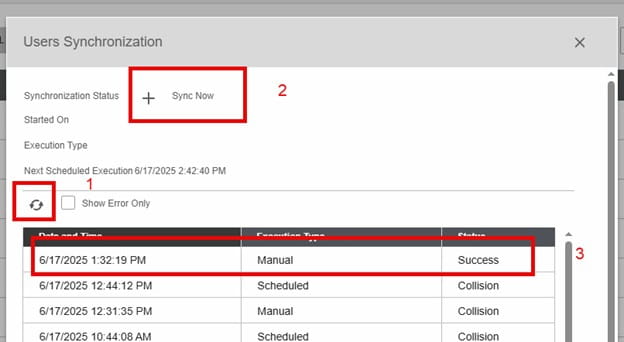
Click on the refresh button to see if the sync completes. It is complete when the + is not grayed out. Also, you will see the manual execution and status of success.
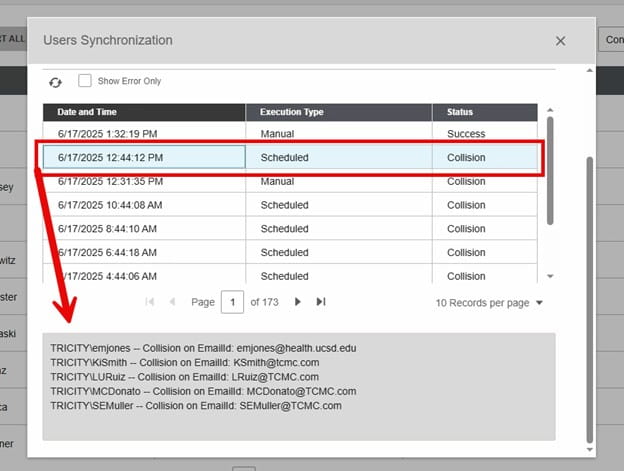
To troubleshoot, highlight a collision one and scroll down to the bottom of the page to see the errors.
Validate:
Is user in InforOS?
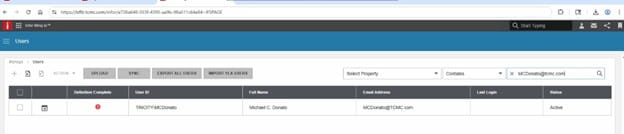
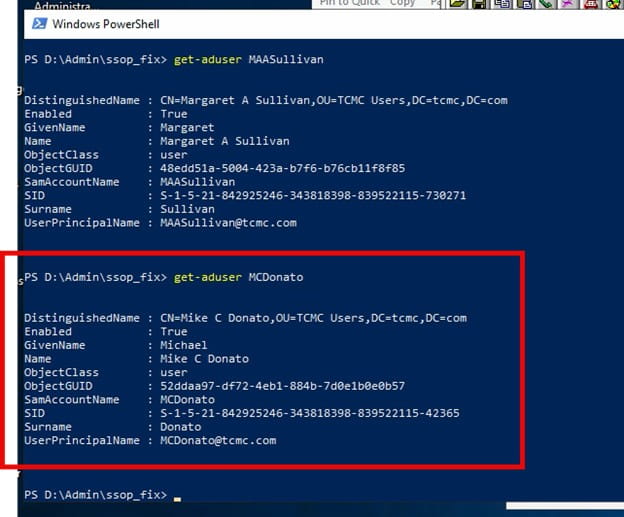
https://chromewebstore.google.com/detail/saml-tracer/mpdajninpobndbfcldcmbpnnbhibjmch?hl=en
Export the AD User-Get-ADUser username -Properties * | Select * > username.txt to check AD to make sure UPN doesn’t have any weird characters in it.
An Error Occurred:
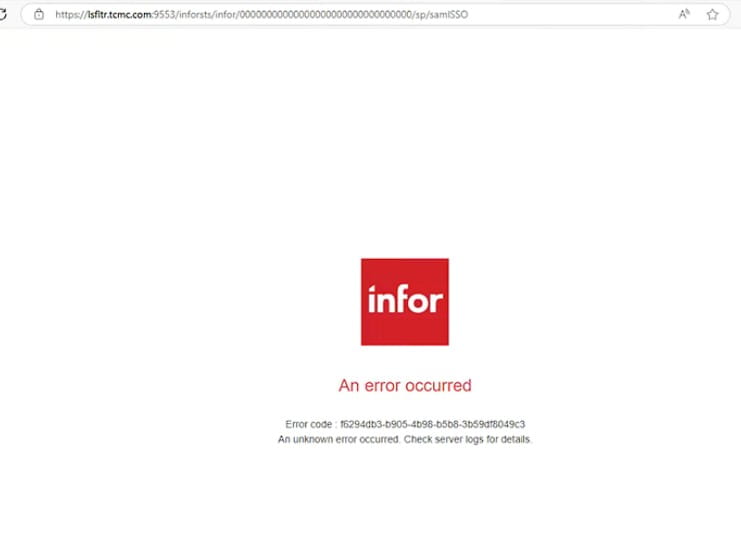
In INFOR OS, Check Soft deleted users, hard delete and sync
Infor OS Mingle Logs on-prem Logs:
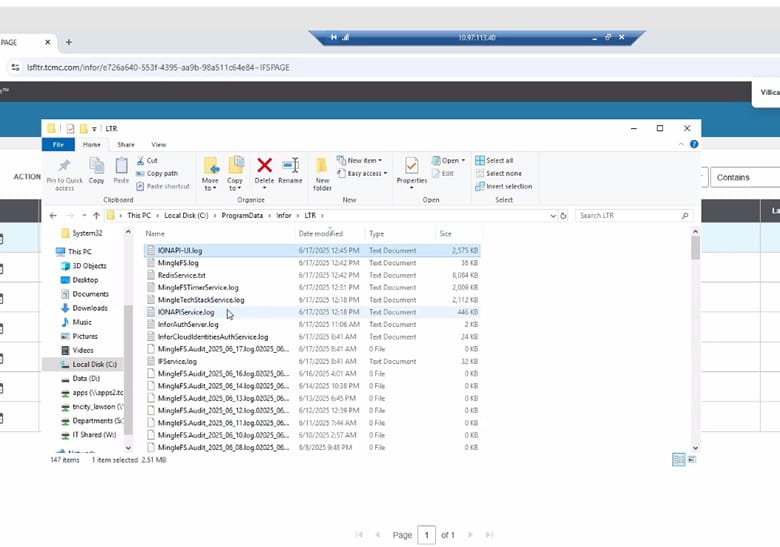
Other notes: Export the AD user to check AD for unique characters that are causing the UPN to not match up with Infor OS, also check Infor OS for those same characters.
Get-ADUser username -Properties * | Select * > username.txt
SAML Tracer
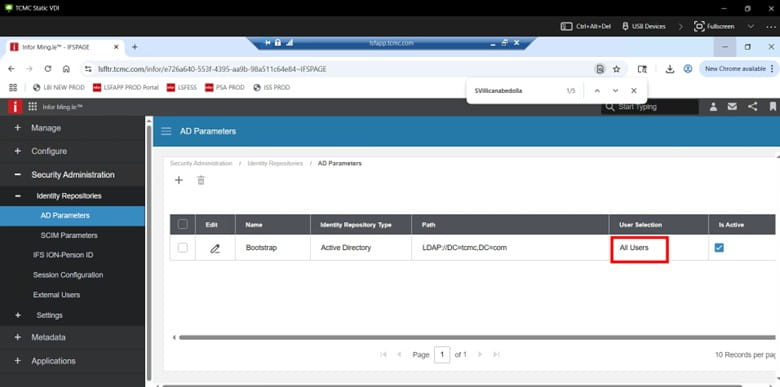
In order to add items (or users manually in Infor OS), AD Params would need to be “manual” (not All Users) this is in OS Security User Management
Retiring Lawson, PeopleSoft, or Oracle? APIX archives the entire application — every table, every year, attachments and security included — into your own AWS account in about 30 days, so you can decommission the legacy system and keep full access to the history.

