Subscribing to Bookmarks
This procedure explains how to subscribe to bookmarks.
You could also use the procedure to subscribe to bookmarks, if you have been given access to the bookmark by your system administrator. If the bookmark appears in your list, you have access to it. (See your system administrator if you need access to a bookmark that does not appear in your Bookmarks list.)
To subscribe to bookmarks
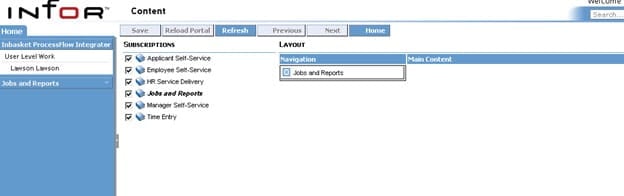
- From the Portal home page, select Preferences (check marks icon)>Content.
- Click on closed books to expand them, if necessary.
- Bookmarks you are subscribed to have check marks in front of them.
If the check mark is removed and you want to add it, click on the box.
Unchecked bookmarks will not appear in your navigation pane or content window.