How to resolve Lawson Add-ins no longer querying data
User Excel Add-ins Issue Summary:
User can no longer query Lawson data and ruled out that it is NOT a Lawson add-ins version issue. Follow the steps below to see if this resolution helps.
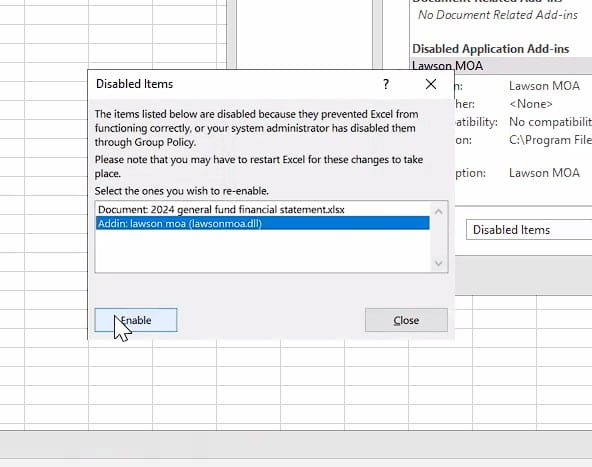
- First, we had to enable add-ins from disabled items, File >> Excel Options >> Add-ins >> Manage “Disable Items” >> Go, then select and enable.
- Then in Excel Options >> Add-ins >> Manage “Com Add-ins”, enable Lawson MOA (Acrobat PDFMaker in the past has caused issues, so disable if it does, we left it enabled and it worked)

- This initially fixed the issue, everything worked.
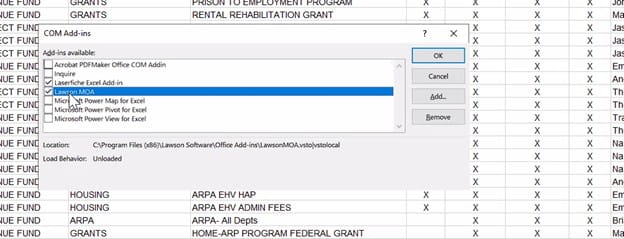
However, when the user restarted Excel app, they had to re-add it in COM Add-ins every time. If this happens to you, go to step 4, else you’re done!

- Optional if having issues after step 3: Running Excel as Administrator fixed the issue in step 3, but since it’s now under the “admin account”, accessing add-ins scripts prompted share folder permission issues from Excel:

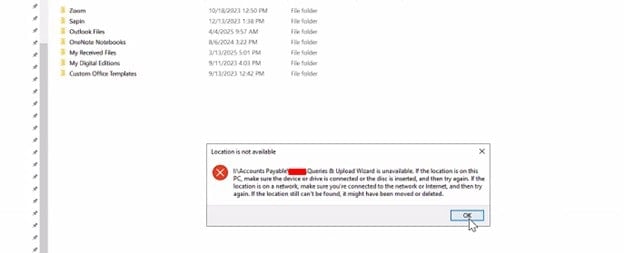
What we tried: adding folder permissions for the user to C:\Program Files(x86)\Lawson Software and \Microsoft Office folder permissions. This did NOT work.
- Optional if having issues after step 3: Last thing that resolved the issue was updating the registry manually.
- Open REGEDIT
- Go to HKEY_CURRENT_USER\Software\Microsoft\Office \Excel\Addins\<YourAddinName> (In our case, it was named Lawson MOA Add-ins)
- Select Lawson MOA Add-ins, on the right of regedit select “LoadBehavior”
- Set the LoadBehavior value to 3 (Load at Startup)
- Other values include 0 = Unloaded, 1 = Loaded Manually, 2 = Load on demand
After step 5, add-ins tab appeared when the user opened Excel normally, everything worked from there on out.