
Infor OS Portal Info Browser
You can use the Lawson Portal to create Info Browser data. First, navigate to the left menu and select Info Browser under the General section.
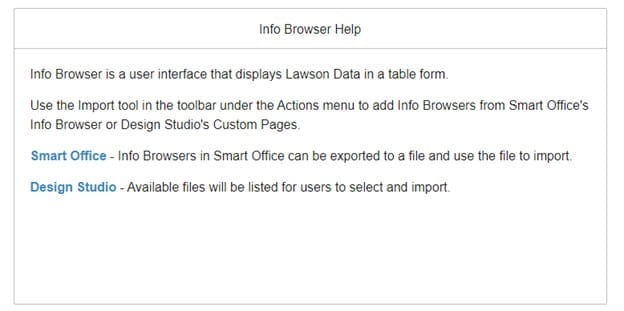
The Info Browser in Smart Office allows you to export its settings and save them as a file in the user’s local directory. You can later use the Import tool to upload and save these files as Info Browsers.
Accessing the Info Browser Page
- To access the Info Browser page in Lawson Portal, follow these steps:
- Open the Navigation menu.
- Select General > Info Browsers.
Creating Info Browsers
- In Lawson Portal, you can create Info Browser data, including queries, directly from the Info Browser page. To add data, use the Import tool found under the Actions toolbar menu.
- Exporting from Smart Office: The Info Browser in Smart Office has an export feature that allows you to save Info Browser settings as a file in the user’s local directory. You can later upload these generated files using the Import tool.
- Data Query in Design Studio: On a custom page in Design Studio, you can create a Data Query object, which generates an API to request Lawson Data. The resulting Data Query file is available in the Import tool, allowing you to use it within the Info Browser.
- By utilizing the export and import functionalities, you can easily manage and reuse your Info Browser configurations and Data Queries across Lawson Portal and Smart Office.
Infor Browser Actions
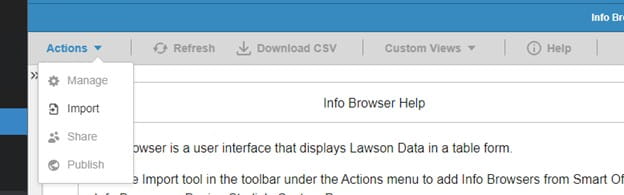
Actions: Users can manage the Info Browsers such as rename, delete, share, or import a new one.
Folder: Users can create, rename, and delete Info Browser folders.
Refresh: Refreshes the data on the list. This action is enabled when an Info Browser is displayed on the right panel.
Download CSV: Downloads the current data in the displayed Info Browser. This action is enabled when an Info Browser is displayed on the right panel.
Custom Views: Users can save and manage custom filters for an Info Browser. This action is enabled when an Info Browser is displayed on the right panel.
Help: Shows the help message in a dialog box.
Customizing and Sharing Info Browser Views in Lawson Portal
In Lawson Portal, you can create and save custom views of Info Browsers to suit your specific needs. This guide explains how to customize views, share Info Browsers with others, and manage Info Browser folders.
Creating Custom Info Browser Views
To create custom views of an Info Browser, you can adjust the column order, width, and filters. Then, save the customized view by selecting Custom Views > Save view as….
Key points:
- Identifiable by name: Each custom view is named for easy identification, allowing you to switch between views as needed.
- Persistence: Custom views remain even when switching forms or closing Lawson Portal.
- Managing views: You can delete saved custom views by selecting Custom Views > Manage Views.
Sharing Info Browsers
You can easily share your Info Browser with other users:
- Select Actions > Share.
- Optionally, change the name of the Info Browser before sharing.
- The recipient can import the shared Info Browser by selecting Actions > Import and choosing User from the drop-down menu.
- The recipient can rename the Info Browser and choose a folder destination.
The imported Info Browser will appear in the recipient’s saved list.
Accessing Published Info Browsers
To access Info Browsers published to your assigned role:
- Select Actions > Import > Import From > Published.
- You can change the name and select a folder destination for the imported Info Browser.
The published Info Browser will be available in your list of saved Info Browsers.
Launching Records to a Form
You can launch a Lawson Application associated with an Info Browser, automatically populating key fields or parameter mappings based on the selected row.
Managing Info Browser Folders
You can organize Info Browsers using folders:
- Create, rename, and delete folders: Use the Folders tool in the Actions toolbar.
- Drag-and-drop functionality: Move Info Browsers to any folder for better organization.
- Deleting folders: When you delete an Info Browser folder, all contents within that folder are permanently removed.
By customizing views, sharing Info Browsers, and organizing folders, you can streamline your workflow and enhance the usability of Lawson Portal.
Retiring Lawson, PeopleSoft, or Oracle? APIX archives the entire application — every table, every year, attachments and security included — into your own AWS account in about 30 days, so you can decommission the legacy system and keep full access to the history.


Leave a Reply
Want to join the discussion?Feel free to contribute!