
Debugging 4GL forms in Visual Studio
Sometimes compiling for trace, or adding display statements to a 4GL program, just doesn’t quite get you far enough with debugging. Lawson is installed on a MicroFocus COBOL for Visual Studio, which can be debugged using Visual Studio. Here are the steps to set up the debugger for a Lawson form:
- First, compile your program for debug (i.e. lawcmp -D <pdl> <system> <program>)
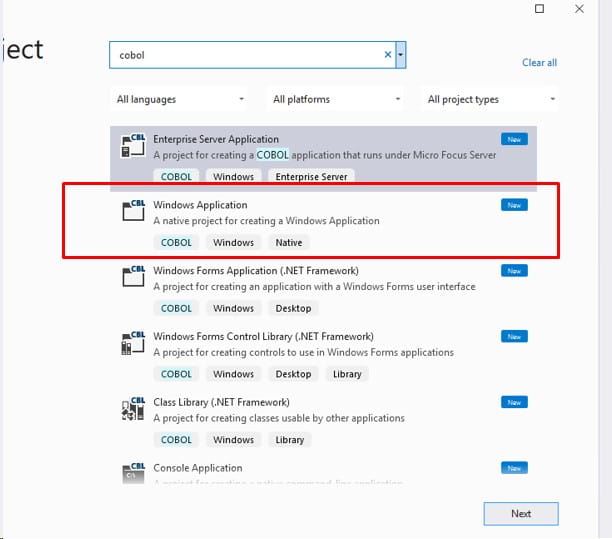
- Create a new Windows Application project for COBOL.

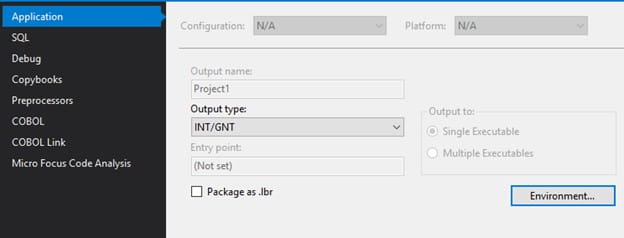
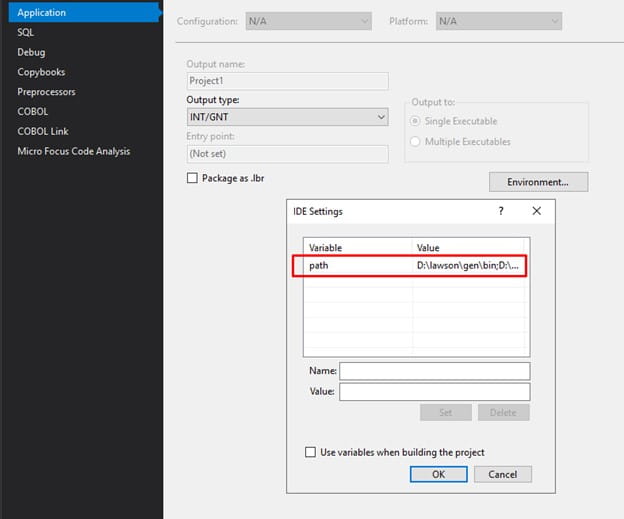
- Configure the application for Output Type INT/GNT, and open the “Environment…” to set a Path variable. This variable should contain <GENDIR>\bin;<JAVA_HOME>\jre\bin\server;<LAWDIR>\<pdl>\obj;<LUU_DIR>


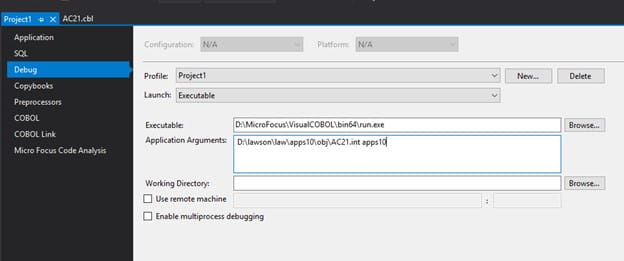
- Under Debug, set the project to launch an executable. The executable should be <MF_HOME>/bin64/run.exe, and the Application Arguments should be <LAWDIR>/<pdl>/obj/<debug program>.int <pdl>

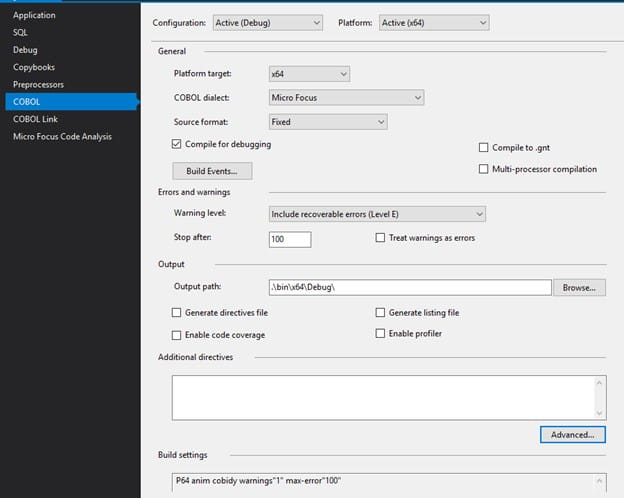
- On the COBOL tab, set the configuration to Active (Debug) and the platform and platform target to your current server platform. Set the COBOL dialect to Micro Focus. Set the output path to .\bin\x64\Debug

- Add the “.cbl” file to the Visual Studio project that was generated from your compile in debug mode (step 1).
- You can set break points in that cbl file
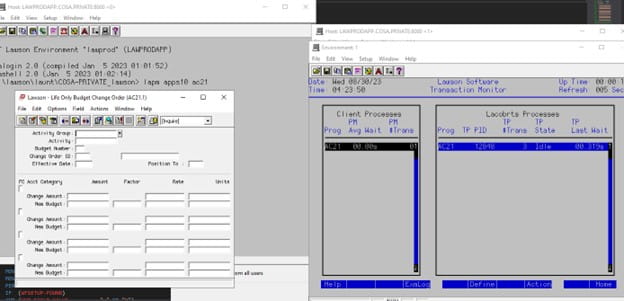
- Now, it’s time to debug your form. Open the application using LID (lapm <pdl> <program code>)
- In a separate LID session, run the command tmmon and make note of the pid for your Lacobrts process.
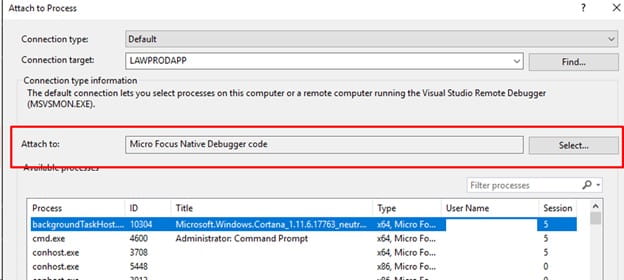
- Now, in Visual Studio, select Debug > Attach to Process

- Select the process you identified in tmmon (it should be a run.exe). Now you can perform the process that you were trying to debug, and Visual Studio will stop at the break point you set.

Retiring Lawson, PeopleSoft, or Oracle? APIX archives the entire application — every table, every year, attachments and security included — into your own AWS account in about 30 days, so you can decommission the legacy system and keep full access to the history.


Leave a Reply
Want to join the discussion?Feel free to contribute!