
Scheduling a Process in IPA
Upload Your Process from IP Designer
- Log into IP Designer
- Create a new process
- Upload the process to your server by clicking the up arrow icon
 , or by clicking:
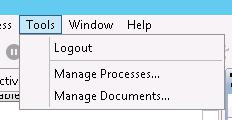
- Tools > Manage Processes > Select Open Process


- Tools > Manage Processes > Select Open Process
 , or by clicking:
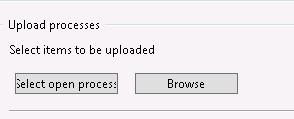
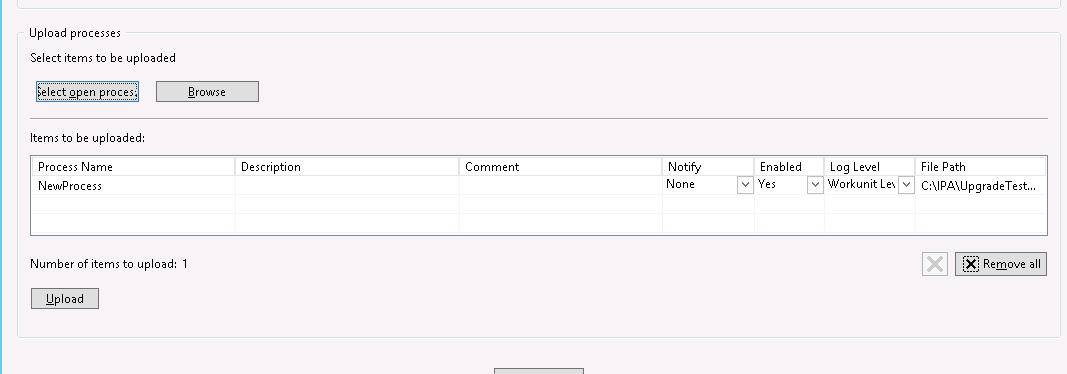
- Choose the process you wish to upload, then click OK

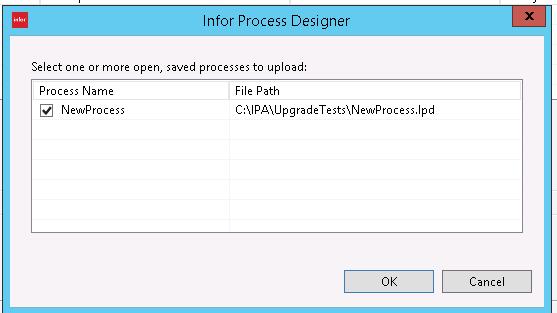
- The process now appears in the list. Click “Upload”.

Create a Trigger in Rich Client
Now that your process is uploaded to the IPA system, it is time to create a trigger for the process. Once you have created your trigger, you will be able to:
- Run the process manually
- Schedule the process
- Configure the process as part of a File Channel
- Trigger the process from a Lawson S3 screen
- Log into Rich Client
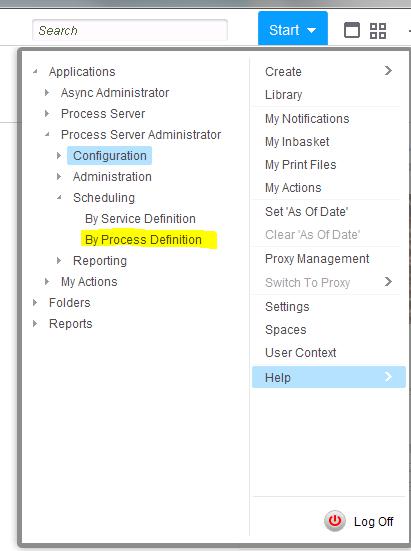
- From the Start menu, navigate to Applications > Process Server Administrator > Scheduling > By Process Definition

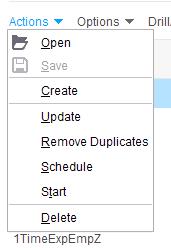
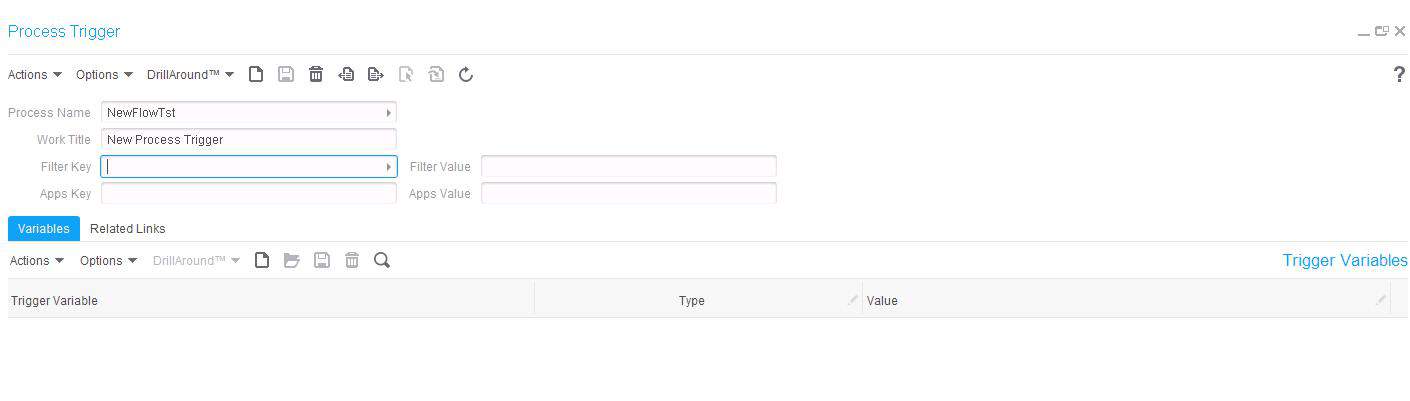
- Click Actions > Create, or click the “blank sheet” icon


- Fill in the Process Trigger information

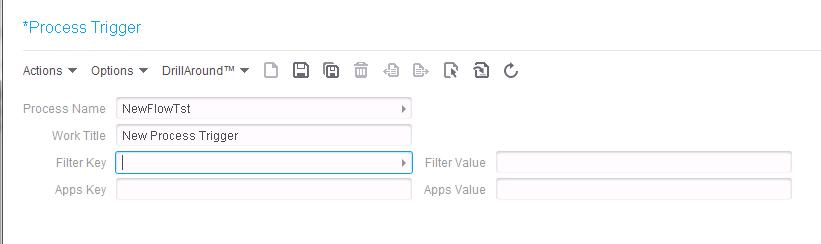
- Process Name – Click the arrow to search for your newly-uploaded process
- Work Title – Important: this field does not appear to be required, but if you do not fill it out, you will receive an error in the scheduler, and the flow will not run
5. Click Save 
6. Once you click Save, you will have an opportunity to add variables that need to be passed into the flow
Run the Process Manually
There may be occasions where you need to run a process ad-hoc. Once you have created your trigger, you will be able to do this.
- Log into Rich Client
- From the Start menu, navigate to Applications > Process Server Administrator > Scheduling > By Process Definition
- Find your Process in the Process Triggers list
- Right-click and select Start, or highlight the flow, and select Actions > Start

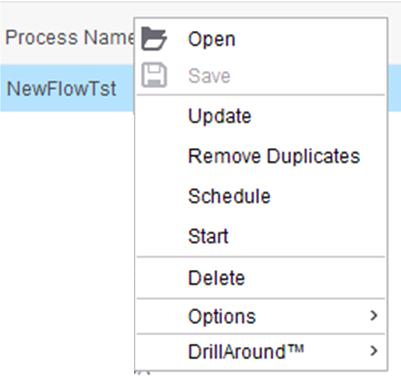
- The process will begin running, and a work unit will generate
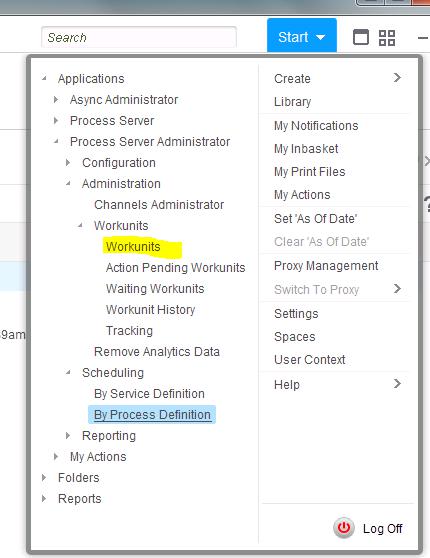
- To check the status of your process, navigate to Start > Applications > Administration > Workunits > Workunits

- Double-click on the workunit to see the result


Schedule the Process
- Log into Rich Client
- From the Start menu, navigate to Applications > Process Server Administrator > Scheduling > By Process Definition
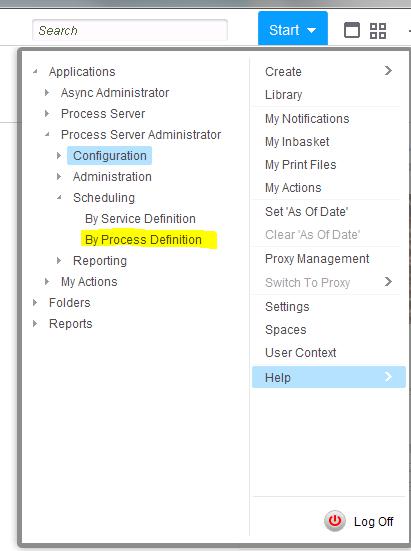
- Find your Process in the Process Triggers list
- Right-click and select Schedule, or highlight the flow, and select Actions > Schedule

- Fill in the schedule properties

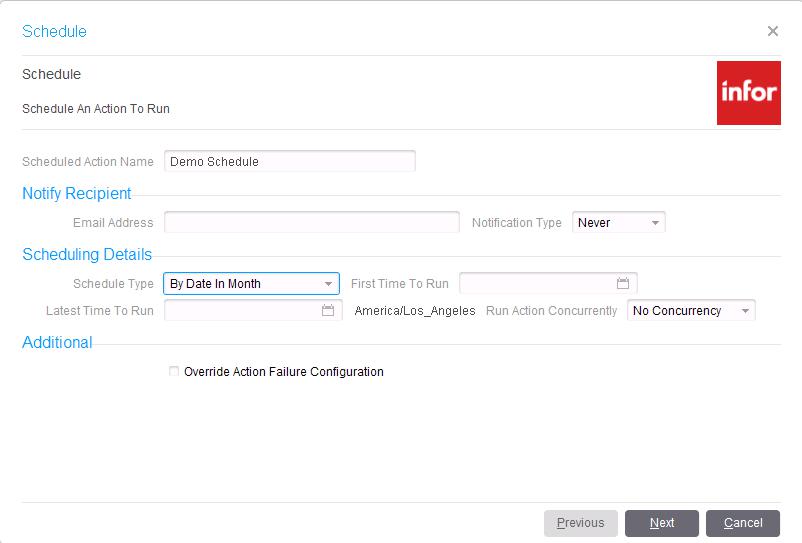
- Click Next
- Enter the time and date information

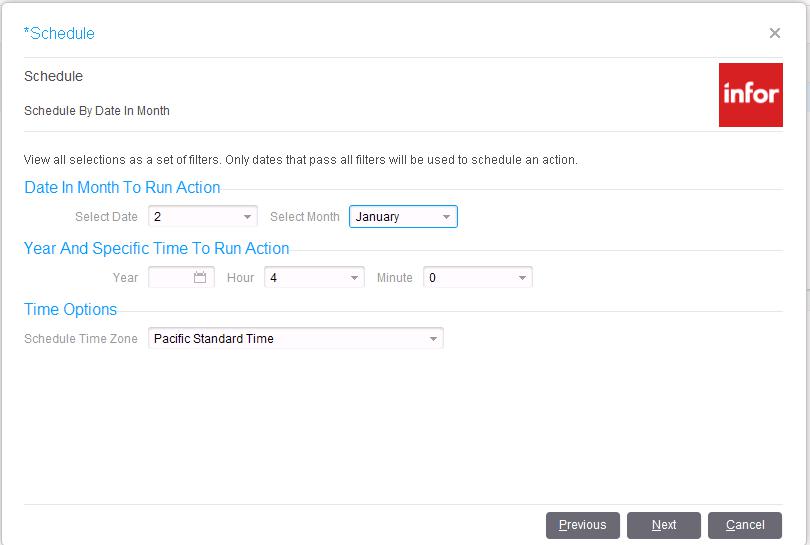
- Click next
- Click Finish

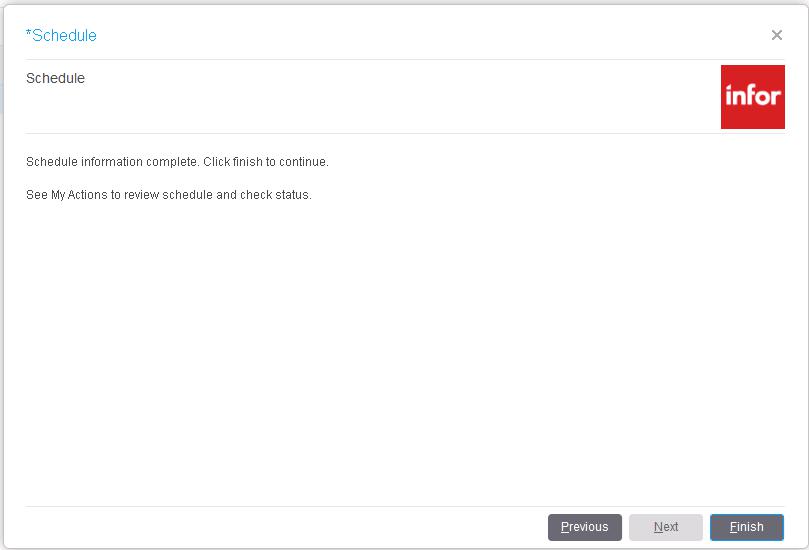
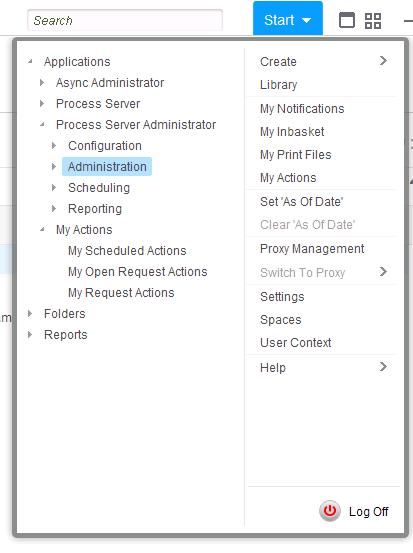
- To view or update your schedule, navigate to Start > Applications > Process Server Administrator > My Actions > My Scheduled Actions

Retiring Lawson, PeopleSoft, or Oracle? APIX archives the entire application — every table, every year, attachments and security included — into your own AWS account in about 30 days, so you can decommission the legacy system and keep full access to the history.

